Share documents in an easy-to-view format by saving files as a PDF in Microsoft Word. Generate a PDF to preserve document layout, fonts, and copy, making sure it appears consistently on every device. PDF files are a preferred format when submitting a report, sending a proposal, or collaborating with stakeholders who may not use Word.
Work with Copilot in Word to generate editing suggestions if needed, then save a professional PDF that’s ready for review, approval, or sharing.
Read on to explore best practices for saving a Word document as a PDF file. Learn how AI can help run checks to streamline editing for quicker reviews and approvals, before exporting in Word.
How to save a Word document as a PDF in Word for the web
Follow these steps for a quick, reliable PDF download when working online.
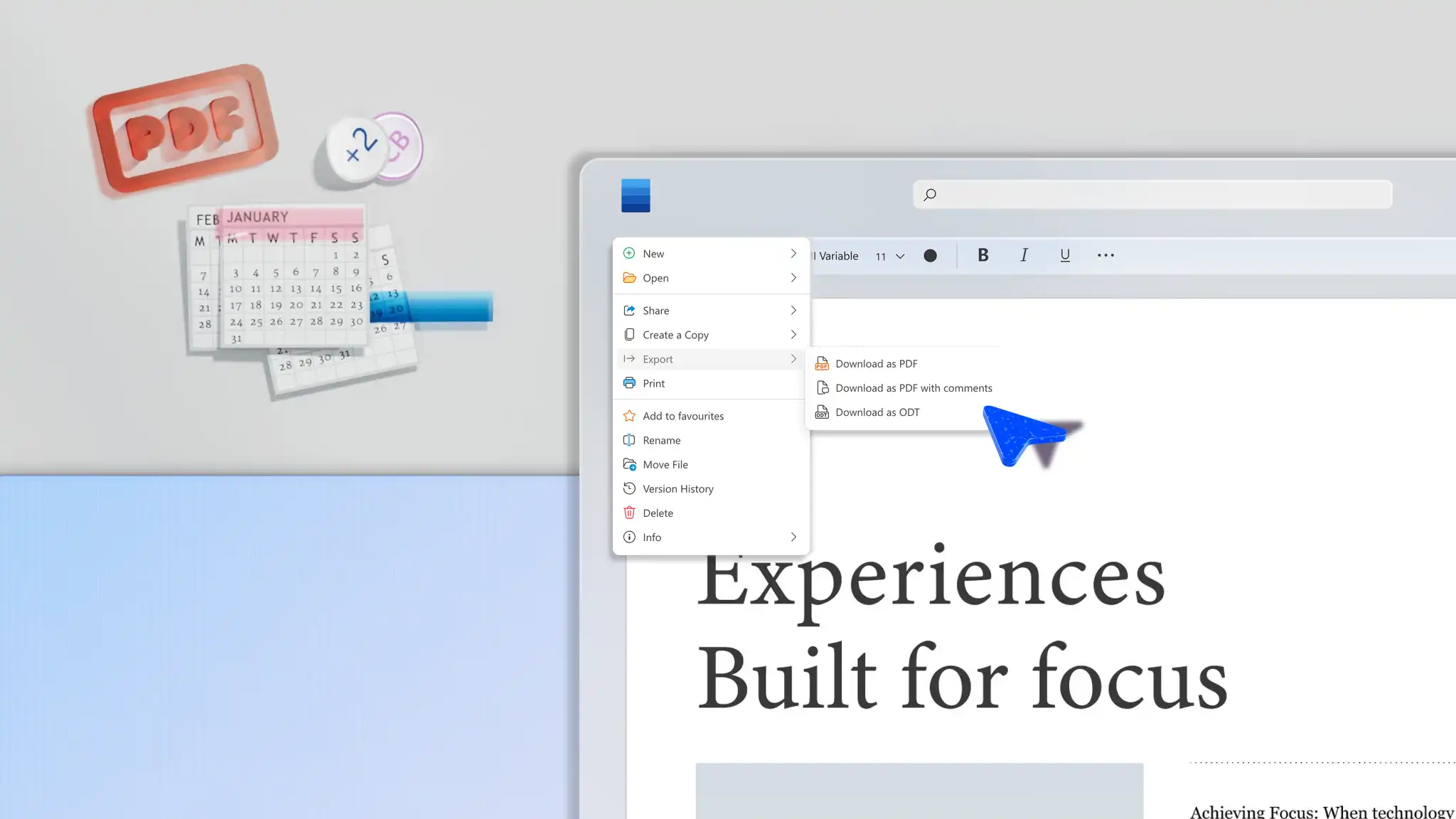
Select the File tab on the ribbon in Word for the web.
Next, click Export to access different downloading options.
Select Download as PDF or Download as PDF with comments from the dropdown menu as needed.
How to save a Word document as a PDF on Windows
Use these steps to download consistent PDFs when working online on a Windows device.
Click on the File tab in Word for the web on a Windows device.
Choose the Save as option, then select PDF.
Next, click on the Options button to set a page range, bookmarks from headings, accessibility tags, or choose to include markup.
Once finalized, click on the Save button.
How to export a Word document as a PDF on Windows
Control the quality of PDF files before downloading and sharing by following these steps.
Click on the File tab in Word online on a Windows device.
Next, click on the Export button, then select Create PDF/XPS.
Under Optimize for, choose Standard (publishing online and printing) for best print quality.
Select Minimum size (publishing online) only if you need a smaller file for email/web and can accept lower image quality.
Once the settings are in place, select Publish to export.
Key differences between saving and exporting a PDF in Word
Saving a PDF in Word helps quickly create a fixed, shareable version of a document that keeps formatting, fonts, and layout intact across devices. When submitting documents like teaching templates, sharing invoices, or sending resumes, this option preserves how a page appears without requiring extra configuration, making it easier for recipients to view, print, or forward files.
Exporting a PDF in Word gives more control over how a final document is packaged, which matters when distributing formal reports, contracts, meeting agendas, or externally reviewed materials. By adjusting publishing quality, accessibility tags, and document structure, exporting PDF in Word supports compliance, readability, and long-term sharing. Selecting this saving option optimizes documents for search, accessibility, and ready for professional distribution.
If you only need a clean, fixed version of a document to share or submit, save as a PDF is the faster option. For documents such as press releases that are going to be widely shared, published online, or need to meet accessibility or compliance standards, exporting as a PDF gives more control over how they're packaged.
How to enhance documents with Copilot before saving Word to PDF
Improve page layout and formatting
Automatically find and correct any formatting errors using Copilot in Word. AI can quickly analyze document layout and formatting, suggesting any recommended changes like adding margins, improving spacing, or even where to use a heading style. Easily identify uneven fonts with assistance from Copilot, helping documents such as resumes and standard operating procedures create a lasting impression and maintain professionalism.
Summarize lengthy text
Ensure documents are easy-to-read and engaging using AI summarizer to condense lengthy paragraphs into sharp, scannable bullet points. Copilot can surface key information from large blocks of text, edit out jargon, and suggest improvements in content flow to help documents read well.
Check spelling and grammar
Speed up the proofreading process with automatic grammar and spell checks with Copilot in Word. AI does sentence-by-sentence edits to quickly identify and resolve errors in language, putting together a polished document that is ready for submission. Effortlessly double check documents like business memos, cover letters, and legal documents, so they’re ready to share faster.
Analyze document accessibility
Improve readability and enhance document navigation for detailed files such as training materials and business plans through AI accessibility and refinement suggestions. Copilot highlights copy that could require an edit, like adding alt text to images, or using accurate heading styles suitable for screen readers, streamlining documents for accessibility.
Tips for saving Word documents as PDFs
The way in which documents are saved makes all the difference to their quality and shareability. Lock in copy edits, achieve clear prints, or keep complex layouts in place with these helpful tips in mind.
Resolve tracked changes before converting: ensure reviewer activity is not visible to recipients by resolving all comments and track changes before saving a document.
Use heading styles to create PDF bookmarks: before saving, apply Word heading styles to automatically generate PDF bookmarks, enhancing navigation for longer documents.
Keep an editable copy: retain an original .docx file for future edits or save a copy to SharePoint or OneDrive for seamless editing across devices.
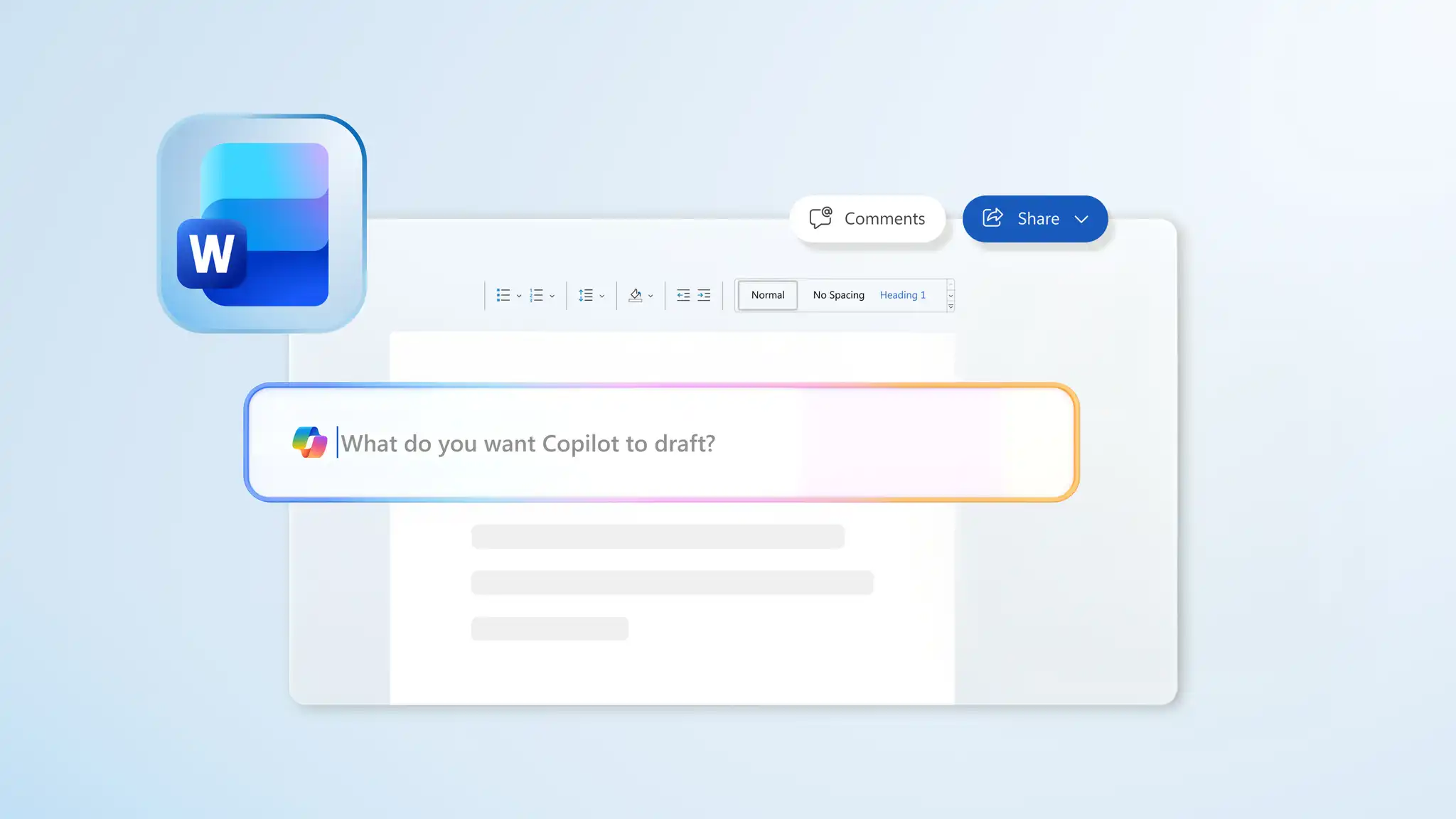
Use Copilot in Word to review before exporting: chat with Copilot to proofread, reformat, or summarize a document before saving the final version as a PDF.
Convert .docx files into PDFs in minutes directly in Microsoft Word. Use Copilot to review wording, suggest tone refinements, and tidy layouts before saving. Explore collaboration tools and pre-formatted templates to prepare documents such as business memos and training materials, then share them as PDFs.
Frequently asked questions
- How to convert a Word doc to PDF?
To convert a Word document to PDF, open the .docx file in Word for the web. Select File, then choose Export, and select Download as PDF or Download as PDF with comments as the file format. Please note converting a Word doc to PDF may require different steps for those using the Word desktop app, a MacBook, or Windows device.
- What is the easiest way to convert a Word doc to PDF?
The easiest way to save Word documents as PDFs is to use the default Export option in Word for the web. Choose to either save the file with comments or as is, depending on the need. Don't forget to proofread any file before saving to export clean and professional copy with document editor.
- Can Word save a document as a PDF for free?
Microsoft Word includes integrated options for saving documents as PDFs at no additional cost. Word for the web allows files to be downloaded as PDFs in a browser, and Word desktop apps provide Save As and Export options for creating PDF files. Before saving and sharing, use grammar and spell checker to iron out any inconsistencies in language.
- How to save a PDF as a Word document?
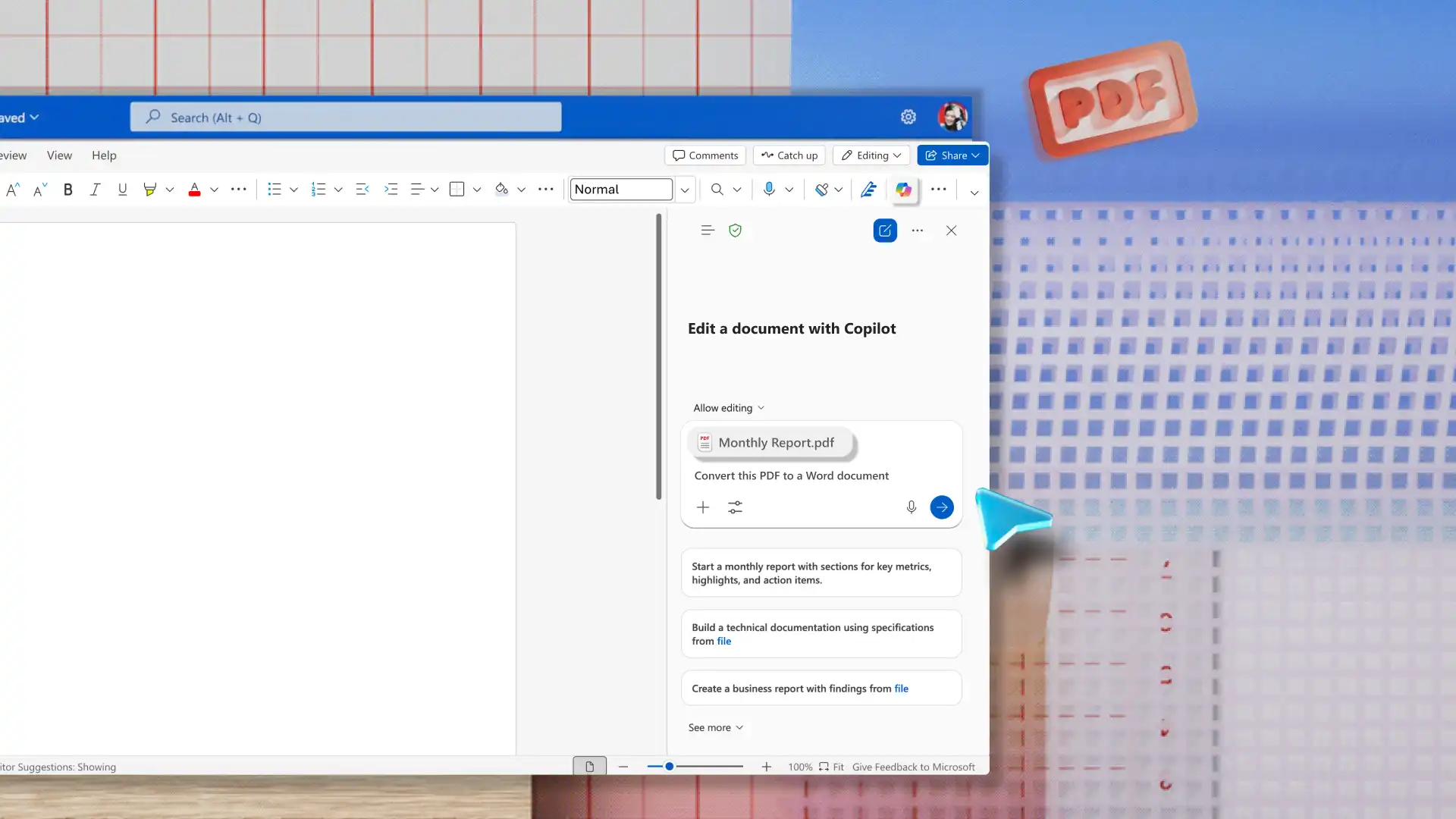
Attach a PDF within the Copilot chat in Word then ask AI to turn it into a .docx file. Copilot then extracts information from the attached copy to rebuild an editable document, although the page formatting may vary depending on the complexity of the original PDF. Once a document is created, collaborate in Word to get started on building shared files with team members.
- How to convert Word to PDF without losing formatting?
Formatting can be preserved by using the built-in PDF export options in Word and reviewing a document before saving. Ask Copilot in Word to review inconsistent heading styles, layout and spacing errors, or uneven fonts. Resolving track changes and selecting the appropriate quality settings can be useful for building clear, consistent PDFs.