Compliant legal-style documents follow a logical structure, feature clear writing, and apply consistent formatting. When finalized with precision, they are easier to understand and read professionally. If left unchecked, wording inconsistencies can reduce clarity, introduce risk, and affect stakeholder trust.
Microsoft Word provides tools to help strengthen accuracy, review mistakes, and improve wording to move documents from draft to final. Copilot in Word can help adjust tone, layout, and language, for legal writing that is suitable for a final check. With Word as the last checkpoint, share contracts and agreements more confidently.
From structuring to refining, learn more about creating polished formal documents in one single workflow using Copilot and editing tools in Word online.
What makes a legal document accurate and compliant?
Accurate legal documents rely on attention to detail across structure, language, and formatting. They are free of grammatical errors and long, winding sentences that may overcomplicate meaning. Information is neatly arranged using sections, headings, and tables, so it is easy to scan and analyze. Writing remains consistent and without jargon, while completeness in details helps create cohesive, high-quality documents.
When to review legal documents?
Turning a good draft into an impressive one often comes down to a strong final review. These key stages highlight when it matters most for improving clarity and completeness.
Before sending or sharing: proofread text to fix spelling, grammar, or formatting inconsistences, and prepare contracts or business agreements for confident sharing.
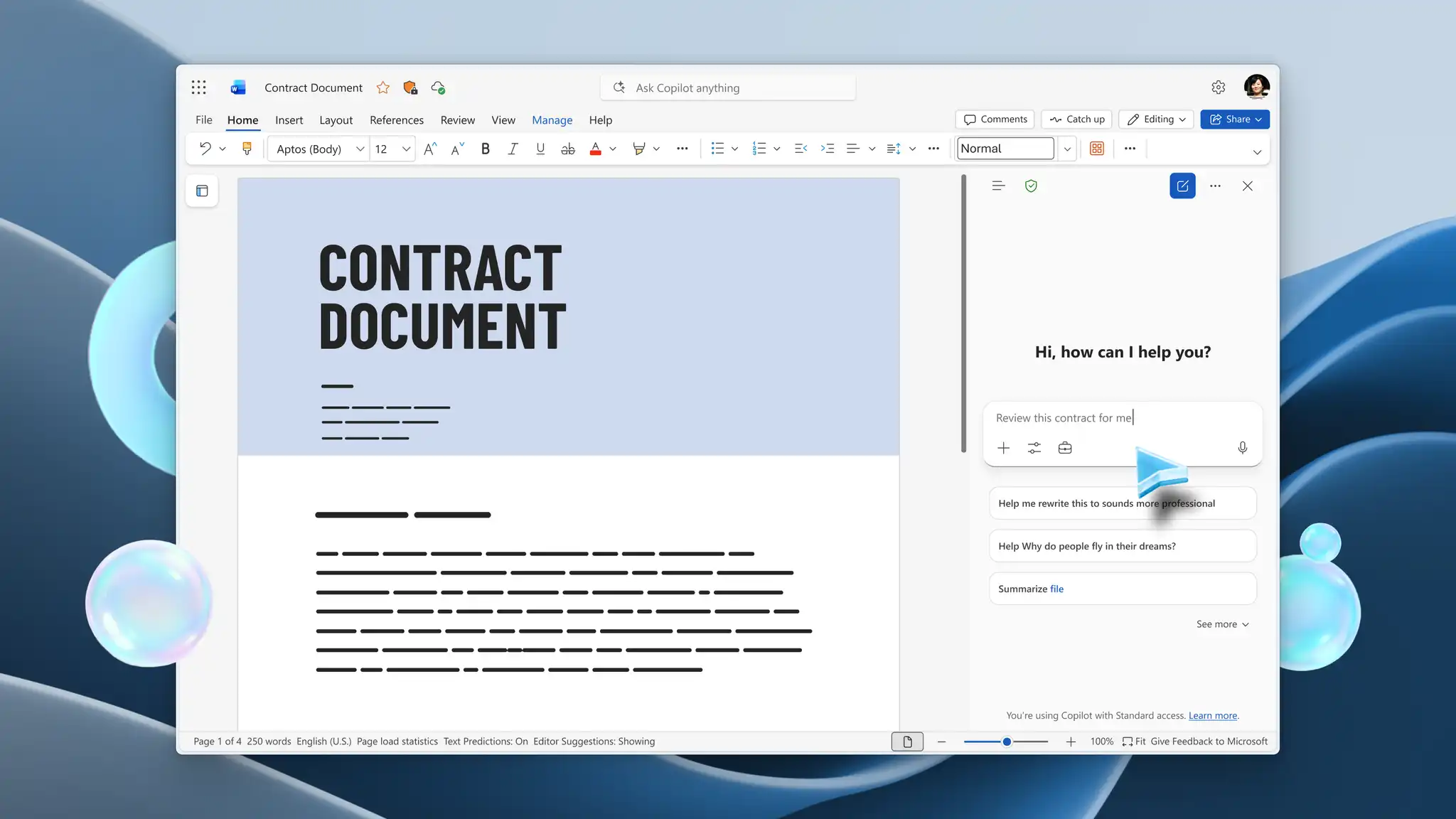
Before signing or submitting: chat with Copilot to find missing information or gaps, so everything is complete and ready to move forward.
Updating or editing existing agreements: gather feedback as teams collaborate in Word, to quickly update changes and align documents across edits.
Common issues that affect legal document quality
Even well-written documents can fall short when small inconsistencies go unnoticed. Vague wording can shift meaning, while complex definitions and formatting errors affect reading flow. Missing information and grammar errors reduce a document’s accuracy and completeness, which lowers its overall quality. Over time, these issues add up to make documents less reliable for formal use.
How to improve legal document accuracy with Word
Bring greater reliability and consistency to legal documents by editing them directly in Word. Built-in tools and Copilot help minimize inaccuracies, sharpen text, and finalize documents more efficiently.
Check grammar and clarity
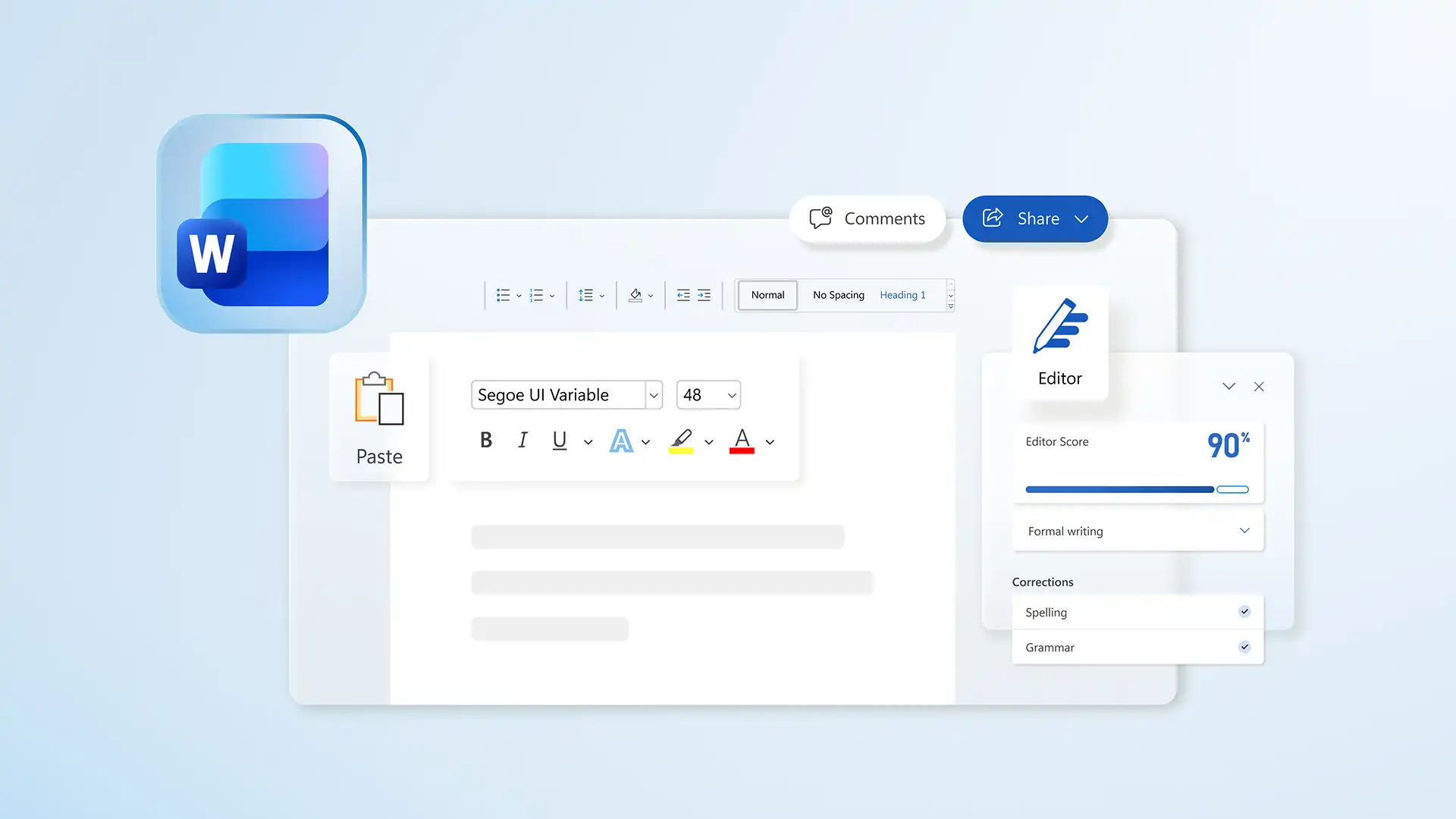
Keep errors from slipping through with document editor in Word identifying spelling, grammar, and wording issues in real time. Fix mistakes while typing to speed up proofreading and assessment cycles, ensuring only polished documents reach stakeholders.
Refine wording for precision and tone
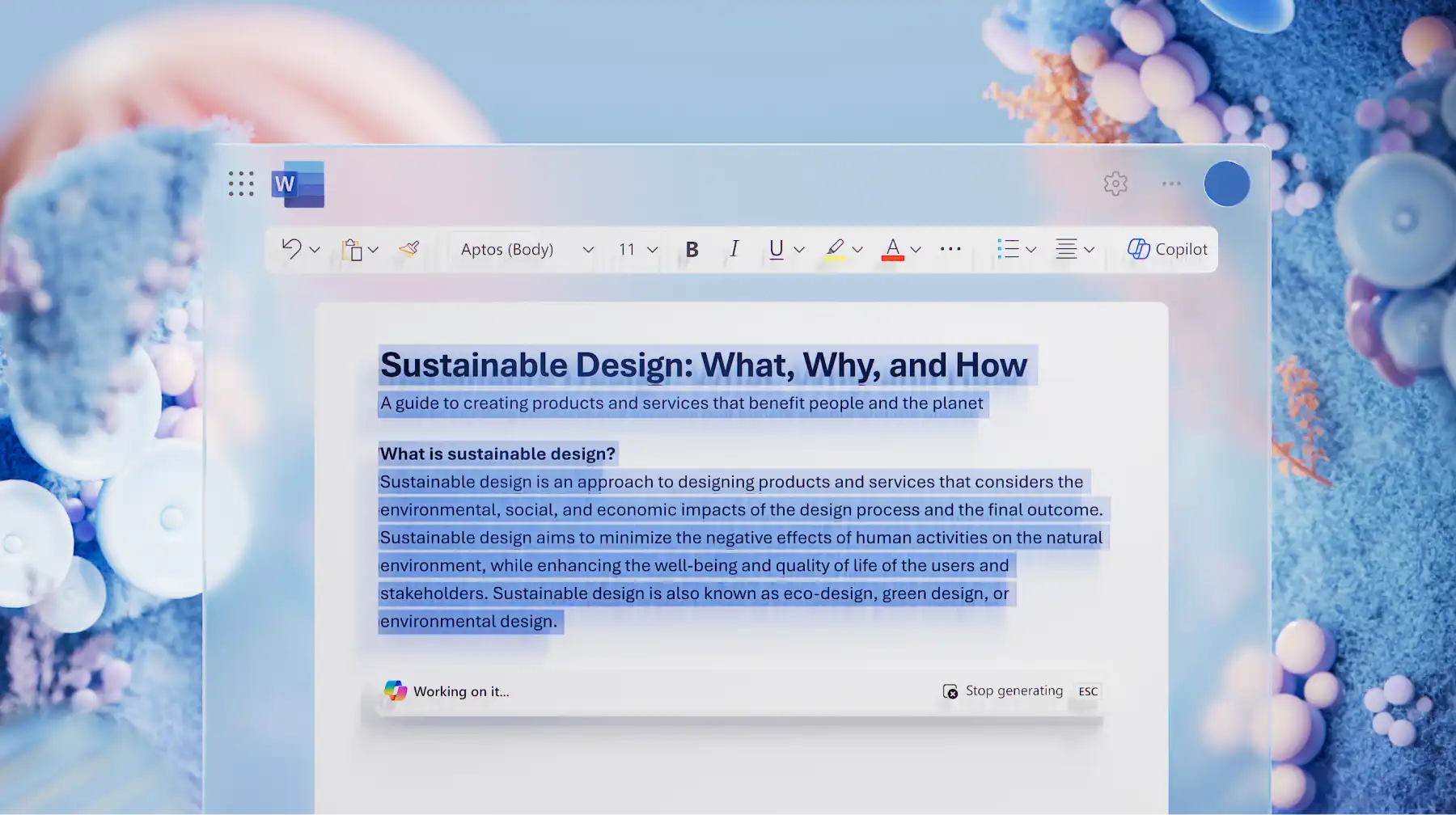
Chat with Copilot to identify wording that might be unclear. AI then swaps weak phrasing for stronger wording or adjusts tone so the document reads naturally. A precise, well-written document lowers the risk of ambiguity, reduces revisions, and shortens turnaround.
Keep formatting consistent across documents
Organize legal text in headings, sections, and templates for faster scanning and fewer formatting gaps. Apply similar styles to other formal documents to standardize legal writing style and maintain a uniform, professional output across teams. The built-in word counter helps text length stay in check, creating concise and compliant documents.
Standardize structure with templates
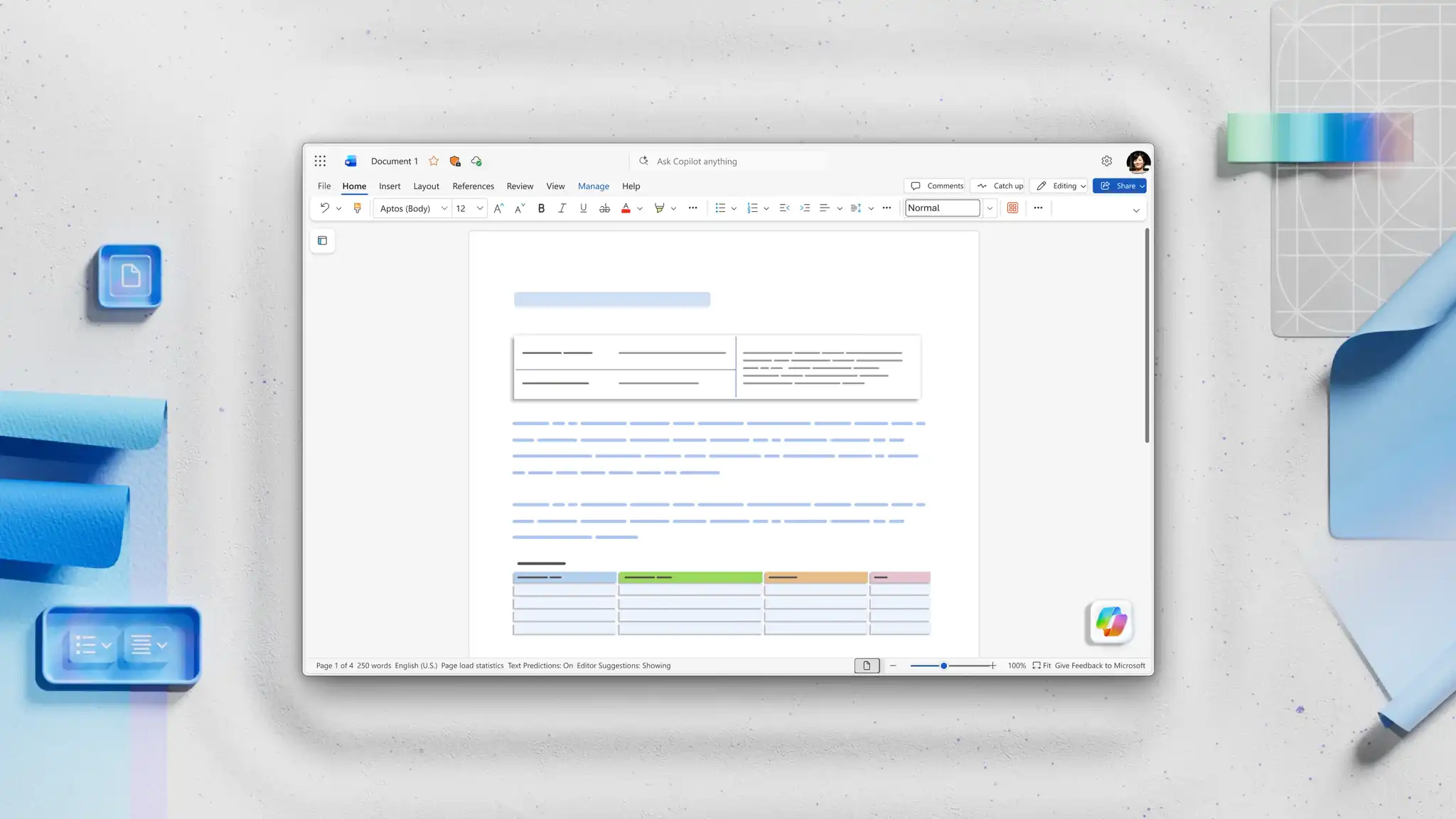
Start with a pre-built contract or agreement template, so documents follow the correct layout, include required sections, and apply approved formatting. A ready-to-use layout saves time by avoiding manual setup, reduces the risk of missing information, and ensures consistency.
A simple workflow to make documents compliant in Word
From business agreements to offer letters, applying a simple five-step workflow in Word strengthens credibility and correctness across legal documents. Adapt an organized editing approach to prepare documents for signing, record-keeping, or submission in minutes.
Analyze text for clarity: catch phrasing, grammar, and cohesion issues early using editing tools, as minor oversights can impact the accuracy and reliability of documents.
Apply revisions instantly: use Copilot to surface language mistakes, then find suitable replacements with AI rewriter to retain document meaning.
Structure documents clearly: arrange text using well-defined headings, sections, and consistent formatting for optimizing flow and navigation.
Proofread for accuracy: run final checks across documents using document editor, drafting text that meets professional standards and is ready to share.
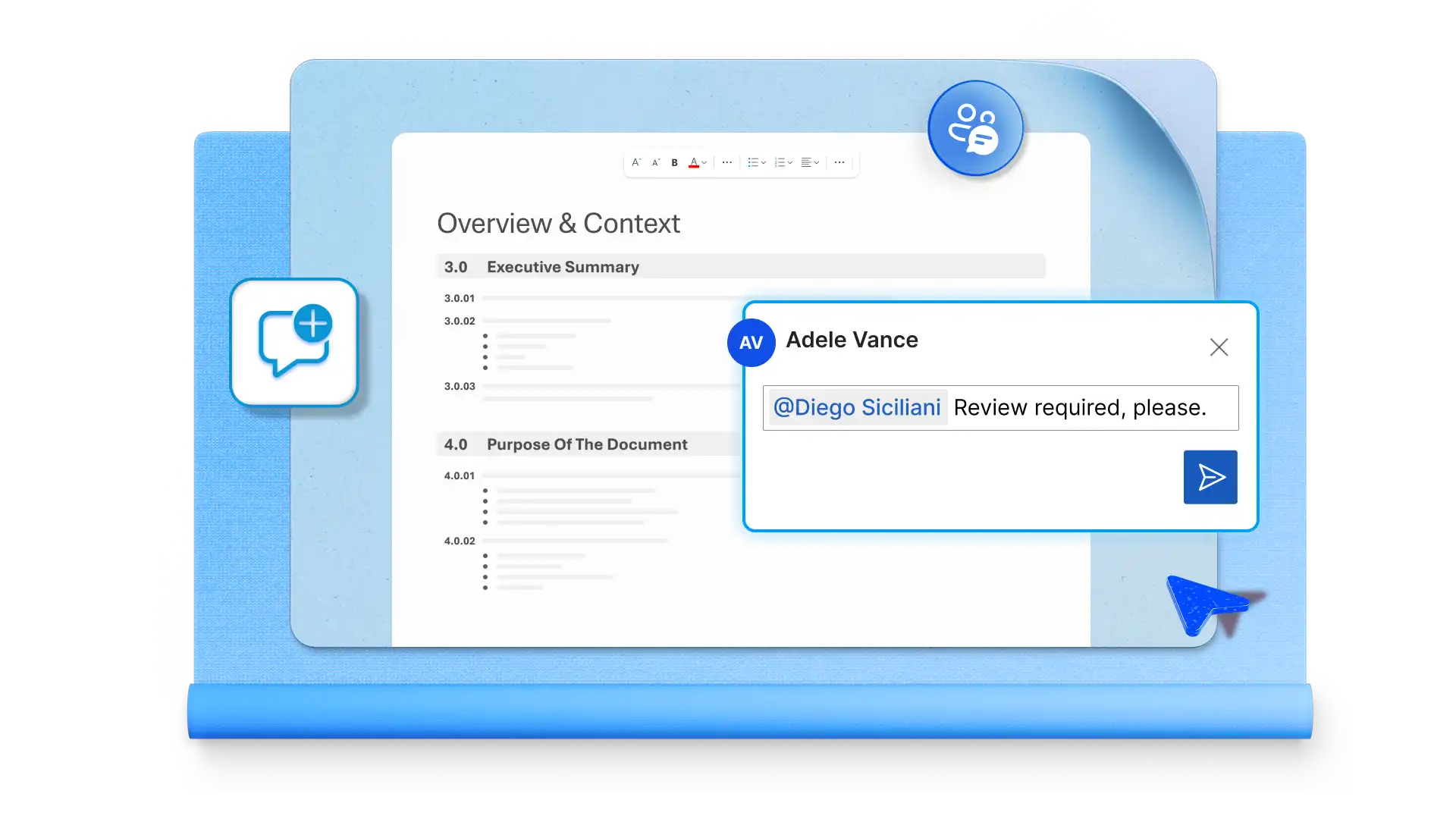
Share securely and confidently: invite collaborators to provide feedback asynchronously via a secure OneDrive link, or download as a PDF to send a complete, accurate contract to stakeholders.
Finalize documents in Word to ensure they are clear, compliant, and review ready. Editing tools, templates, and AI come together to refine text, fix errors, and strengthen formatting in one streamlined process.
To create other formal documentation, explore business planning templates and training manuals in Microsoft Word.
Frequently asked questions
- What makes a legal document compliant?
A legal document is compliant when it follows an organized layout, uses aligned terminology, and includes all required information. Tools in Word, such as templates, document editor, and AI rewriter help strengthen legal document quality and enhance structure.
- How to improve legal writing clarity?
Good legal writing begins with using precise language, shorter sentences, and consistent terms throughout the document. The text is often beginner-friendly and simple to follow. Ask Copilot to identify complex phrasing and suggest improvements and use grammar checker to keep sentences error-free.
- Can grammar mistakes affect legal documents?
Grammar issues can often change meaning and introduce ambiguity, which may lead to misinterpretation. Even small problems can reduce simplicity and make documents harder to trust. When editing legal writing, rely on spell checker and grammar checker to highlight mistakes in real time, for seamless proofreading.
- What tools can help check legal documents?
Editing tools in Word can help check grammar, phrasing, and formatting in one place. Built-in document editor identifies issues during typing, while AI rewriter can suggest better phrasing or highlight gaps. Templates and styles also help maintain consistency across documents.
- How should legal documents be formatted?
Legal documents should be organized with straightforward headings, defined sections, and consistent formatting throughout. This refines readability and makes the document easier to review and manage. Using Word templates and styles helps standardize layout and ensures nothing is missing.