AI writing with Copilot in Word
Try AI writing prompts and AI word generator with Copilot in Word. Save time drafting...

Create, edit, and summarize documents online with AI using Copilot in Microsoft Word.


Move from a blank page to a clear draft in seconds with AI writer. Provide Copilot with a topic, goal, and outline to generate a well-structured document. Refine, expand, and polish to match writing style, audience, and purpose.

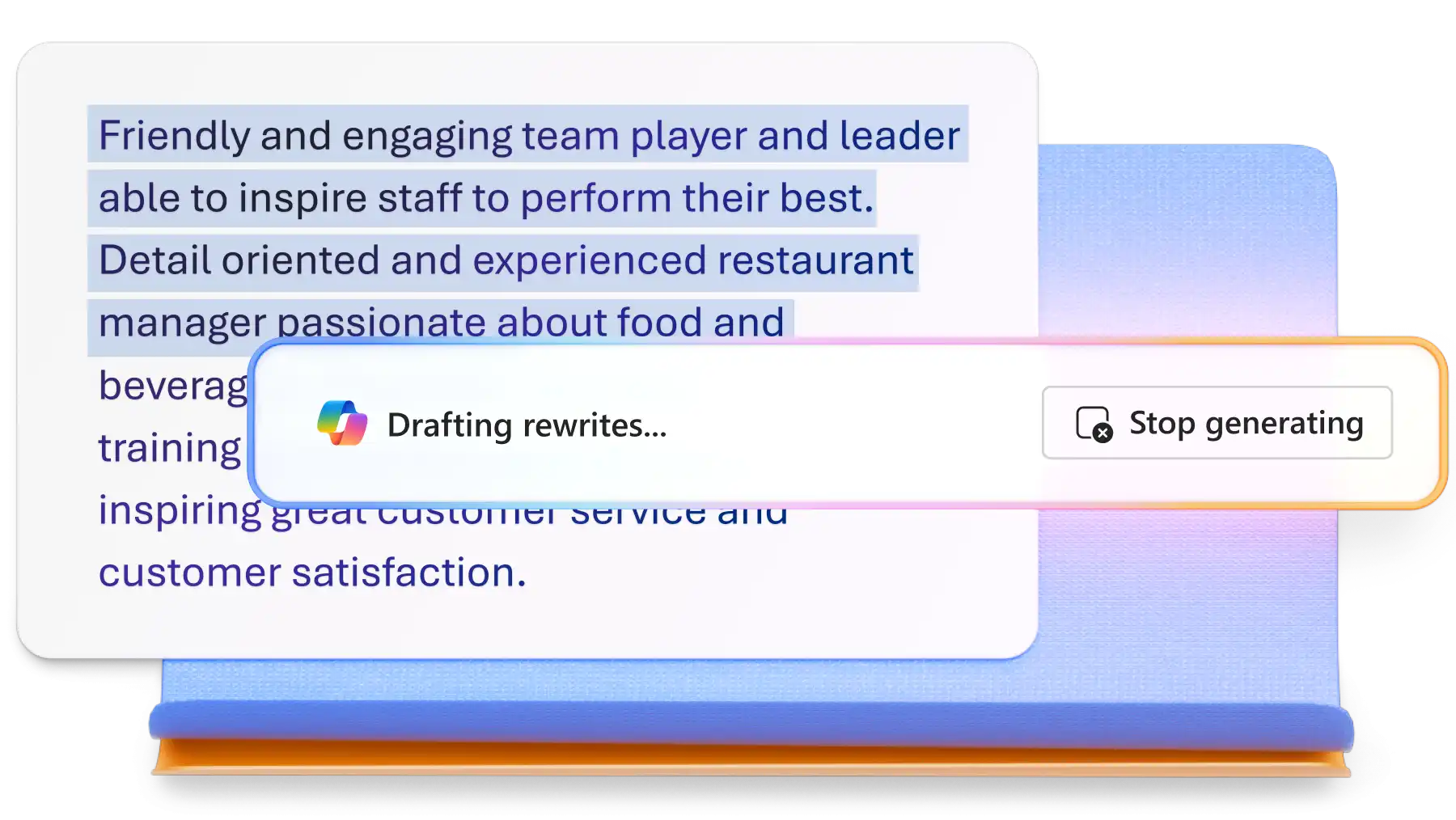
Turn rough drafts, outdated content, or short paragraphs into clearer, more complete writing with Copilot in Word. Seamlessly expand ideas, add more detail, and update documents while maintaining the intended message.

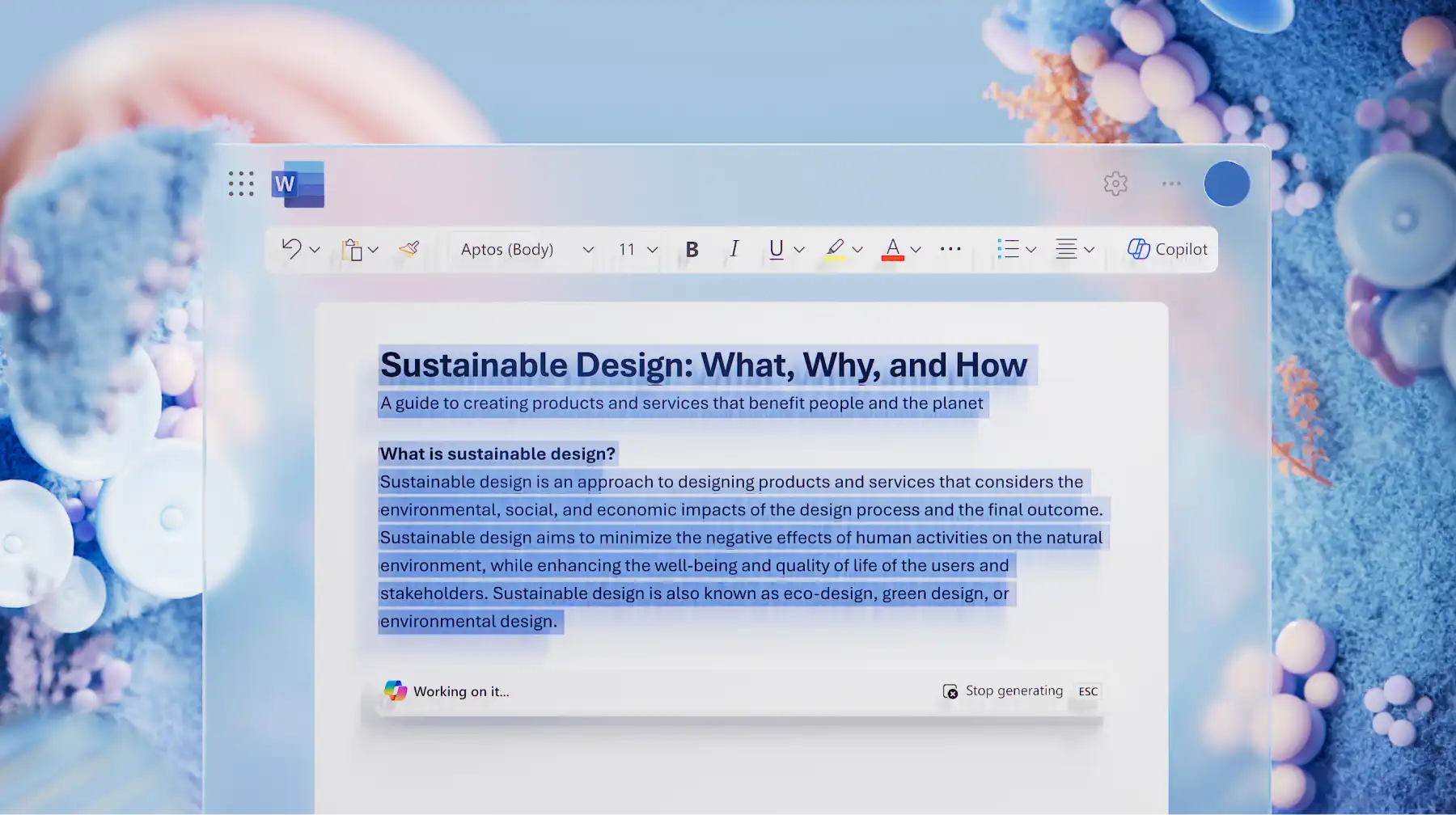
Save time reviewing lengthy content using AI summarizer. Turn long documents into concise summaries that highlight key insights, important details, and action items. Share essential information without reading every page.
watch and learn
Write, edit, proofread, format, or organize documents faster with Copilot in Microsoft Word.
Chat with Copilot to quickly build structured, polished documents such as reports from scratch, training guides, and technical document templates. Include any reference documents, notes, and the required writing style to help Copilot produce a first draft in minutes.


Use Copilot to edit and refine lengthy notes into clear, structured sections for technical documents. Break up dense text into shorter paragraphs that are easier to read, scan, and share across newsletters, blogs or emails. In legal contracts and agreements, Copilot can help spot ambiguous language and suggest refinements to enhance accuracy.
Use Copilot to condense long documents into concise summaries that highlight the most important points. Copilot identifies key ideas, themes, and decisions from complex files like business proposals or SOP training materials, making it faster to understand essential information.
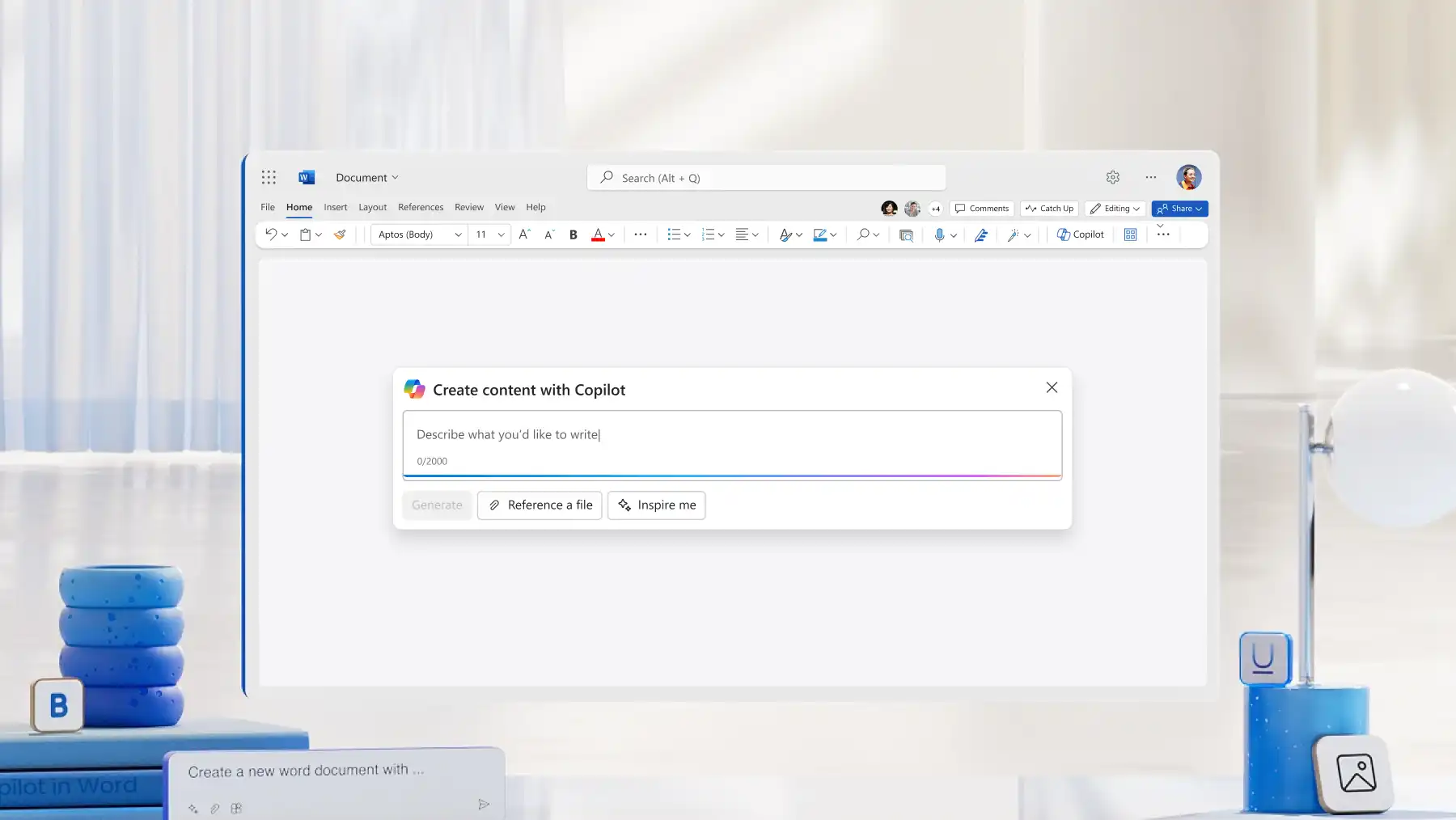
Chat with Copilot and tell it what you'd like to create, rewrite, or summarize.
Attach files, upload documents from OneDrive, or provide links from the web for reference.
Review and refine the tone, formatting, and style or give more information to Copilot.
Insert the finalized copy into the Word document or copy it to use elsewhere.
Copilot appears in Word when an active Microsoft 365 subscription with Copilot is available. With a valid subscription, the Copilot icon shows at the top of the Word window. Select it to open the chat panel.
There is no fixed word or character limit in Word. Copilot accepts long prompts, but very large inputs may be shortened automatically. Keeping prompts focused helps Copilot produce clearer results.
Copilot creates drafts based on the context provided, but the content should always be reviewed. Check for accuracy, clarity, and the level of detail needed for the task.
Copilot uses the same security, compliance, and privacy controls as Microsoft 365 services. It only uses data the signed‑in user already has access to and does not widen access to files. Prompts and generated content stay within the organization's Microsoft 365 environment.