
Document editor
Create and edit web-based documents with Microsoft Word. Store documents online and...
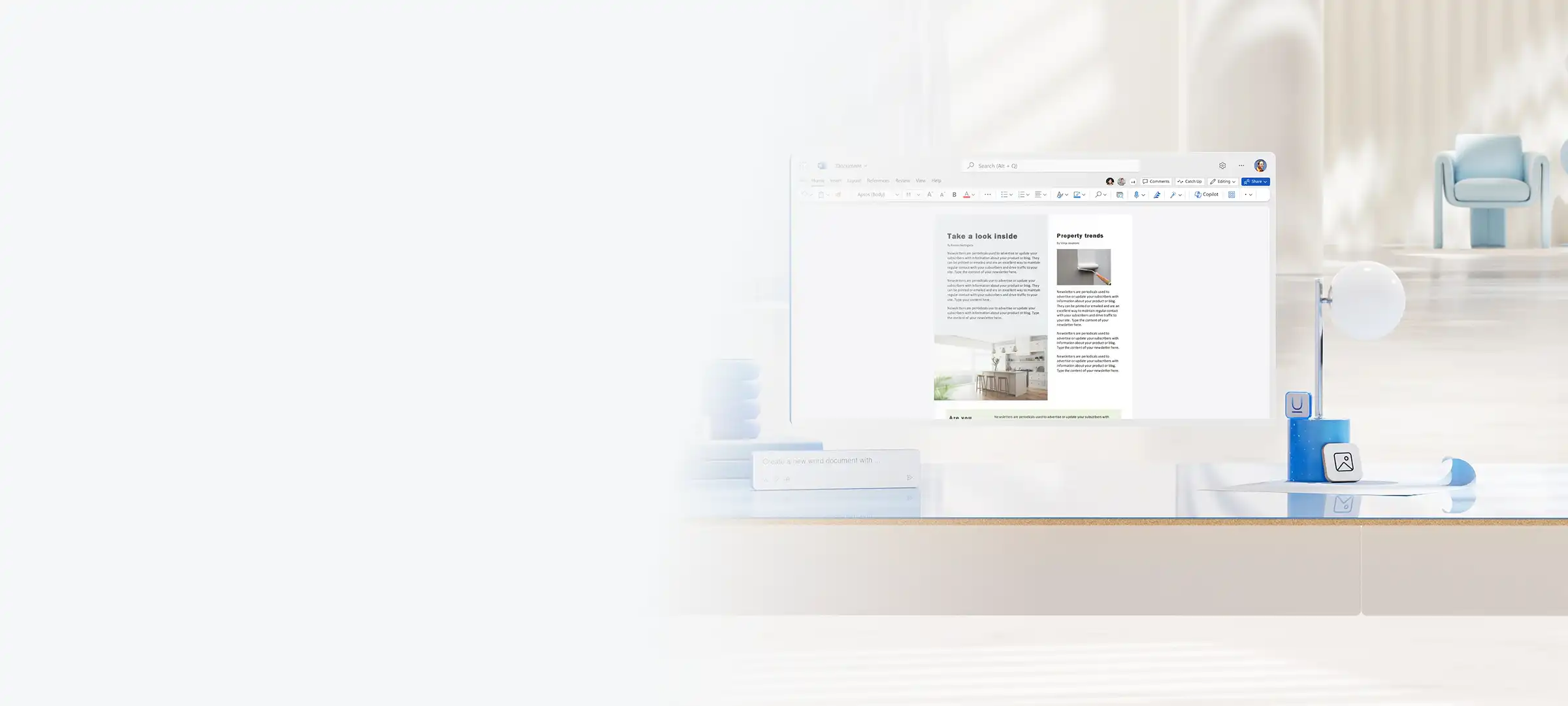
Create quality newsletters with customizable templates, easy design features, and AI in Microsoft Word.


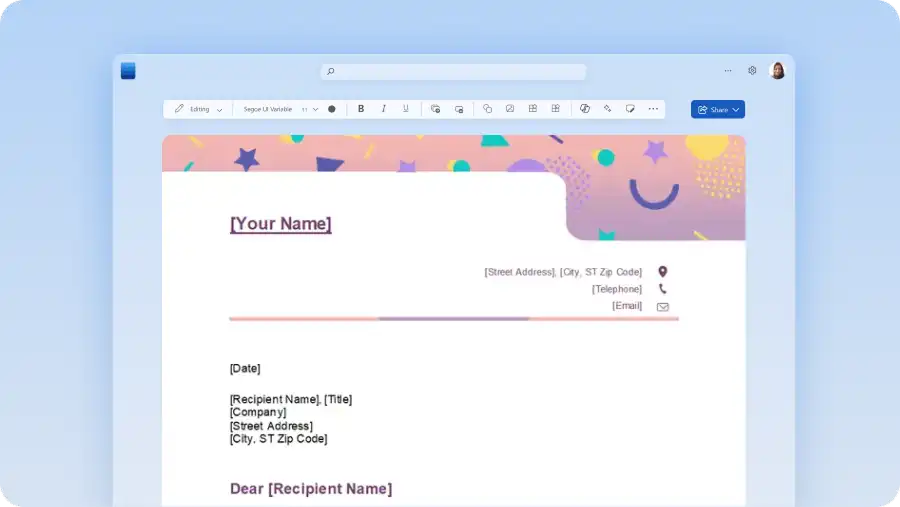
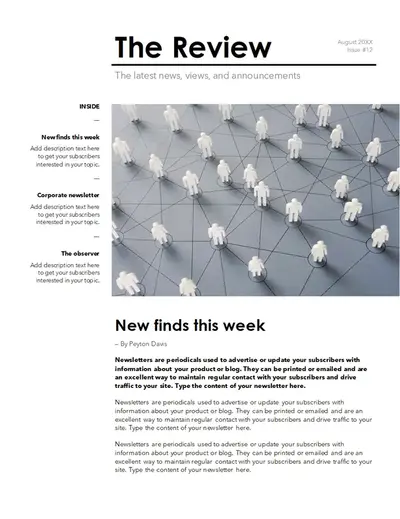
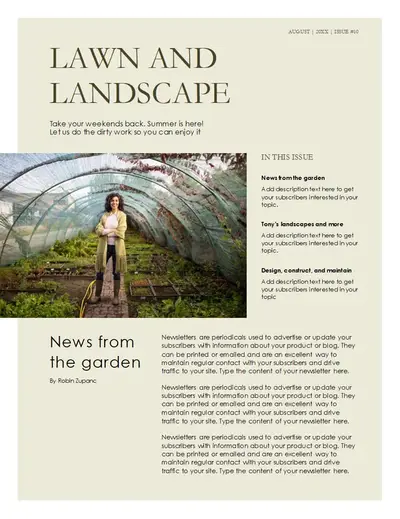
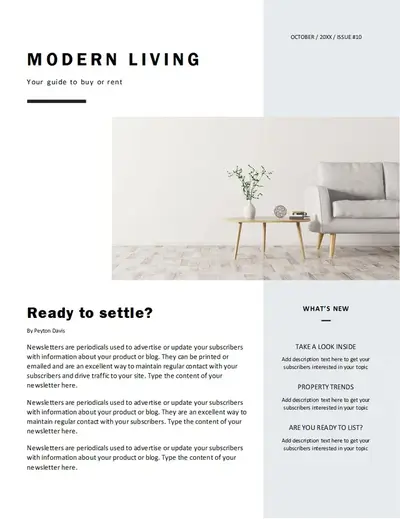
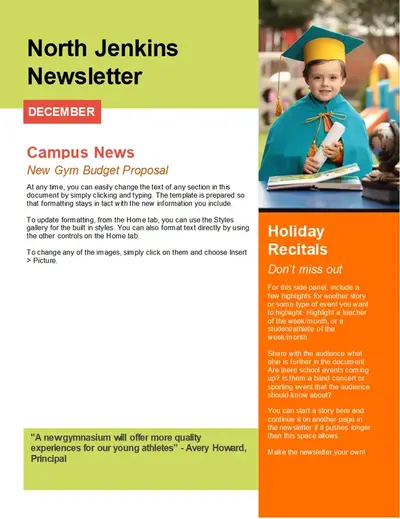
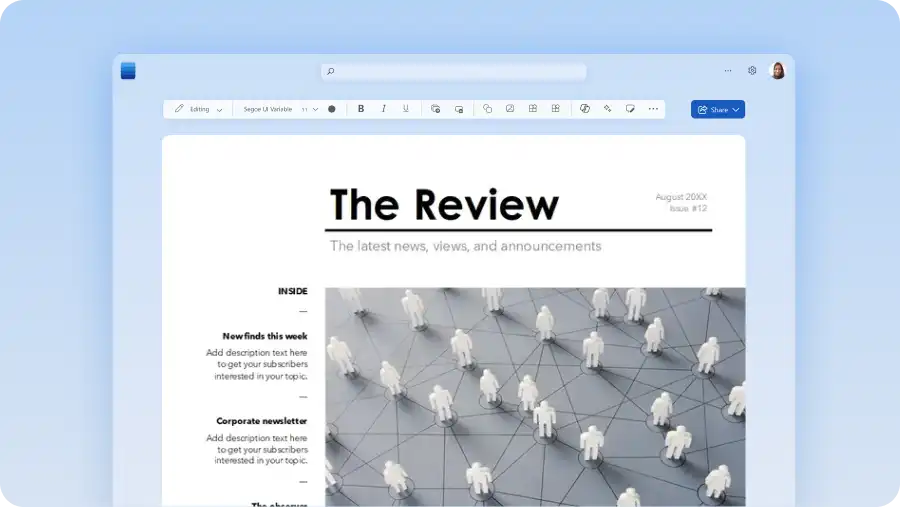
Choose from a variety of visually rich newsletter templates and personalize the text and logos, and edit design and formatting in Word. Add finishing touches using free images, icons, and graphics or upload your own media to polish your newsletter.

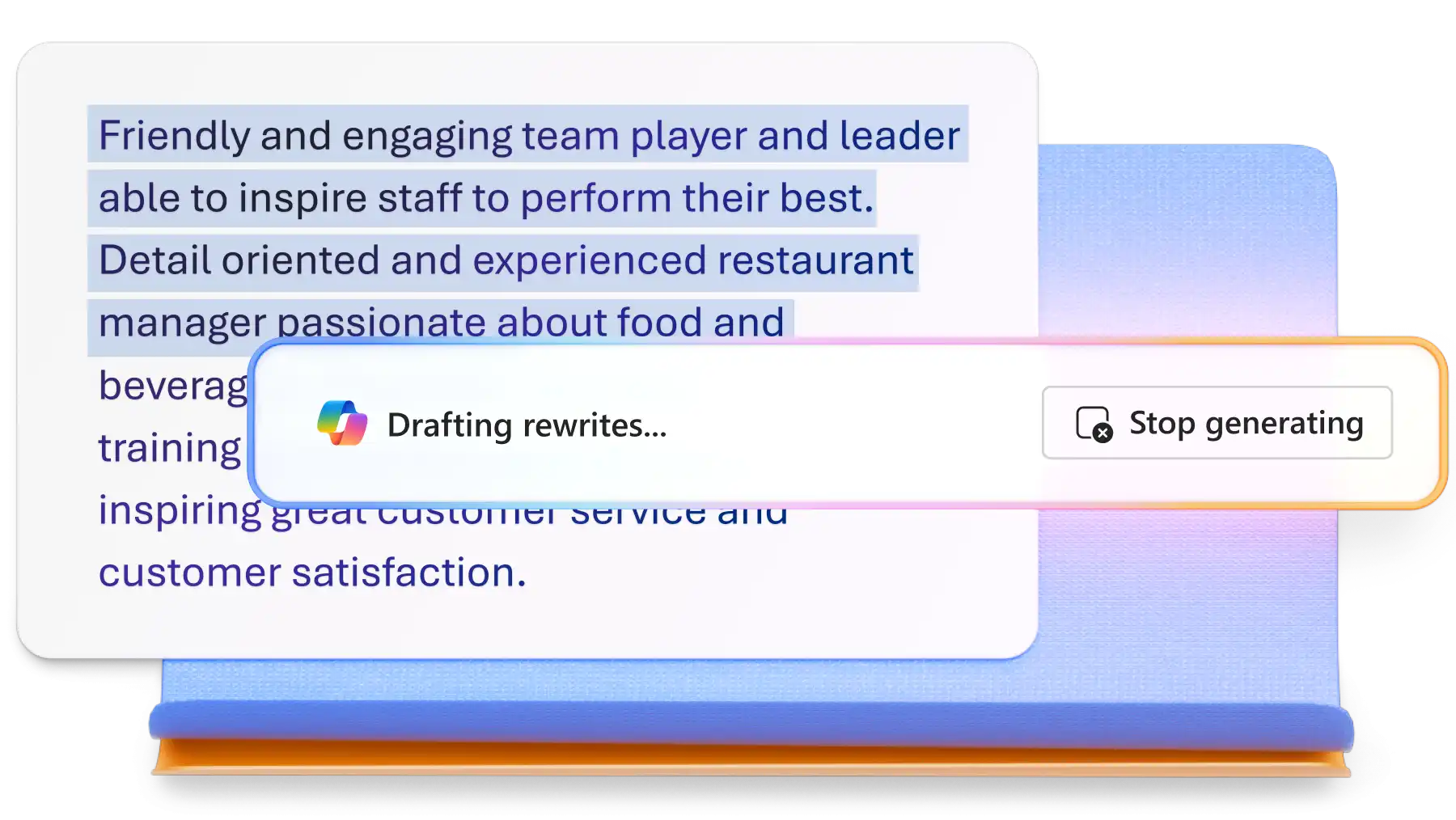
Chat with Copilot in Word to generate content ideas with AI or ask Copilot to draft and rewrite content by referencing existing documents or emails. Create custom AI images to complement your storytelling to make your newsletter more appealing to readers.

Effortlessly collaborate on drafts with team members to curate well-written newsletters online. Use real-time editing features like, comments and monitor edits through track changes. Seamlessly share via secure sharing links from Word online, or export directly to print-ready formats like PDF.
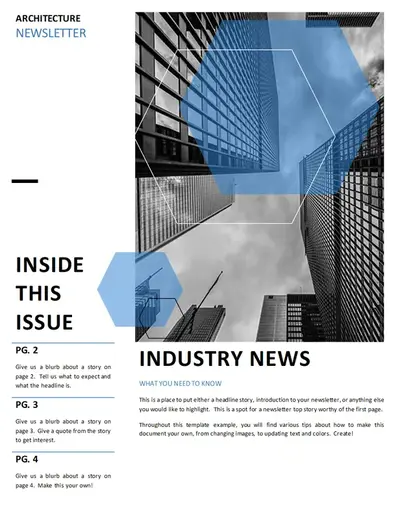
Make polished newsletters using editable Word templates that are easy to print and share personal or company news. Find the right newsletter design and layout to share business updates, school events, or key life moments.
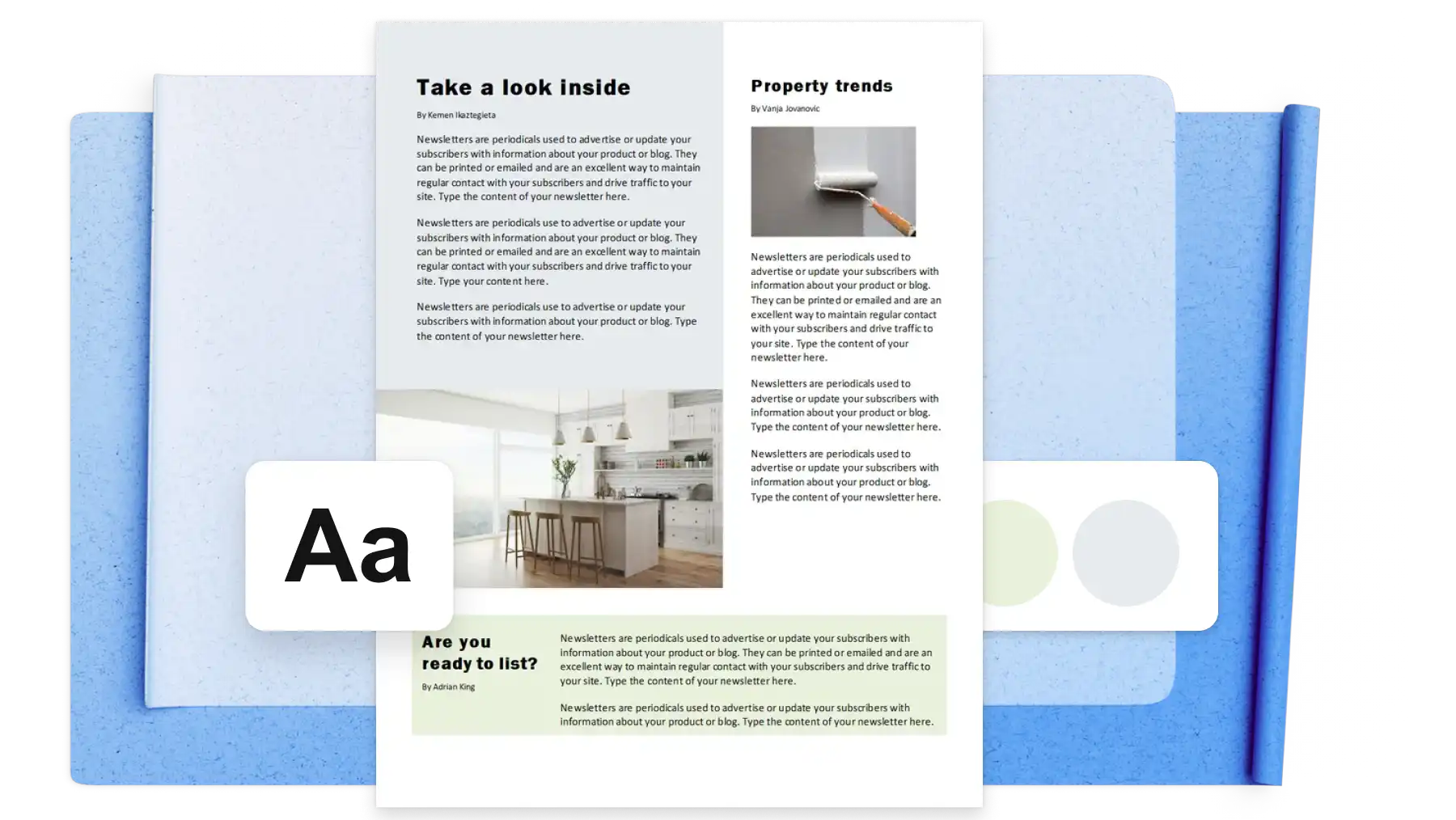
Simplify newsletter creation with a template in a professionally designed layout, ideal for email marketing like company or school newsletters, personal updates, and community events. Choose from single-column or multi-column layouts and easily adjust sections to suit headlines, quotes, and callout needs.
Use Copilot in Word to generate newsletter ideas or create a draft, just by referencing PDF documents, slideshows, or emails. Just tell Copilot what you would like to generate, and AI will automatically start creating a newsletter outline with example copy with headings and structure. AI writer can also create section titles that peek readers’ interest and suggest where to place images.
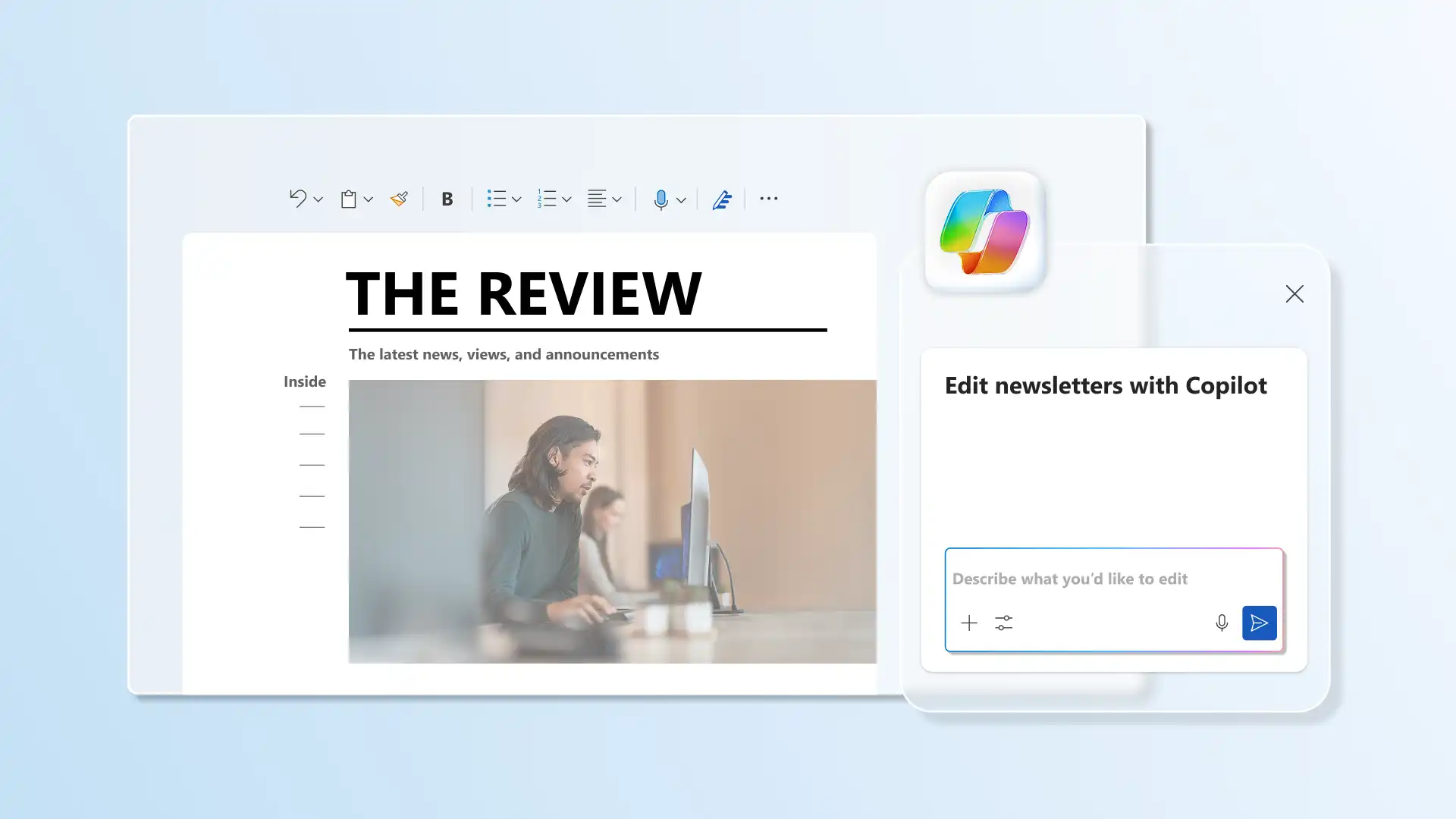
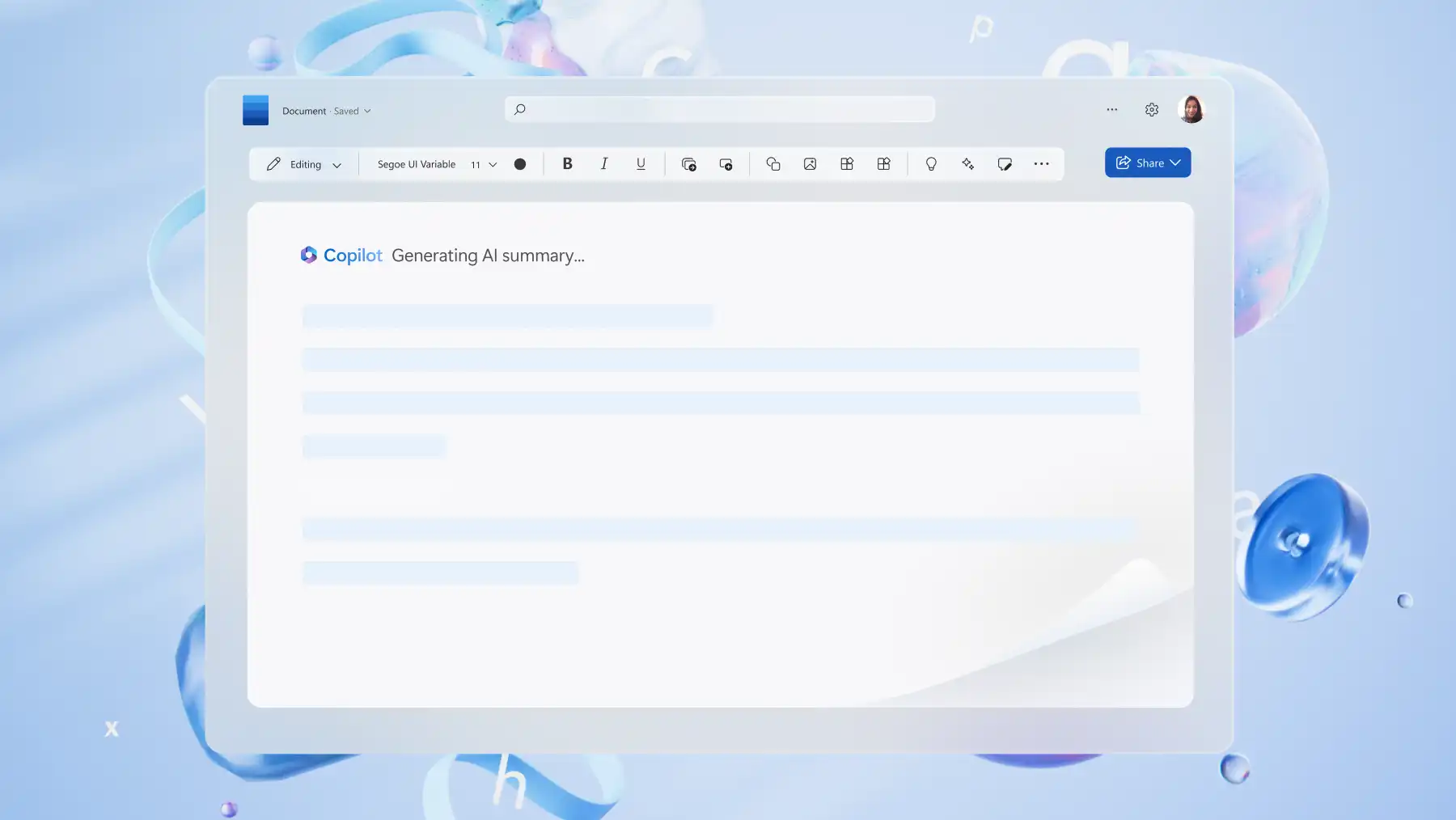
Polish newsletter writing and design faster with Copilot. Fine tune grammar with document editor or use the auto rewrite tool to express ideas with clarity and customize the tone to suit business, marketing, and even personal newsletters. Chat with Copilot to get visual and design suggestions to improve your content’s appeal. Generate an AI summary to promote the newsletters via email or social media.
Invite collaborators to add updates, make suggestions, or approve newsletter content securely with Word online. Teams can achieve editorial perfection using comments and transparent editing features like track changes. Simply invite editors through a secure sharing link, or tag to notify people to contribute to the newsletter. Restrict permissions to ‘view only’ for additional safeguards.
Perfect messaging and design, then share newsletters to broadcast updates either with a hard copy or online. Share Word newsletters online with password-protected OneDrive links, distribute as a PDF, or print the newsletter in HD quality. Work smarter by saving newsletters as a template to seamlessly reuse layout and design in the future.
Go to Word for web to explore the newsletter templates.
Double click to choose a newsletter template.
Replace the example text with personalized copy, or ask Copilot in Word to draft a newsletter for you.
Edit visuals and add images, brand logos, and preferred font styles.
Save and share newsletters online for free, download as PDF, or print and distribute copies.
Open the file in Word online, then select File > Save As > Download a Copy. These steps save the newsletter as a .docx file on your desktop. Alternatively, if you need a print-ready version, select Download as PDF from the same menu. For more help, explore how to save Word documents as PDF.
To insert a newsletter logo in Word for the web, go to Insert > Pictures, then choose a logo file from your computer or cloud storage like OneDrive. Add a professional touch to newsletters by placing the company logo in the letterhead, footer, or as a watermark.
The best format for a newsletter depends on whether the audience is online or in the real world. Writers should choose a format like a Word document, that’s easy to create, customize, and share across multiple channels. The ready-to-use newsletter templates in Word are optimized for both digital and print formats, including A4 and U.S. letter sizes for professional layouts.
The most popular newsletters combine clear, concise copy with a strong voice and consistent value, helping readers stay informed quickly and easily. Popularity depends on the audience and topic.
The most effective newsletters combine clear structure with engaging content, making it easy for readers to scan, understand, and act. The eight basic parts of a newsletter are: a recognizable header, a compelling subject line, an engaging introduction, a main feature or story, supporting content sections, visual elements to enhance readability, a clear call to action, and a footer with essential information.