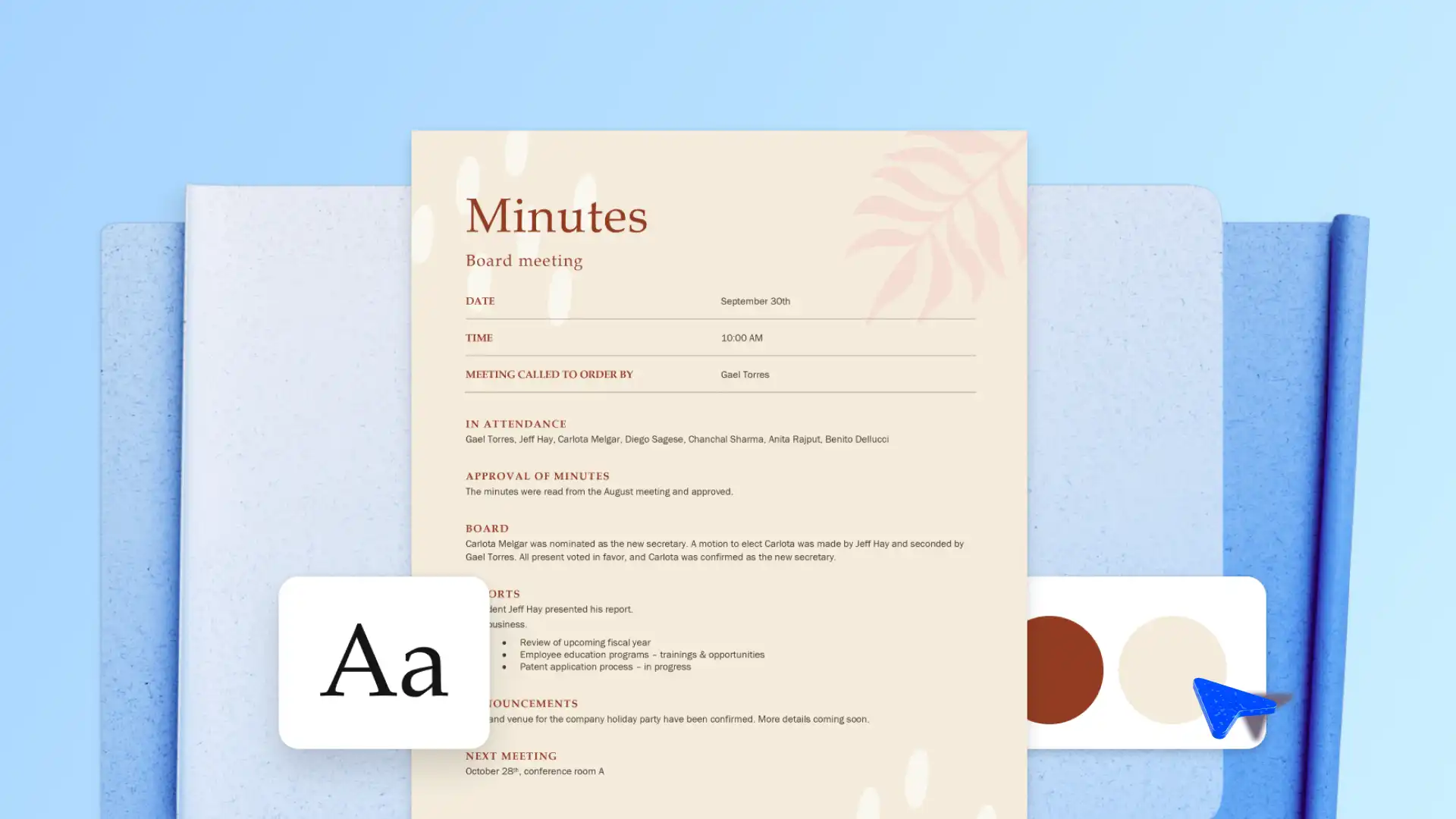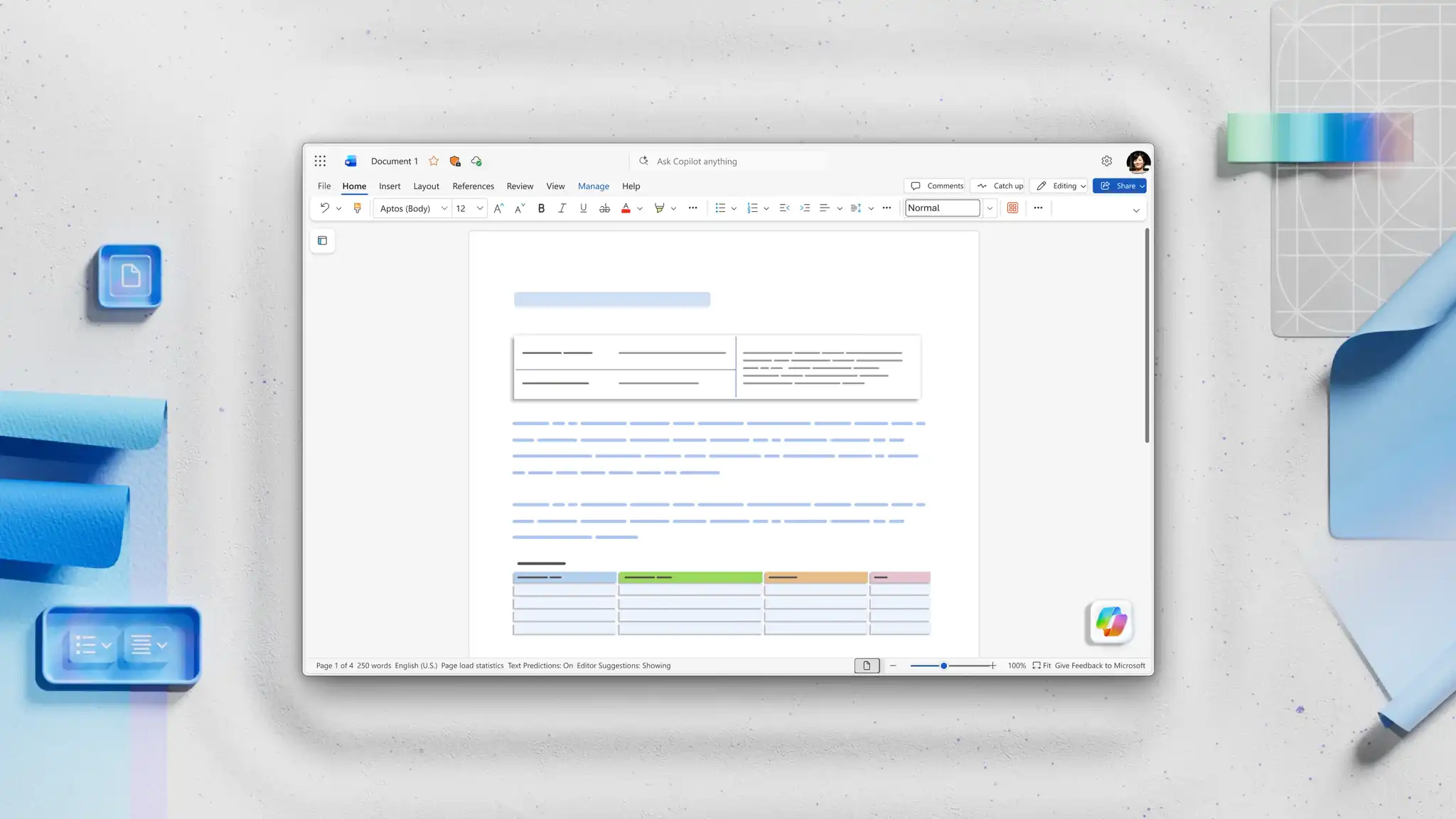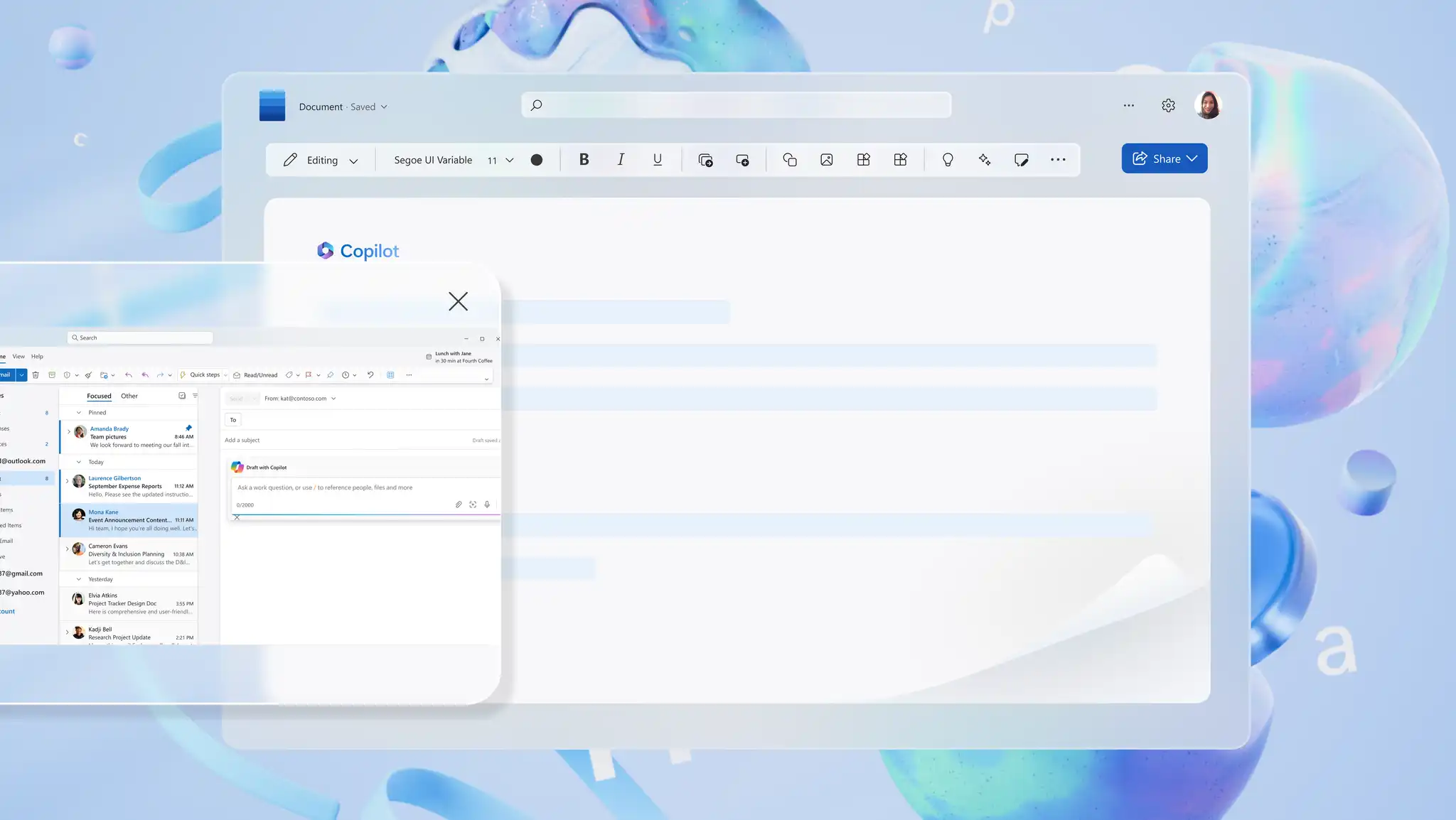
Turn long documents into clear, ready-to-send emails without manual rewriting. Summarize any document into an email with Copilot in Word, complete with a subject line, summary, and tailored action items. Quickly draft important updates and approvals or share meeting recaps by email in minutes.
Explore when and how to turn documents into concise emails with AI in Microsoft Word online.
How to turn a document into an email using Copilot in Word
Drafting an email from scratch takes time. Copilot pulls the email straight from an open document, complete with a subject line, structured summary, and clear action items.
Open a document like a report, meeting note, or proposal in Word, then open Copilot to start a new chat.
Describe the email you would like to generate within the Copilot chat. Include the type of email (update, recap, approval request), the recipient role, and the topic. A clear, specific instruction delivers a usable draft on the first try.
Specify email language formality, word count, and add structure suggestions like subject line, key points, action items for better results.
Review the AI-generated email draft. Check that the summary captures the key points from the reference document and that the tone matches the recipient.
Refine the draft with follow-up instructions. Ask Copilot in the same chat to make the email more direct, expand a section, or rewrite for a different audience without restarting the chat.
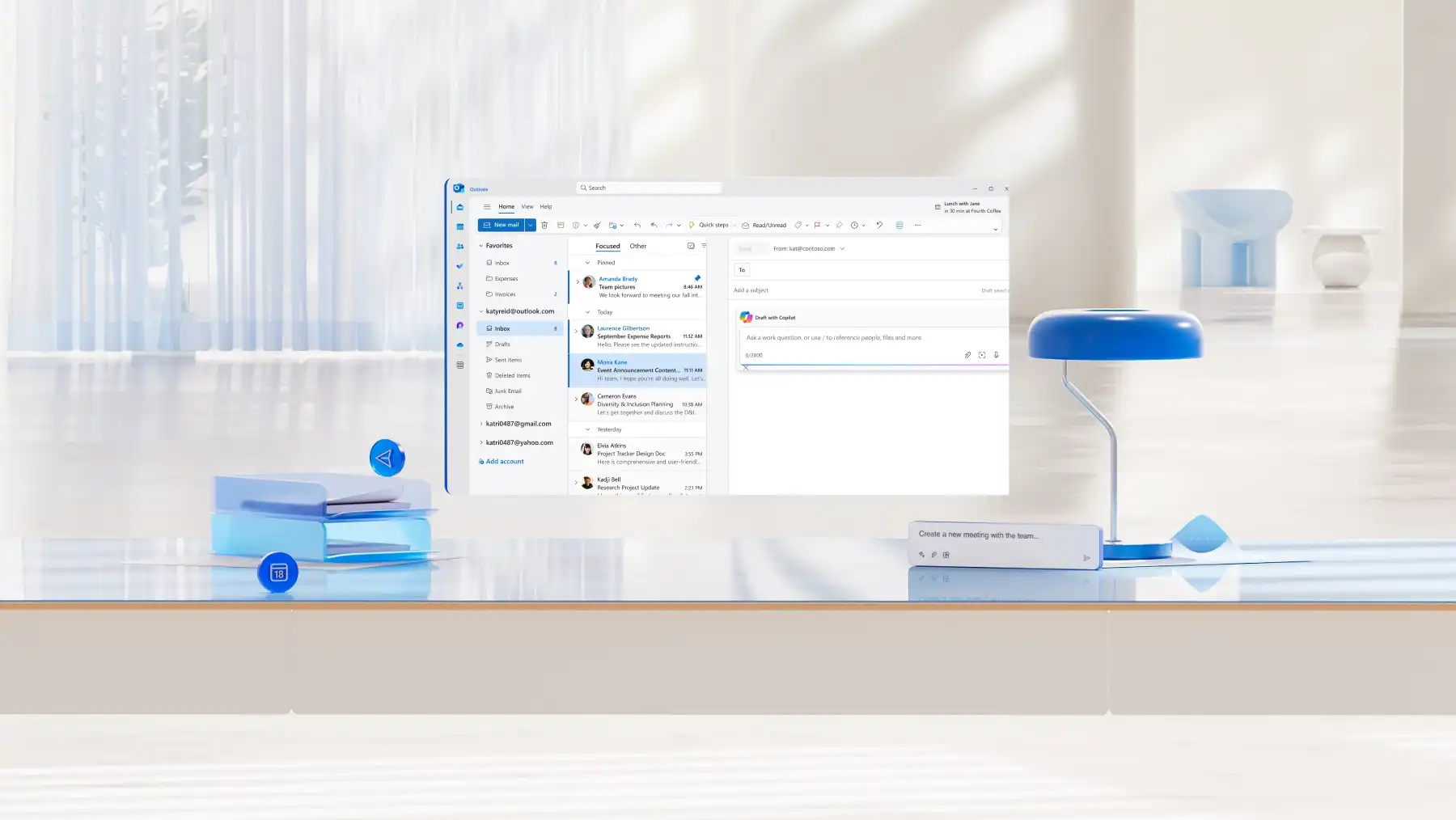
When the email is ready to send, copy the AI-generated draft into Microsoft Outlook as a new message or as a reply to an existing thread.
Six email examples to generate from documents using AI
1. Write a project update email from a report
When to use: project managers, team leads, and individual contributors need to send weekly or milestone updates to stakeholders. A long status report or business report becomes a concise update email that highlights progress, flags risks, and lists next steps.
What to include: current status, key wins since the last update, any blockers or risks, and upcoming milestones. Keep the summary tight and lead with what the recipient needs to act on.
2. Create a meeting recap with action items
When to use: meeting hosts need to send a recap email to participants, stakeholders who missed the meeting, or teams with follow-up tasks. Notes or meeting minutes turn into a structured recap email that keeps everyone aligned.
What to include: meeting purpose, key decisions, action items with owners and due dates, and open questions. Call out names for clarity.
3. Draft an approval or decision request
When to use: legal, finance, and senior leadership often need to sign-off on a plan or recommendation outlined in a longer document. The reader wants the ask, the rationale, and the next step in two minutes.
What to include: the decision needed, a two-to-three-sentence rationale, the deadline, and a clear one-click reply path (approved or needs changes).
4. Summarize a proposal for clients
When to use: sales, account management, and consulting teams need to send clients a clear summary of a longer proposal document. The email should answer what is being proposed and what happens next without forcing the client to open a 15-page attachment.
What to include: the core proposal in plain language, key benefits for the client, pricing or timeline highlights, and the next step.
5. Share key updates from internal documents
When to use: communications teams, HR, and team leads share internal updates, policy changes, or training rollouts to the wider organization. A short email surfaces the key points and links to the full document for readers who want detail.
What to include: a short context paragraph, three to five key takeaways, and a link to the source document for reference.
6. Turn notes into a stakeholder summary
When to use: researchers, product teams, and analysts need to synthesize rough notes, customer feedback, or workshop outputs into a structured summary email for senior stakeholders.
What to include: the context or source of the notes, three to five themed insights, any action items or recommendations, and a suggested next step.
When to use Copilot in Word vs Outlook for email drafting
Copilot supports email drafting in both Word and Outlook, with each app suited to a different starting point.
Use Word when working from long documents
A long document such as a business report, a proposal, or a set of meeting notes works best as the source material. Copilot can use the open document to draft email-style content with a summary and next steps, depending on the chat instructions. The drafted content can then be copied into Outlook when it is ready to send.
Use Outlook for in-thread replies and quick drafts
Outlook handles the inbox-side work, including replying to an existing thread, summarizing a long conversation before responding, adjusting the tone of a draft, or turning a few bullet points into a polished message. Copilot in Outlook reads the thread directly, so no source document is needed.
Tips to improve AI-generated emails for clarity and accuracy
Trim the source document first: remove outdated sections, irrelevant appendices, or draft notes before chatting with Copilot. A cleaner input produces a cleaner summary and reduces the chance of noise ending up in the email.
Ask Copilot to adjust tone and length: the same draft can be regenerated as a two-sentence executive summary, a three-paragraph team update, or a detailed client brief. Ask Copilot directly for the change needed, such as "make this more direct" or "cut to under 150 words," with AI rewriter handling tone and length adjustments on demand.
Double-check facts, names, and dates: AI summaries can compress or reshape details. A final read against the source document catches any misattributed quotes, inverted statistics, or shifted deadlines before the email is sent.
Generate multiple versions to compare: ask Copilot for variations of the same email, such as a synopsis, a detailed update, client-friendly version, or a translation for readers who use another language. Compare the options and combine the strongest lines into the final draft.

Turn any document into an email, ready to review and send, from project updates and meeting recaps to client proposals. Generate sharper, recipient-ready emails from any open document with Copilot in Microsoft Word today.
Explore how to take meeting minutes with AI and how to write a meeting agenda with AI to keep the full email workflow moving, from meeting to inbox.
Frequently asked questions
- What are the benefits of generating emails from documents?
Generating emails from documents is faster, more accurate, and easier to adapt for different readers. The figures, dates, and decisions move directly from the document into the email, so the details stay reliable. The same document can produce a short summary for senior leaders and a detailed update for the wider team, all drafted in one chat with Copilot in Word.
- How to make email drafts shorter or more detailed?
Adjust the length of an email draft by asking Copilot for a different version in the same chat. To shorten the draft, ask Copilot to trim it to a specific word count, condense the body into bullet points, or remove a section. To add detail, ask Copilot to include more background, explain each point in full, or add headings using AI rewriter in Word.
- How to improve accuracy in summaries in Microsoft Word?
Copilot draws the most accurate drafts from a clear, specific request. Include the exact figures, dates, and people that should appear in the email, so the draft pulls the right details from the document. Read the draft in Microsoft Word against the original before sending to confirm the names, numbers, and dates match.
- How to tailor emails for different audiences with Copilot?
To tailor an email for a different audience with Copilot, specify the audience, the tone, and the length in the chat. A prompt naming senior leadership, formal tone, under 150 words produces a different draft than one naming cross-functional team, approachable tone, with full context. Ask Copilot for several versions of the same email, then choose the version that fits the recipient.
- Can Copilot summarize meeting notes into an email?
Copilot summarizes meeting notes, minutes, or a transcript into a recap email when the document is open in Word. Ask Copilot to draft an email covering the key decisions, the action items with owners, and any open questions for follow-up. The same prompt also works for workshop summaries and call transcripts.