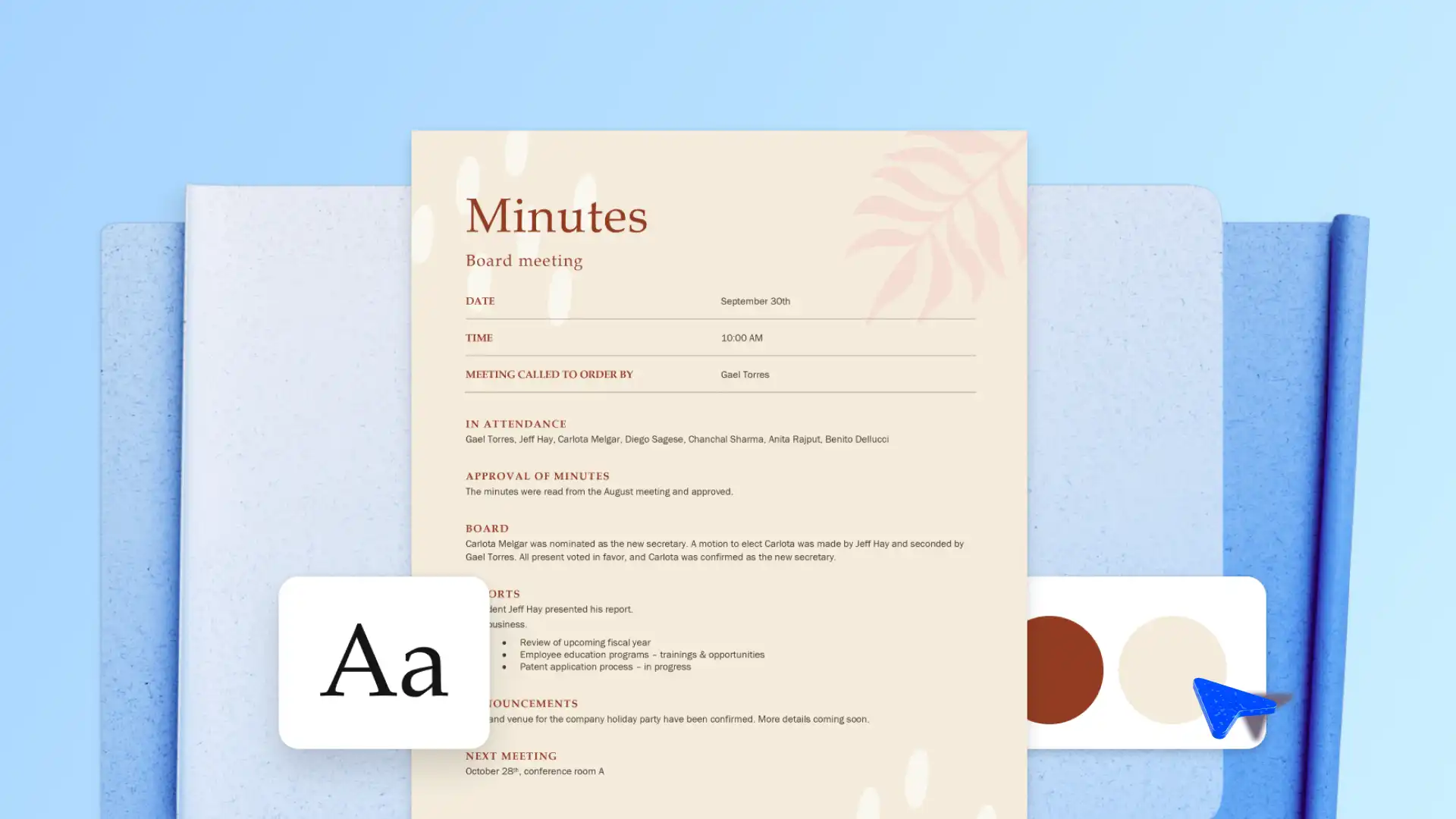
Meeting minutes record key discussions, decisions, and action items as a conversation unfolds. They give teams a shared reference point, assign ownership for each action item, and keep everyone aligned after the meeting ends.
Keep teams and stakeholders aligned by producing clear, structured meeting minutes with Microsoft Copilot in Word. From quick team syncs to formal board meetings, capture every key point, log every decision, and maintain a reliable record with AI support.
Find the best minutes structure, pre-made templates, and how to turn rough notes into clear, share-ready minutes using Copilot in Word for the web.
What to include in meeting minutes - key elements
The right format and layout keep meeting minutes professional and easy to navigate. Use the structure below for any meeting type or start from a professionally designed minutes template to skip the setup.
Organization name: add the business name and logo at the top of the document to make the minutes look professional.
Date and time: document the meeting date, start time, and end time so attendees can reference the session accurately.
Location: note the location of the meeting and the format used, such as in person, virtual, or hybrid.
Attendees: name every participant, including any apologies or absentees relevant to the discussion.
Agenda items: summarize each topic in the same order the meeting covered them, mirroring the agenda items from the meeting outline.
Decisions and motions: capture the key discussion points under each agenda item, including concerns raised, changes needed to process documents, and resolutions or conclusions reached during the meeting.
Action items: assign every action to a named person with a due date and a suggested next step.
Next meeting details: share the date and time of the next scheduled meeting, along with the agenda items so participants know what to prepare.
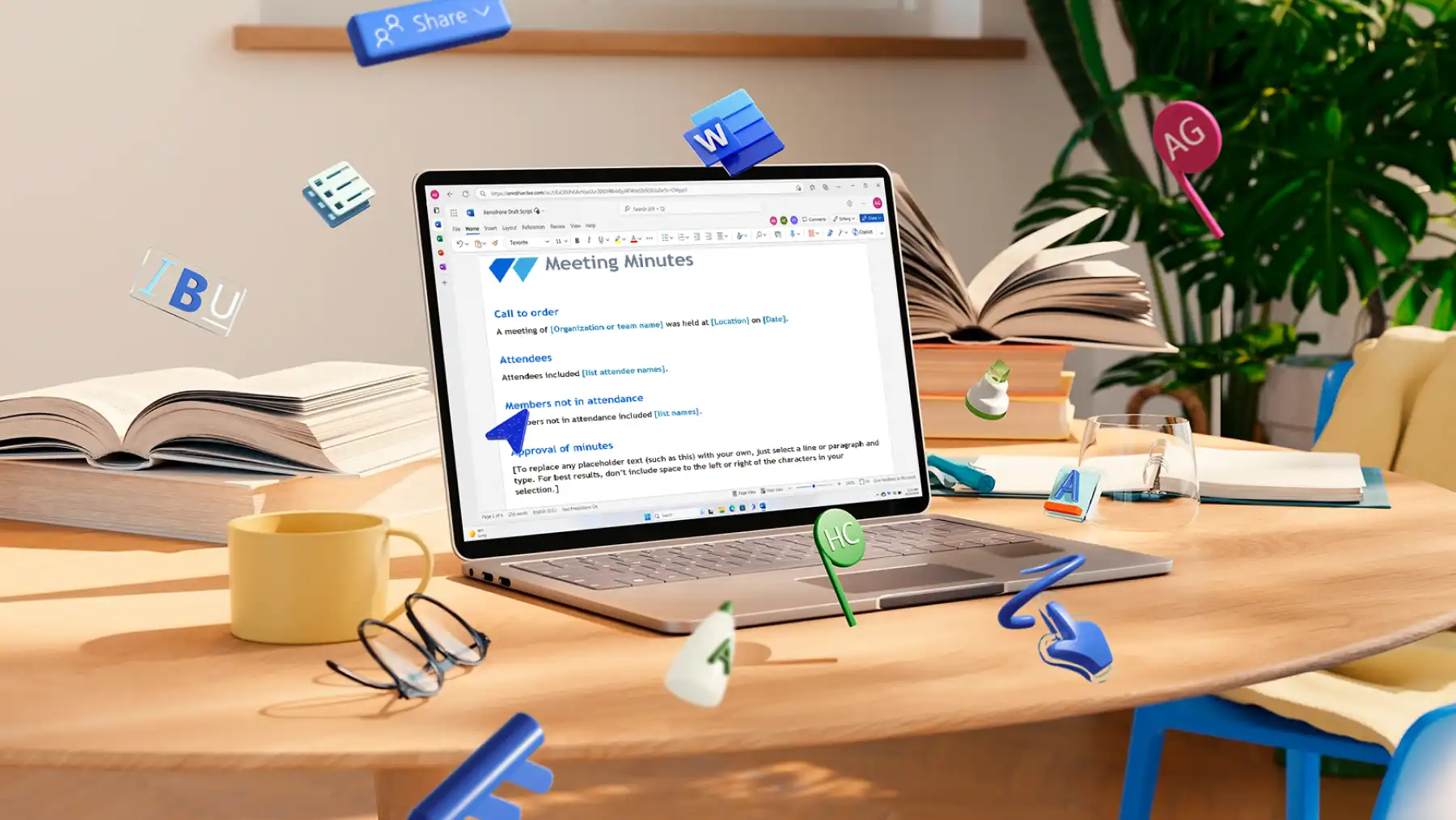
How to write meeting minutes with Copilot in Word (step by step)
Create a new document on Word for the web and open a new Copilot chat. Copy and paste the meeting transcript into the chat then ask Copilot to “summarize these meeting notes into structured minutes with headings, attendees, key discussion points, and action items.”
Review the draft Copilot generates. It will organize minutes into clear sections such as attendees, agenda items, discussion points, and action items.
Use document editor to refine meeting minutes. Adjust tone, improve clarity, and remove repeated talking points or off-topic discussions.
Share the documents with a team to collaborate in real time. Add comments, confirm action items, and capture any additional takeaways.
When ready, save meeting minutes as a PDF or share directly through Outlook.
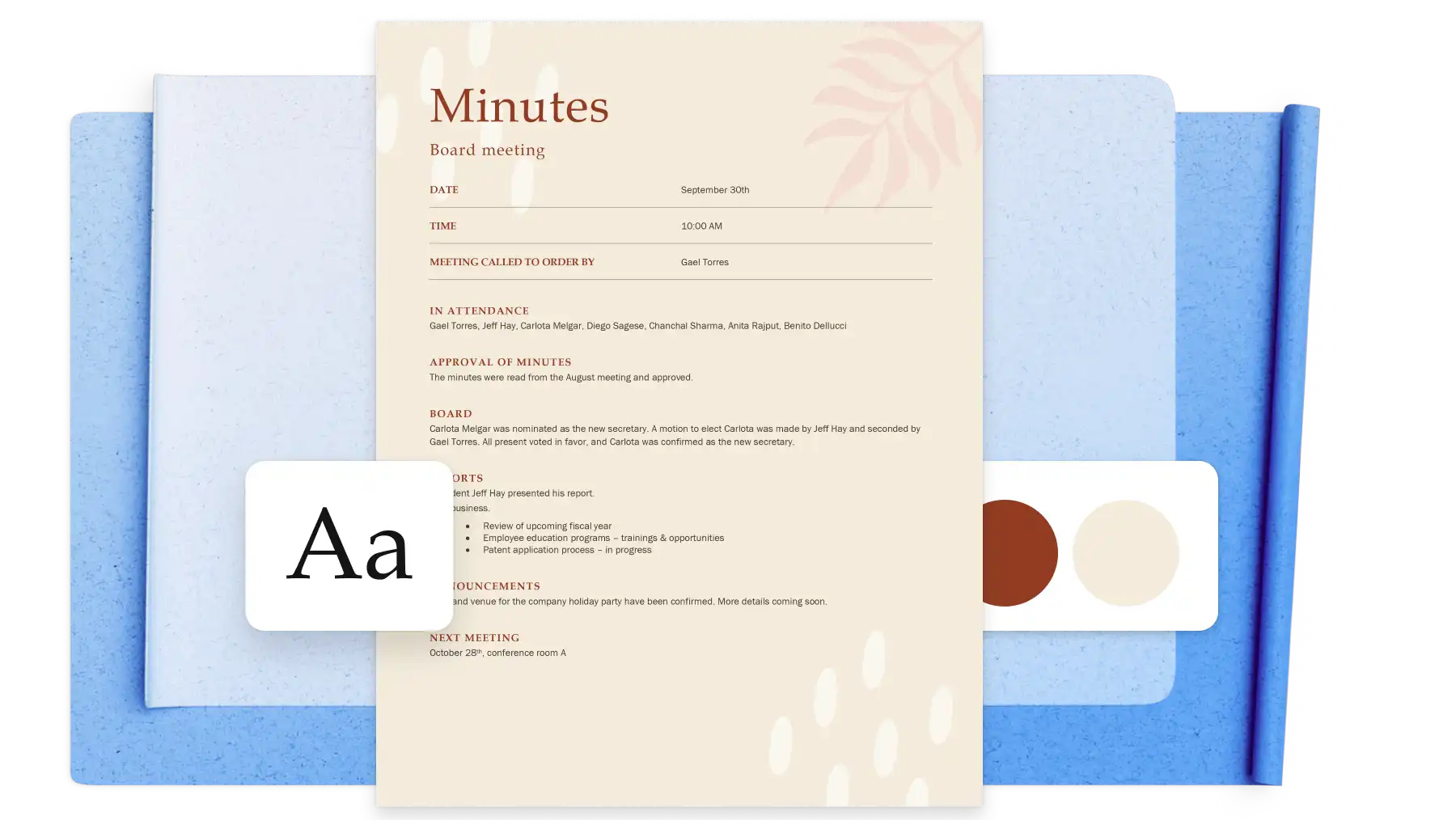
Explore ready-to-use meeting minute templates and examples
Different meeting types call for different layouts. Browse these ready-to-use templates for a variety of meetings.
General team meeting minutes
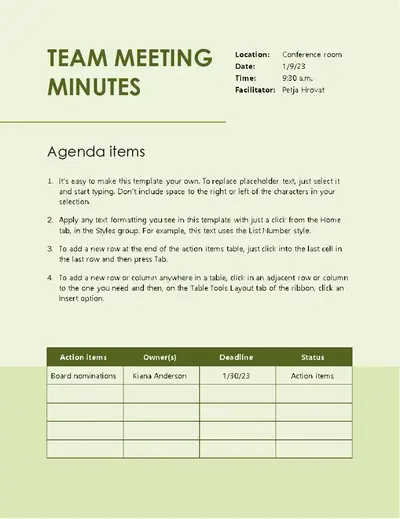
Keep formatting consistent across recurring weekly or fortnightly syncs with a structured minutes template. Built for small and mid-sized teams managing internal updates, the template carries unresolved action items into the next meeting.
Board meeting minutes
Capture motions, votes, and signatures with the formality that nonprofit boards, association committees, and corporate directors require. Dedicated motion fields, vote tallies, and signature blocks make the record audit-ready from the first draft.
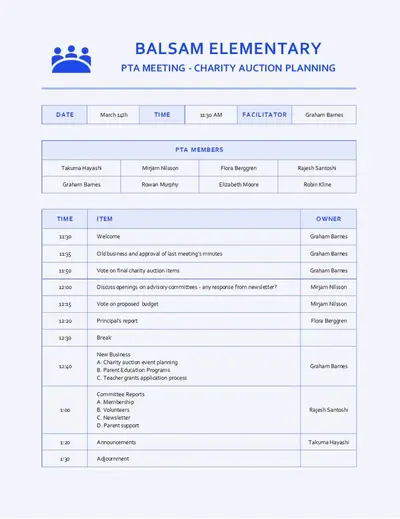
Project meeting minutes
Track risks, blockers, and decisions across sprint retrospectives and milestone reviews with a project-focused minutes template. A dedicated risks and blockers section keeps the record useful for project managers and delivery teams.
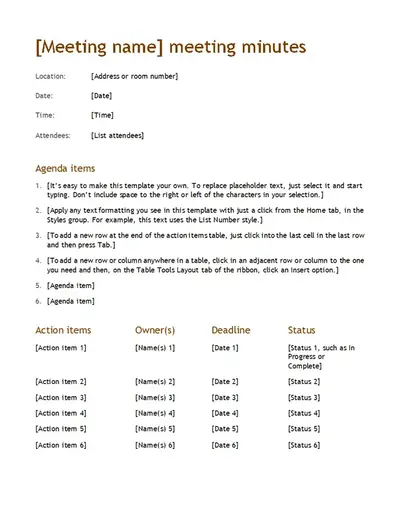
Formal meeting minutes
Capture every procedural detail required for AGMs, shareholder sessions, and other regulated proceedings with a structured minutes template. Strict formatting keeps the record compliant from start to finish.
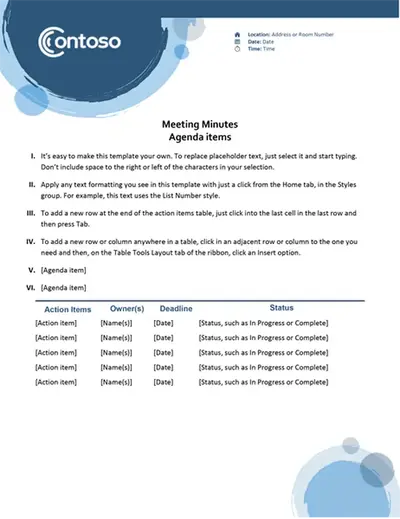
Team standup notes
Run faster daily check-ins with a lightweight format made for agile and product teams. Note who's leading the session, log progress and blockers in a single line per attendee, and timestamp the start of each session.
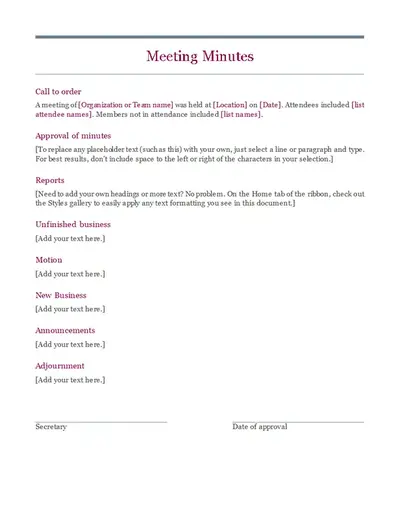
Ways to improve meeting minutes with AI (Copilot in Word)
Convert a transcript into structured meeting notes
Turn a Microsoft Teams transcript into structured meeting minutes for any meeting type. Copy the transcript into a Word document, then use AI rewriter to restructure the raw text into the standard sections. AI converts the conversation in seconds, ready to share with attendees and stakeholders.
Format minutes with a clear structure
Reformat long paragraphs or unstructured notes into a consistent, scannable layout. Copilot can split dense copy into bullet point lists, add time allocations against agenda items, and label speaker roles. The result reads like minutes drafted from a polished template, even when the source material was rough
Reorganize meeting notes by topic
Improve the flow of long discussion notes by grouping them under topic-based headings. Specify the meeting type in the Copilot chat, such as a board meeting, project status review, or sales pipeline call. AI generates headings that match the format. Topic grouping makes the record easier to scan and easier to extract specific information from later.
Summarize meeting discussions into decisions
Quickly summarize long, conversational transcripts into clear decisions with AI summarizer in Word. Copilot evaluates the full discussion, identifies what was agreed, and lists them under a clear heading. A dedicated section keeps the most important outcomes visible at the top of the document.
Refine action items for clarity and accountability
Rewrite vague tasks into clear, ownable action items using AI rewriter. Copilot converts loose phrasing into task statements with an owner, a deadline, and a defined next step. Combined with the Word grammar checker, the editing pass produces meeting minutes that are both clear and consistently written.
Adapt minutes for different audiences
Tailor meeting minutes for different audiences, from an executive summary through to a detailed working record. Copilot can shorten, expand, or rewrite the minutes in seconds, creating different versions for different readers without starting over.

Tips for writing clear and accurate meeting minutes
Be concise, not comprehensive: capture decisions, action items, and key takeaways rather than transcribing the conversation.
Stay neutral and objective: describe the decisions in factual language. Avoid adjectives, personal opinions, or characterizations of speakers, particularly in formal records that may carry legal weight.
Focus on decisions and actions: every entry should capture what the team decided or what happens next. Background discussion supports those answers but rarely needs full coverage.
Assign ownership clearly: name the person responsible for each action item and confirm the deadline before moving to the next agenda topic. Vague ownership is the most common reason for action items to go undelivered.
Use consistent formatting: apply the same template, the same heading order, and the same action item format every time. Consistency makes minutes faster to produce and easier to search across a series of meetings.
Write up while context is fresh: draft the formal version promptly after the meeting. The longer the gap, the more details get lost.
Clear minutes keep teams aligned, decisions visible, and action items moving forward. Capture every meeting using meeting minutes templates and Copilot in Microsoft Word.
For more on achieving productive meetings explore how to write a meeting agenda or how to write a memo with AI.
Frequently asked questions
- What is the difference between meeting minutes and meeting notes?
Meeting minutes are the formal, approved record of a meeting. Notes are the informal version the note-taker writes during the session to keep track of what was said. Minutes go to the team, the board, or the wider business as an official account, while notes stay with the person who wrote them.
- How detailed should meeting minutes be?
A one-hour meeting usually produces half a page to two pages of minutes, depending on the format. Use a meeting minutes template to set the level of detail before the session, so the format guides what gets captured.
- Who is responsible for writing meeting minutes?
The note-taker writes the minutes. In formal settings the secretary or an administrative lead handles it, and in internal team meetings the responsibility often rotates so no single person carries it every time. Note-takers can draft, summarize, and refine minutes from rough notes or a transcript using Copilot in Word.
- When should meeting minutes be shared?
As soon as possible after the meeting, while context is fresh and corrections are easy. Share the draft with attendees first for approval. Once approved, circulate the final version to absentees and any stakeholders who need a record of decisions. Drafting in Microsoft Word keeps every version in one place, with comments and approvals tracked alongside the document.
- How to turn rough meeting notes into action-oriented meeting minutes?
Editable templates in Microsoft Word can help organize notes into structured meeting minutes with placeholder headings, bullet points, and tables. Use Copilot to review drafts and rewrite meeting minutes to make tasks and action items from the meeting easier to follow up on.