Make any business run smoothly with simple and scalable standard operating procedures (SOPs). These internal training documents can ensure employees are on the same page and follow the same set of steps to achieve high-quality results consistently. Writing SOP instructions for both routine or specialized tasks across different teams is essential, especially for functions like operations and human resources.
With so many micro and macro tasks split across the organization, it can be time-consuming to come up with a detailed and clear SOP for every workflow. That’s where Copilot in Word can help draft a SOP template which can be saved and reused. Lean on AI to use the most relevant structure, terms, measures of success, and even pull details from existing documents and emails.
Learn how to create high-quality SOP guidelines and handbooks for the workplace with Microsoft Word online.
Types of standard operating procedures
Step-by-step SOP
Ideal for when a task needs to be completed in a linear fashion and must follow a strict sequence of instructions. This SOP format is easy to follow and is usually presented as a numbered list to reduce the room for error. It suits instructions such as starting up equipment, onboarding new employees to workplace systems, among other tasks.
SOP writing example:
Log into the system
Verify credentials
Launch application
Hierarchical SOP
Best for when a procedure needs to be organized into tiers, where each step has multiple sub-steps. Choose hierarchical statements of procedures to enable employees to carry out tasks with precision without overlooking critical parts. Use nested lists and instructional diagrams in handbooks to ensure each step can be carried out successfully.
SOP writing example:
Step 1. Prepare equipment
1.1 Gather tools
1.2 Inspect safety gear
Step 2. Turn the equipment on
Checklist SOP
Simple and practical, the checklist SOP format is a good tool to keep things organized when there are a lot of moving parts or tasks to be done in parallel to each other. This SOP type is great for seasoned employees who are familiar with a task, and can tick things off as they go, feeling confident that nothing has been missed. Maintain consistency with the cross-verification possible using checklists. A great use case is onboarding checklists.
SOP writing example:
Set up email account
Provide access to team SharePoint
Assign employee workstation
Schedule orientation session
Flowchart SOP
During business process mapping, a flowchart SOP helps create scalable standards for workflows with multiple decision points. This layout maps out the steps visually, showing what to do based on different scenarios, supporting decision-making for any employee. It’s usually represented by diagrams and arrows with clearly labelled steps. Use it for troubleshooting procedures or customer support workflows, where the next action depends on what happens first.
SOP writing example:
Start → Is system online? → Yes → Proceed → No → Troubleshoot

Key elements of SOPs
Standard operating procedure documents can be lengthy and detailed, so managers, operations specialists, and subject matter experts can use Copilot in Word to speed up SOP writing. No matter the document topic, from assembly line guides to blog editorial steps and food safety procedures, AI can create contextual sections. Learn about the key components of a good SOP.
1. Title
Use a descriptive title that clearly connects to the set of instructions in the SOP. If it exists, use the naming conventions as per the specific department of the business. For example, “Customer support ticket handling SOP”.
2. Document control table
Maintain a table with key details to keep employees and users informed about the version. Make sure to include the following.
Name
Revision number
Owner
Implementation date
Last review date
Approver
3. Goal
Align all readers of the SOP about the reason the document was developed. Express the key outcomes of using the SOP correctly, such as “ensure all customer tickets are resolved within 24 hours.” Can’t find the right phrases? Utilize Copilot in Word to draft some outcome statements based on the context of the procedures.
4. Procedure
This component is the focus of the document. Start composing the instructions based on the SOP type selected. Lay out the step-by-step instructions with clarity, using the correct technical terms and phrases used widely in the organization.
For multi-layered steps, like hierarchical SOPs, straightforward and concise instructions are key. Use AI rewriter to simplify the sentence structure, summarize lengthy steps, or suggest more actionable phrases to empower readers to use the SOP correctly.
5. Responsibilities
The document should specify who’s responsible for setting up the process, as well as who is accountable for approvals at each step if required. List participants with names, job titles, best contact details, and their responsibilities in relation to the SOP document.
6. Key behaviors
Outline how readers are supposed to use the guidelines, including mandatory regulatory, compliance, and quality expectations. This section should focus on how readers can stay accountable and use the SOP correctly to reduce risks and maintain consistency. Ask AI to frame key points in a clear and consistent manner, ensuring the SOP is easy to follow for all stakeholders.
7. Innovate
Share if there’s an opportunity for the employee to implement an innovative approach in the task. This refers to streamlining any tasks or suggesting creative workflows to achieve the procedure faster. This may be a head-scratcher for some, that’s why it’s good to rely on chatting with Copilot which can identify alternatives or better workflows.
8. Tools and supports
Provide a clear list of references and resources required to meet the SOP goal, such as related training documents, in-house coaching sessions, business process video recordings, and more. Create the list using AI to improve accuracy and ensure all important items are included.
How to use AI to generate a SOP template
Open a new Word document to start creating a SOP template.
Click on Copilot in Word from the Home ribbon, then chat with AI to explain the SOP requirements.
Share the context by describing the purpose and main goals of the SOP in Copilot chat, or by attaching an existing document using the plus button. Specify the preferred SOP type such as checklist, step-by-step, hierarchical, or flowchart.
Review the AI-generated SOP document in Word.
Prompt Copilot to refine any sections, for example, “add more detail to key behaviors. Use this reference attachment document as a guide”, then click on the plus button to attach a work file.
Save the SOP document as a reusable template in Word.
Try this Copilot prompt example
Use an SOP template to standardize team onboarding workflows
Scenario
A team lead bringing on several new hires needs every person to move through the same setup, training, and check-in steps without missing important details. Rather than re-explaining the process for each starter or relying on memory and informal know-how, the team lead applies an SOP template to capture every onboarding step in one place. The result is faster onboarding, fewer missed tasks, and a consistent experience across the whole team.
Output
The finished document is a reusable onboarding SOP that every manager can follow the same way. Teams share it across departments, update it as processes change, and reference it whenever a step needs checking.
Workflow in action
Map the onboarding stages: the team lead identifies what every new hire needs, from account setup and equipment to training milestones and first-week check-ins.
Set the order: stages fall into the sequence a new starter follows, so access, introductions, and training arrive at the right moment.
Capture each stage once: each onboarding task is recorded in one place, giving every new hire the same guidance and reducing the need for repeated explanations.
Standardize the language: each instruction is written clearly and consistently, reducing confusion and helping managers follow the same onboarding process.
Hand to the owners: the finished SOP goes to managers, IT, and HR, with clear sign-off at each stage.
SOP templates to get started faster
Once the onboarding SOP is saved as a template, it becomes the starting point for every future workflow. Store the template in a shared SharePoint library to keep it within reach of the whole team. Duplicate it for each new use, which leaves the master untouched. Adapt each copy for the next intake, contractor setup, or any repeatable process.
Copilot in Word assistance
Copilot supports the onboarding SOP at the points where wording and consistency matter most. Ask Copilot to draft instructions for a specific onboarding task, then refine with AI rewriter to align tone and phrasing across every step. This keeps the SOP easy to follow while the team lead stays focused on the people joining.
Create a reusable SOP template for repeatable processes
Repeatable processes need documented workflows. When the same task moves between people, shifts, or departments, a reusable SOP template helps everyone follow the same process. Without a template, teams may run into a few common issues:
Different authors build sections in different orders, so structure varies between documents.
Content written for one team is hard for other teams to reuse.
Formatting breaks across versions where headings, numbering, and tables have inconsistent formatting.
Use placeholders for repeatable fields
Bracketed fields such as [process owner], [department], [approval date], and [system name] mark exactly what changes between documents. Everything outside the brackets stays fixed, which protects the structure from accidental rewriting each time an author starts a new SOP.
Placeholders can also help when using AI rewriting tools because they show which details should change and which sections should stay the same. Authors can ask Copilot to draft an adapted version of an SOP for a related process, then review the updates before using it.
Scale the template across teams
Store the master template file in a dedicated OneDrive or SharePoint folder. Set permissions so authors can create from it without editing the original. Then link that folder wherever teams start writing SOPs.
Apply the same heading hierarchy, table structure, and placeholder conventions across every team. Readers then move between SOPs without relearning the layout, and reviewers check several procedures at once.
Document exceptions and variations
Standard steps cover the standard cases. Teams may encounter exceptions that do not fit the standard steps, and an SOP without documented variations leaves those cases to individual judgment.
Add a section that records the conditions where standard steps change, the alternate action to take, and the person responsible to approve the departure. Naming the exception and the approver tells staff exactly what to do and who to ask.
Standard operating procedure best practices
Use professional heading styles: apply consistent heading styles and use the built-in Styles pane in Word to maintain structure.
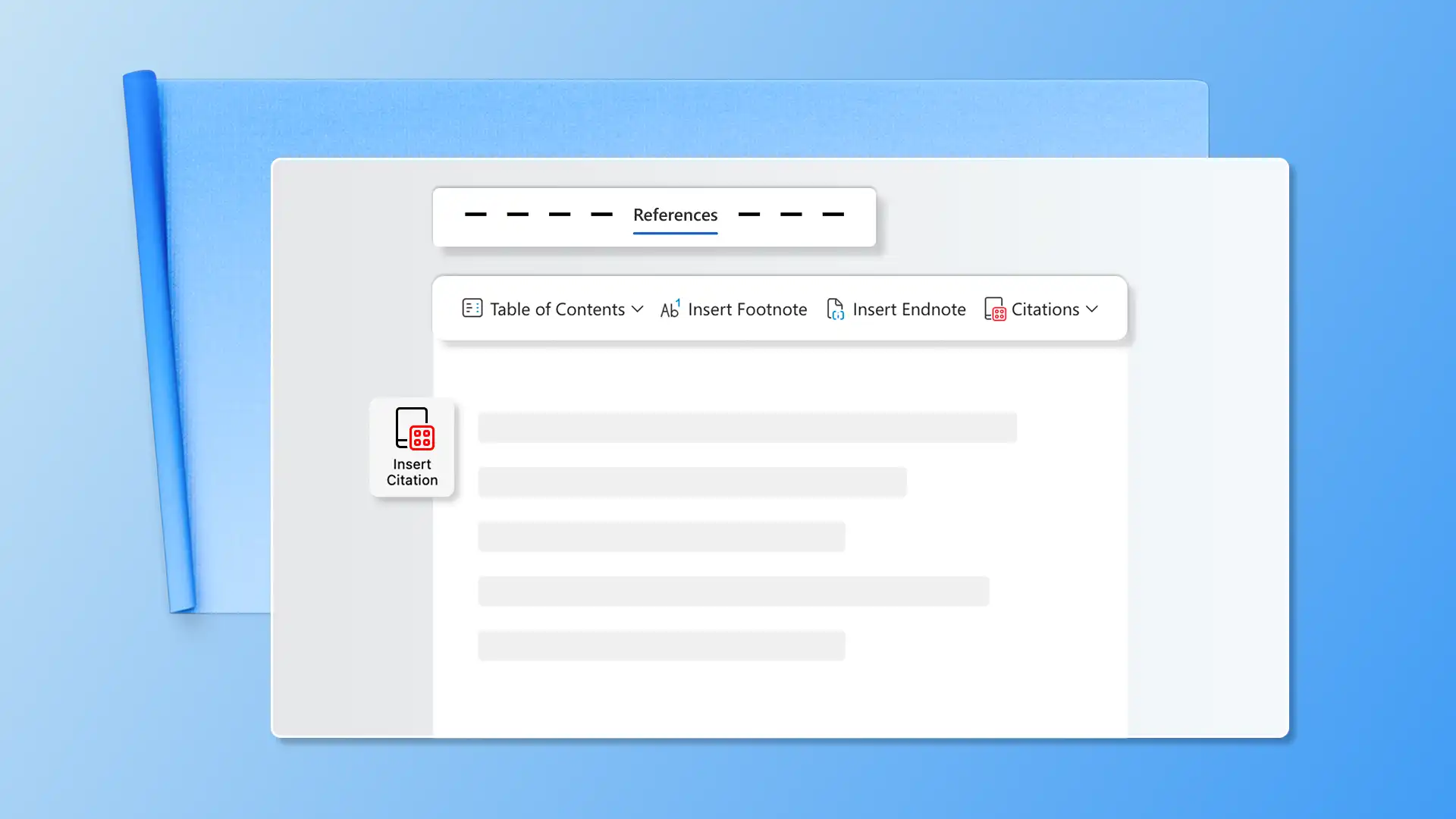
Apply organizational branding: insert the company logo in the header and apply brand colors using Theme settings in Word. Use the official font set from the organization’s style guide for a polished look.
Add reference links: Add in-line clickable URLs to related policies or templates or create a references section at the end for quick access.
Create restricted SOP documents: protect the SOP with ‘read-only’ mode for viewers and assign editing rights only to authorized roles. Apply password protection if needed.
Review and update frequently: add a ‘last reviewed’ date to the document control table and use track changes in Word to log updates and maintain version history for compliance.
Now that it’s clear how to make an SOP template, get started with making documents in Microsoft Word. Continue learning how to speed up every day work tasks like writing memos, generating emails with AI, and writing meeting agendas.
Frequently asked questions
- Is there a SOP template in Word?
Users can generate a custom SOP template for a variety of use cases from HR to operations using Copilot in Word. Simply chat with Copilot to create a structure which can be saved as a reusable template.
- How to write a standard operating procedure quickly?
Use AI assistance in Word to create SOP drafts quickly. Generate paragraphs from scratch or provide Copilot reference files to extract procedures from. Utilize Copilot to format lists and headings quickly. Edit and customize the SOP draft to make it more impactful, and collaborate with the team for sign-off.
- What is the difference between SOP and work instructions?
An SOP provides a high-level overview of a process, outlining what needs to be done and why, often covering multiple tasks for consistency and compliance. Work instructions provide guidance on how to achieve a specific task in the SOP and can be supported with visuals and notes. Try collaborating with teams or external vendors on an SOP document today.
- What other document templates can be created with Copilot in Word?
Copilot supports a wide range of business document templates beyond standard operating procedures. Use it to draft a structured business report for stakeholder updates and performance reviews, or a consistent incident report template for compliance and risk management. Describe the document type, purpose, and required sections in Copilot to generate a ready-to-edit draft.