Document collaboration in Microsoft Word connects every contributor to the same file, latest edits, and the most current version of the work. Just by storing a file in OneDrive or SharePoint, bring co-authoring, comments, track changes, version history, and secure sharing into one place. Move from the first draft to final sign-off with full visibility and fewer delays in no time.
Explore real-time co-authoring and feedback tools with collaborate in Word.
Work together in real time without losing control
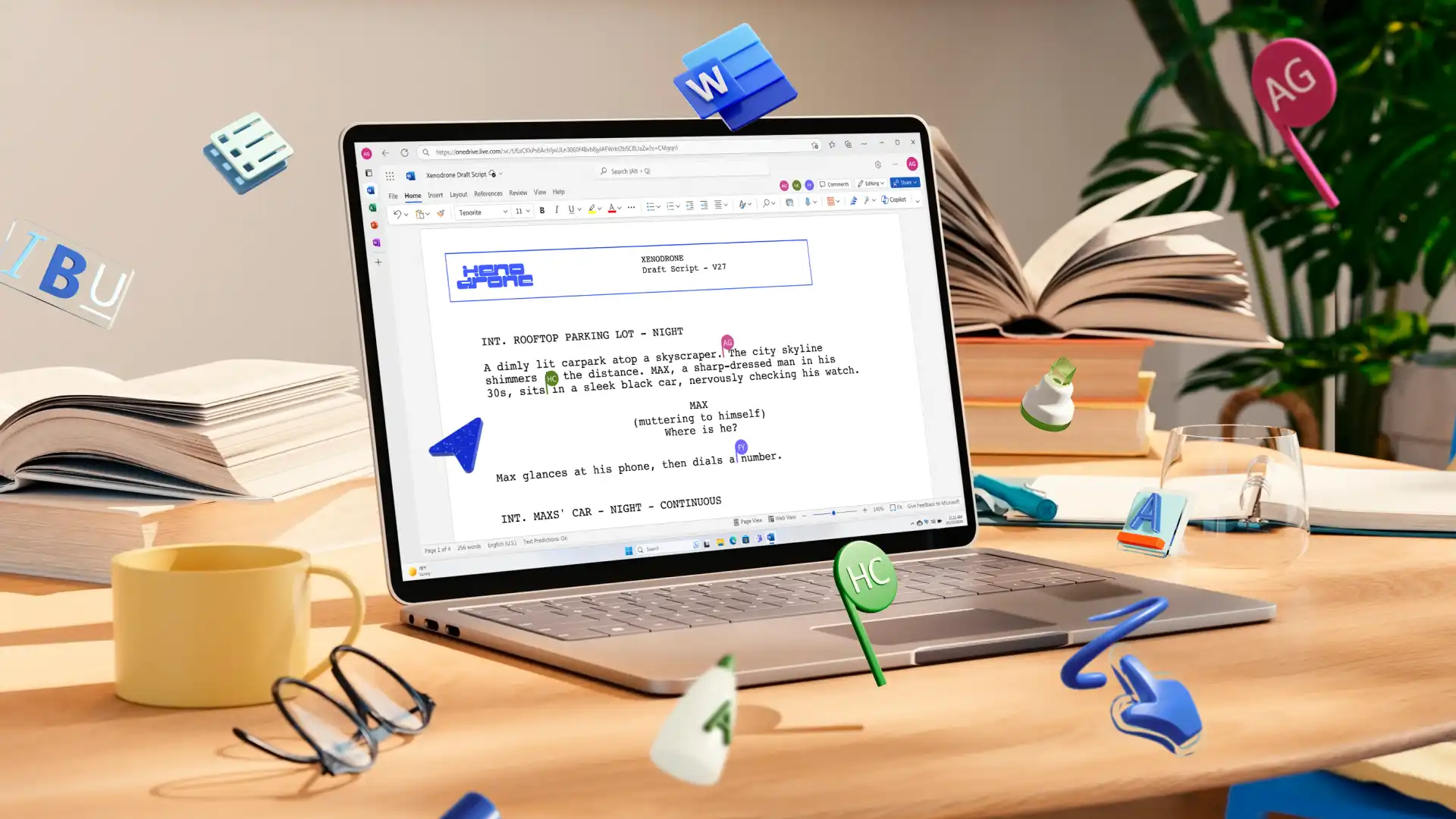
Co-authoring lets multiple people edit the same Word document at once, with changes appearing live as contributors' type. Teams can draft together, brainstorm ideas in a shared space, and refine a document without waiting for anyone to finish or send an updated file. Edits happen in one document stored in OneDrive or SharePoint, so there are no separate versions to merge, and no confusion about which copy is current.
Co-authoring works across Word for the web and the Word desktop app, showing where each contributor is working in real time. Co-authoring suits teams running live collaboration sessions during meetings or sprints, groups iterating quickly on press reports and proposals, and anyone working closely on a shared deliverable where fast turnaround matters.
Note: to allow all team members to edit hassle-free, make sure to turn on editing permissions before sharing. Allow individual email addresses, teams within an org, or anyone to gain editing access.
Keep feedback secure and in context
Comments in Word attach directly to the text they reference, so reviewers can flag issues, ask questions, and suggest changes without editing the draft directly. Keep reviewers and editors on the same page and organized by replying to comments directly within the thread. Contributors can resolve threads once the feedback is actioned.
For teams spread across different time zones or managing multiple stakeholder approvals, this asynchronous approach reduces follow-up emails and makes it clear who said what and where.
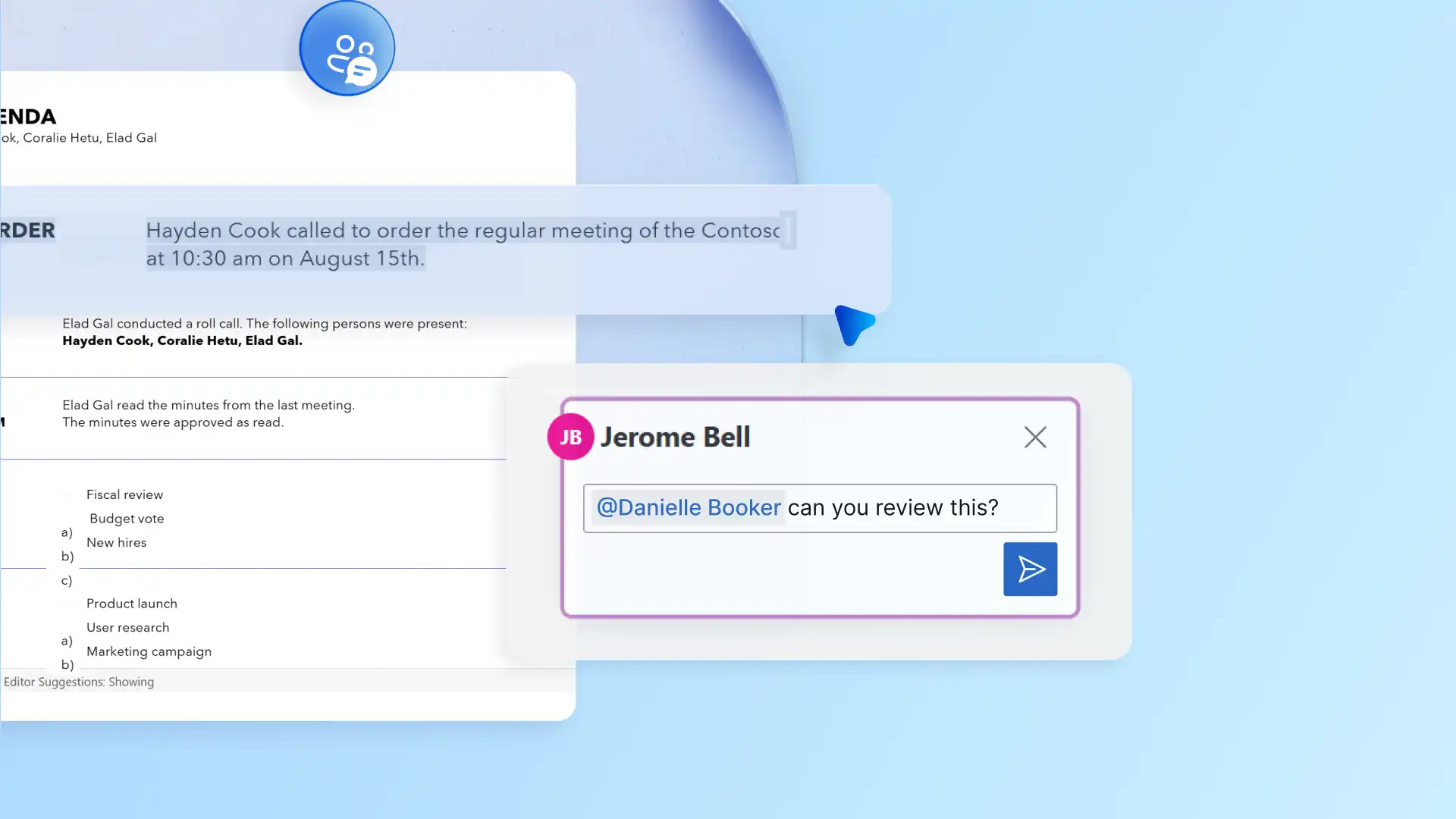
Easily assign tasks to specific team members using @mentions, exclusively for Microsoft 365 work or school accounts. Action items stay visible inside the document, so nothing gets buried in an inbox.
Track every edit or change with confidence
When a document passes through multiple contributors, knowing what changed and who changed it matters. Track Changes keeps that record automatically, logging every edit, deletion, and formatting update so document owners can review contributions. Nothing gets through without sign-off, and no edit passes unnoticed.
For documents where accuracy is critical, such as legal files or business reports, Track Changes helps teams collaborate without losing original content. Every proposed edit stays on record until it’s accepted or rejected, with support available across Word on Windows, web, Mac, iOS, and Android.
Note: for Microsoft 365 commercial users working in Word for the web, the Catch-up feature highlights changes and comments made since the last visit, making it easy to see what has changed without scrolling through the entire document.
Protect documents with the right access levels
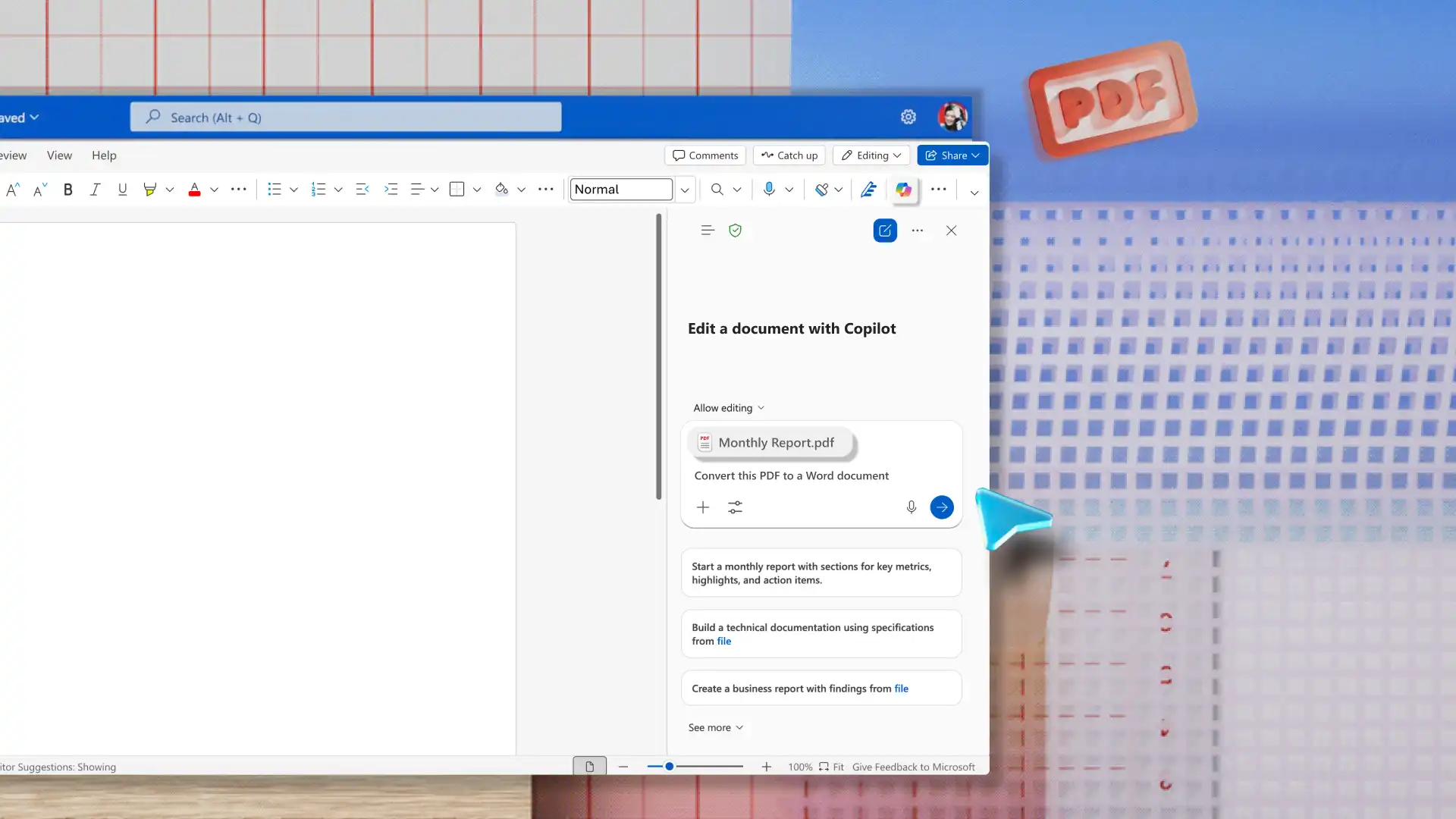
Sharing a document does not have to mean handing over full control. When sharing from OneDrive or SharePoint, document owners can set access as edit, review, or view-only before anyone opens the file. Contributors with edit permission can switch between editing, reviewing, and viewing modes as the document moves from drafting through to final approval. Sharing sends a secure link rather than a copy, so everyone works in the same file. Teams can also export documents as a PDF to lock the page for distribution.
For external reviews, give clients and partners view or review access so they can leave comments and suggestions without changing the document. For sensitive documents like incident reports, compliance records, or contracts, controlling who can edit protects both accuracy and integrity. External collaborators can join through email verification or a one-time passcode, even without a Microsoft account, though organizational sharing settings determine who can access this way.
Recover work and reduce risk with version history
Version history reduces the need to save backup copies by allowing teams to restore earlier versions at any given time. Open a previous version to review it, confirm it is the right one, and restore it when ready. This works for any document type, whether that is a meeting agenda, a technical report, a series of blogs, or a document that has gone through several rounds of stakeholder input.
To access version history, the document needs to be saved to OneDrive or SharePoint. Version history works across Word for Windows, Mac, and the web for work and personal Microsoft accounts.
Great documents are built together. Collaboration tools in Microsoft Word give teams everything needed to draft, review, and finalize documents in one shared file. Additionally, translate documents so team members can review and collaborate in the languages they need.
For more on the documents teams collaborate on most, explore how to write a business report and build an SOP template in Word.
Frequently asked questions
- What is needed to co-author a document in Word?
To enable co-authoring in Word, save documents to OneDrive or SharePoint, ensuring all contributors have editing permissions, and use a file format like .docx. Co-authoring is available in both Word for the web and the Word desktop app. For the best real-time experience on desktop, turn AutoSave on before getting started.
- How do teams share a document for collaboration and co-authoring?
Share directly from Word, OneDrive, or SharePoint to generate a shareable link. Using a direct document link gives all editors access to the same file to avoid version confusion. Set permission levels to edit, review, or view-only depending on what each person needs to do and change it at any point as the document moves through stages.
- What is the best way to collaborate on a Word document?
The best way to collaborate in Word is to save documents to OneDrive or SharePoint and work from a single shared file using real‑time co‑authoring. Teams can draft together, leave feedback through comments, track edits with track changes, and restore earlier versions if copy is updated by mistake. Sharing permissions also helps control who can view or edit the document at different stages of review.
- Which tool is used for document collaboration?
Word is one of the most widely used tools for document collaboration. Save a document to OneDrive or SharePoint and it becomes a live shared workspace where multiple contributors can co-author in real time, leave comments, track every edit, and manage earlier versions, all without leaving the document or sending a single attachment.
- What are the five Ps of collaboration?
The five Ps of collaboration, Purpose, People, Process, Platform, and Performance, provide framework for understanding what effective teamwork requires. Purpose gives contributors a shared goal, while People brings the right participants with clear roles. Process outlines how work moves from drafting to review or approval, and Platform determines where collaboration takes place.
In Microsoft Word, collaborate through co-authoring, comments, track changes, and version history, helping teams produce documents that reflect input from multiple contributors.
- Can Copilot in Word help with document collaboration?
Copilot in Word helps draft a starting point from an outline, rewrite a section for clarity, shift the tone, or summarize a long passage, so reviewers can get up to speed quickly. Copilot works alongside the collaboration tools in Word rather than replacing them.