Turn PDFs into editable .docx files directly in Microsoft Word with AI. Converting a PDF to word doc with Copilot in Word restores formatting control, making it easy to update important files like old contracts, reports and proposals without external tools or retyping. Copilot can also improve formatting and layout to prepare polished documents for collaboration and sharing.
Read on for a step‑by‑step guide to securely converting PDFs into editable Word documents and enhancing copy using Copilot in Word.
How to convert a PDF to Word with Copilot
Update old PDF files, extract important information, or repurpose documents in no time with Copilot in Word. Follow these steps below to convert PDFs to .docx files online using AI.
Open a new word document on Word for the web.
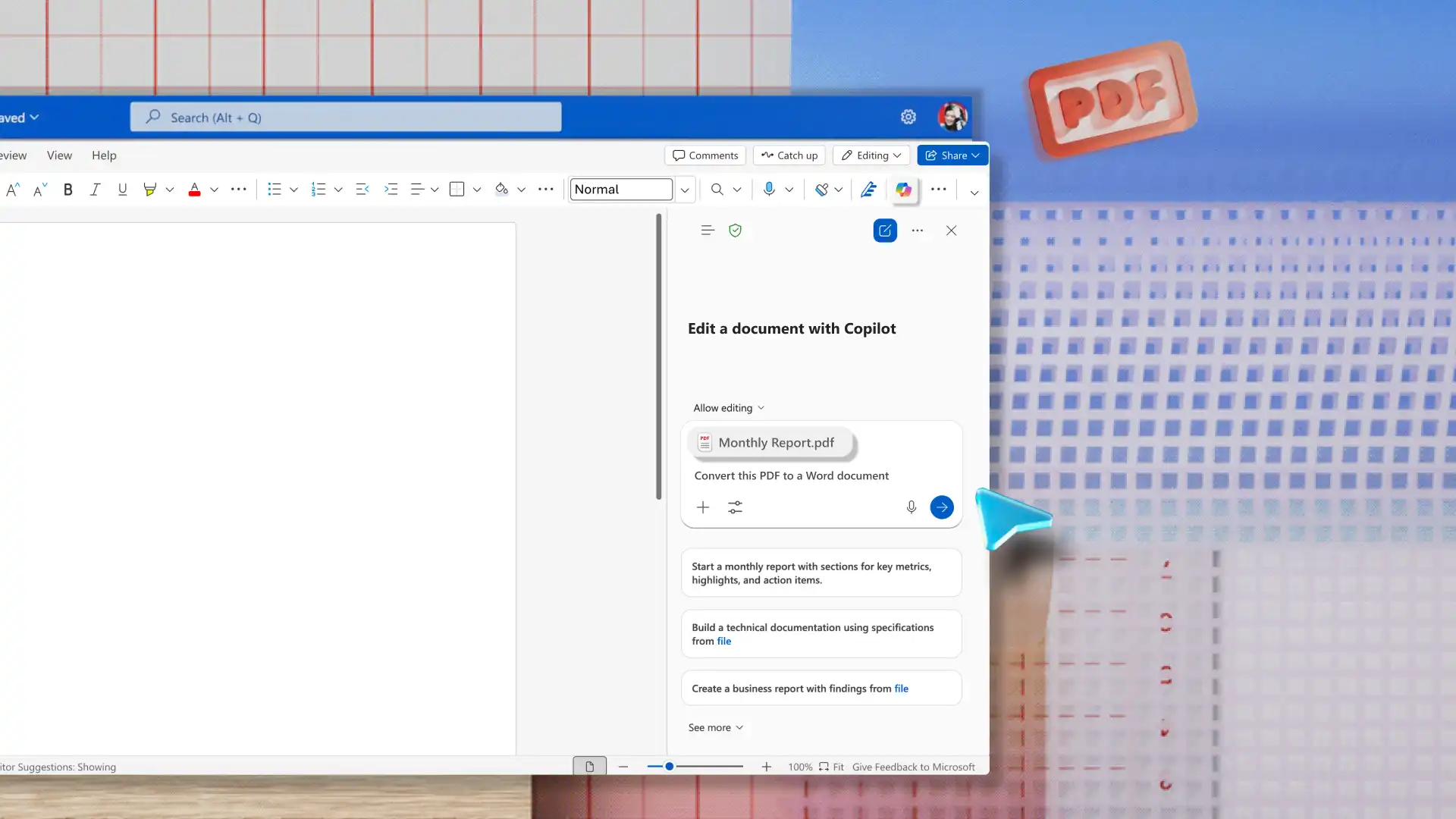
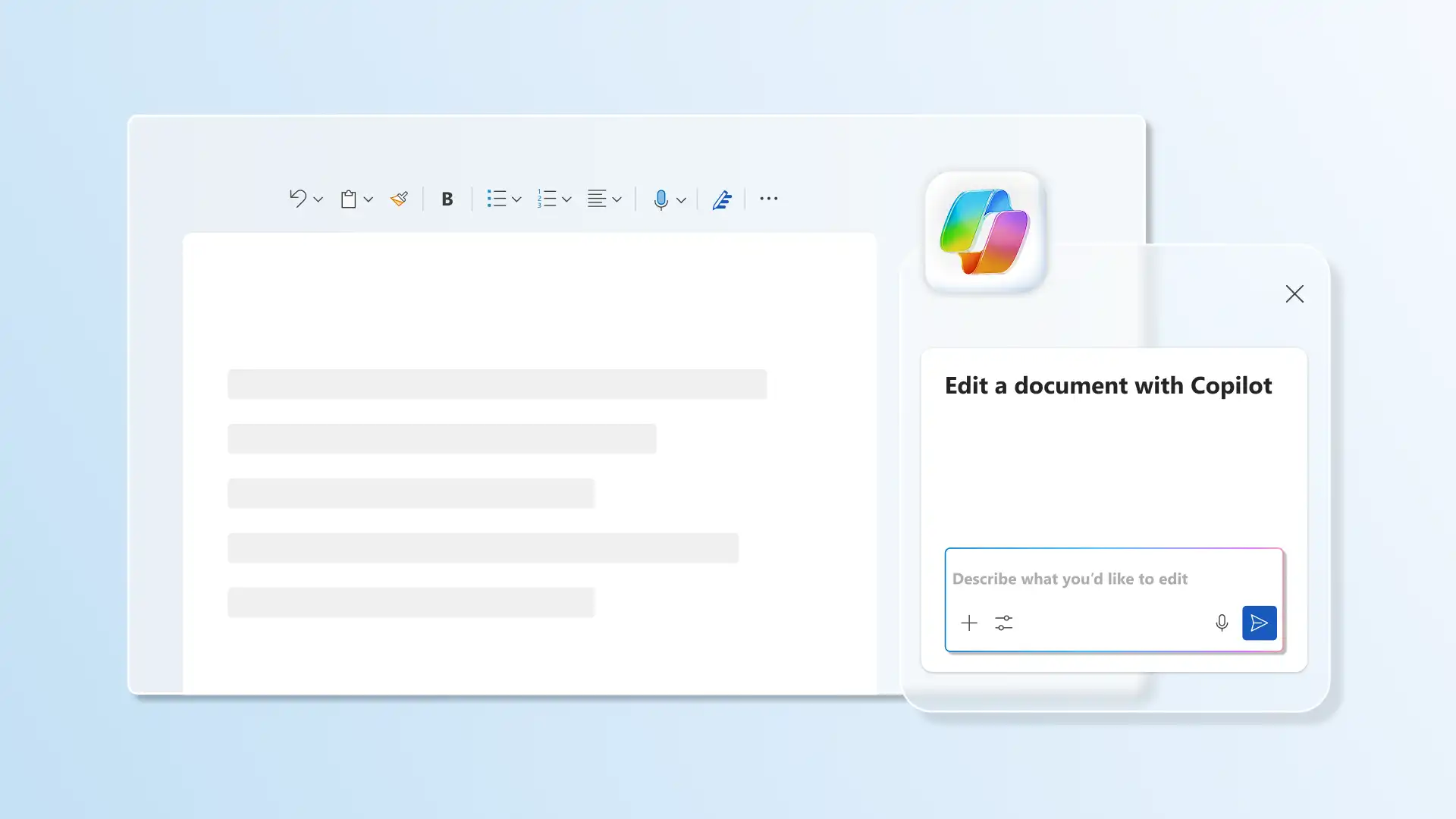
Enable Copilot from the ribbon to start a new chat.
Attach a PDF document within the chat, then ask Copilot to turn the PDF into a Word document.
Copilot extracts information from the PDF to rebuild into an editable Word document with headings, copy, bullet points, and tables, depending on the content of the PDF.
If preparing a presentation or report, ask AI to draft summaries from existing content in the document.
Tips for converting PDFs to Word documents
Keep these tips in mind when converting PDFs to .docx files to make post-conversion editing easier.
Open a PDF directly with Word: access confidential documents like contracts, reports, and customer data directly in the app to ensure the file remains within Word security controls.
Save as .docx immediately after conversion: Word opens the converted file in compatibility mode, limiting access to some editing features. Saving the file as a .docx helps enable full formatting and editing control.
Use Copilot in Word to accelerate clean-up: use Copilot in Word to reduce manual clean-up on a converted file. AI can suggest ways to reformat, restructure, or rewrite sections that need polishing.
Restore heading styles after converting: reapply Word heading styles to ensure the original structure is in place and to successfully enable the Navigation Pane, as PDF conversion often flattens heading hierarchy.
Use the Find and Replace option to clean up conversion artifacts: find and correct formatting errors like extra line breaks, unwanted hyphens, odd spacing, and broken paragraph breaks before downloading and sharing the .docx file.
Check images and tables after converting: changing formats often affects the structure and positioning of elements like tables and charts, such as broken borders or unwanted line breaks. Make sure to review table placement and formatting for a refined .docx file.
Polish converted documents with Copilot
1. Suggest accessibility improvements
Structural elements like heading hierarchy, alternative text, or table formatting that are needed for screen readers can sometimes be lost with conversion. Review with Copilot and gain recommendations for accessibility improvements to support inclusive reading experiences.
2. Fix formatting inconsistencies
Resolve extra spacing and font inconsistencies when updating lengthy PDFs, from standard operating procedures to proposals. After basic clean‑up, generate AI heading suggestions to refine structure and produce professional drafts that are ready to share.
3. Refine tone and language
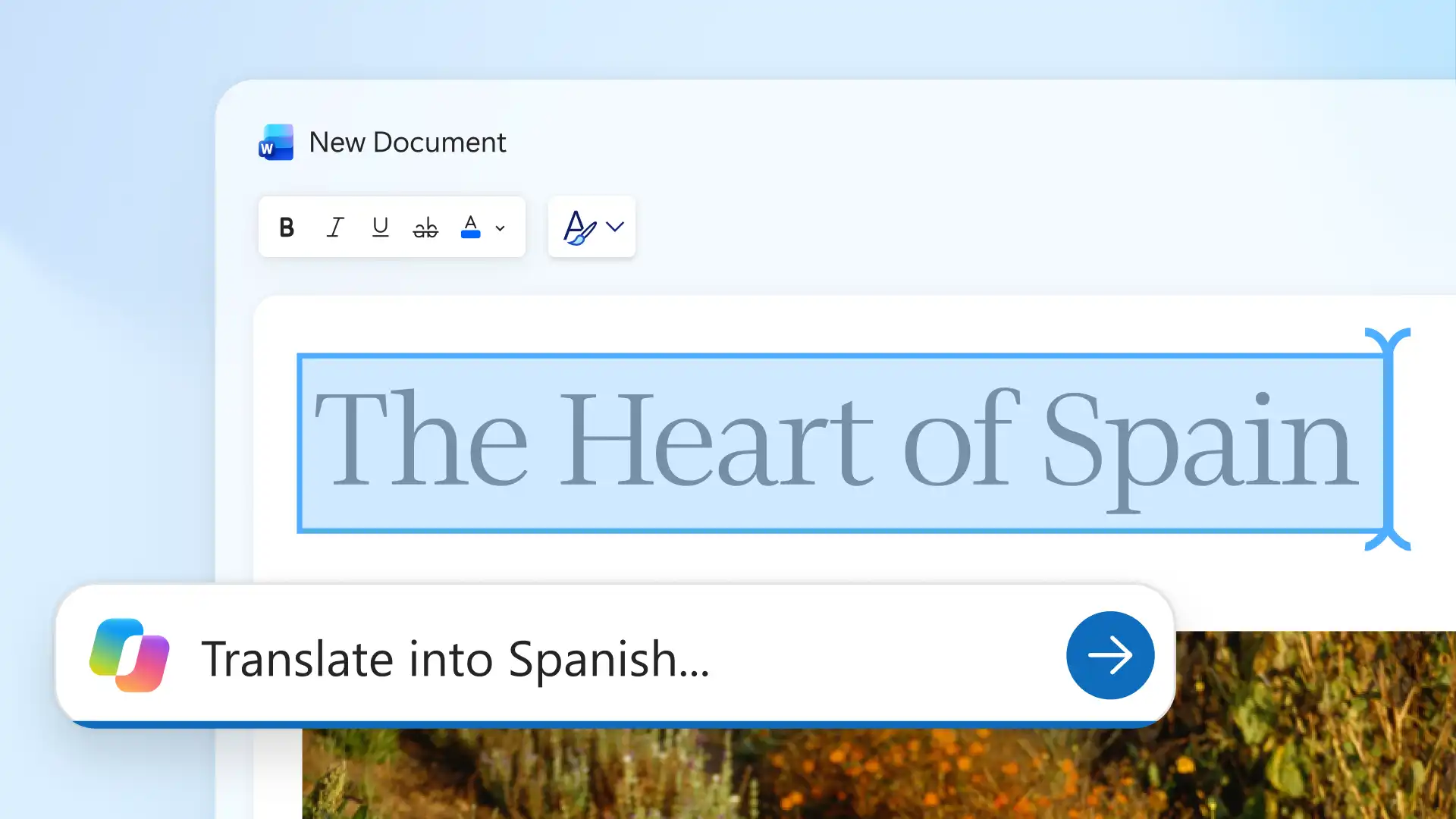
Save time proofreading spelling, grammar, and punctuation when repurposing content from PDFs, like press releases, training materials, or legal documents. Copilot can review tone and language to align older files with updated brand guidelines, or translate text to share with global teams, helping ensure documents remain formal and ready for collaboration.
4. Rewrite text for clarity, flow, and readability
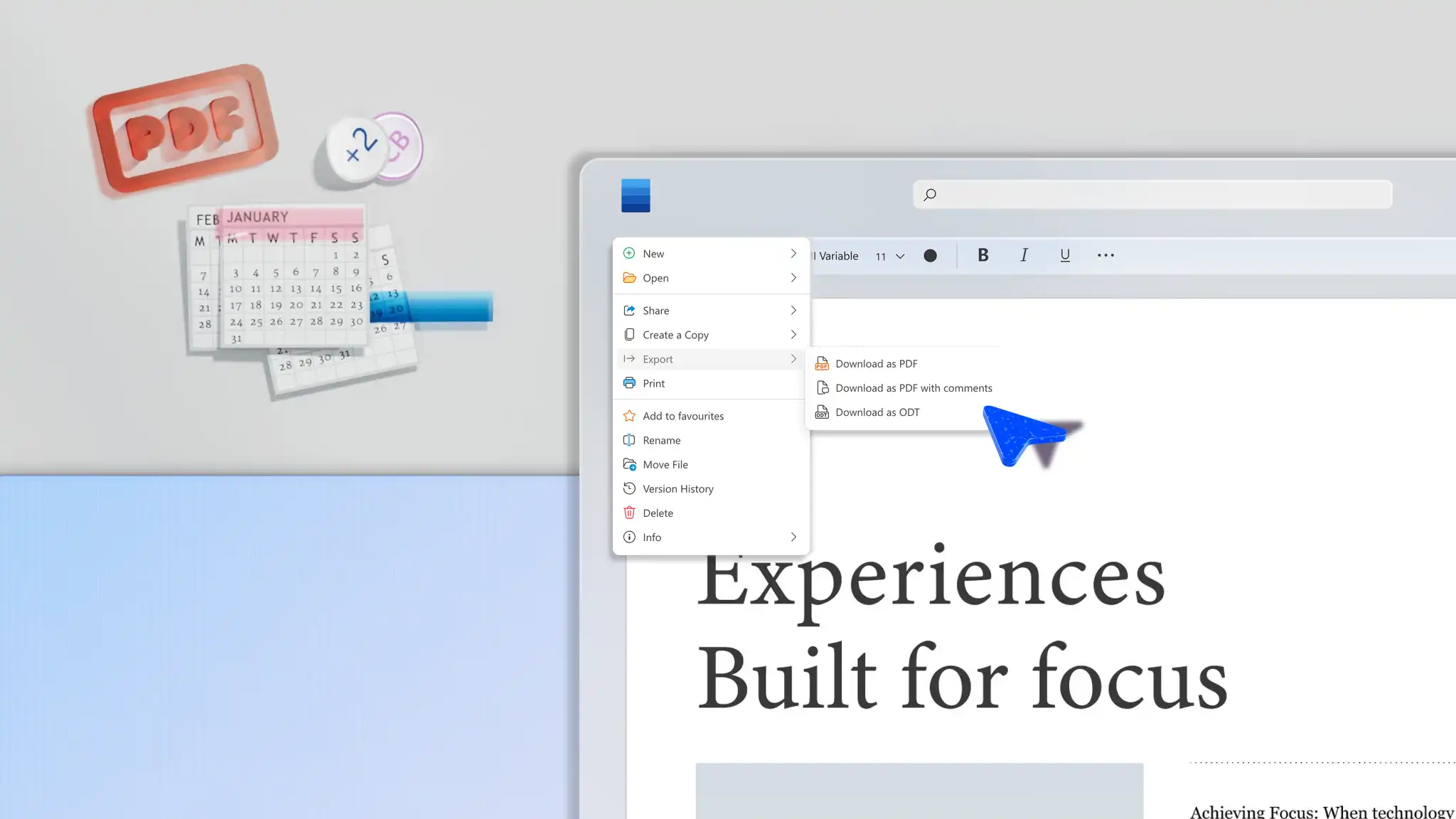
Chat with Copilot to rewrite text-heavy documents into clear and concise papers, ready to export as a PDF. Improve readability in business plans or training materials by turning long sentences into bullet points or tables with AI.
5. Generate summaries or executive overviews
Long PDFs like reports, proposals, or policy documents often need a concise overview for stakeholders. Copilot can summarize converted papers into an executive summary that highlights key points and decisions for easier review.
Depend on Copilot to quickly convert PDFs to .docx files that are easy to edit in Microsoft Word, with no external tools or software required. Learn more about the different types of documents Copilot can help build, including training materials and standard operating procedures.
Frequently asked questions
- Can Word convert a PDF to an editable document for free?
Microsoft Word includes built‑in options to open PDFs and convert them into editable .docx files at no additional cost. Converting PDF to .docx in Word for the web with Copilot, and in Word desktop apps using the Open option.
- Why does formatting change when converting a PDF to Word?
PDFs use fixed layouts, while Word documents reflow content for editing. During conversion, Word interprets elements such as columns, spacing, and line breaks as editable content. Copilot in Word helps improve layout consistency and prepare the document for sharing.
- Can Word convert a scanned PDF to an editable document?
Word for the web can convert a scanned PDF into an editable document using Copilot. Follow the steps in the above tutorial for more help.
- How to convert PDF to Word without Adobe Acrobat?
Directly convert a PDF to .docx by attaching the file directly in a Copilot chat in Word, without requiring Adobe Acrobat. This keeps the workflow within Word and removes the need for third-party tools.
- How to convert a PDF to Word on desktop?
Open the Microsoft Word desktop app, select Open, and choose the PDF file. Word converts the file into an editable document.