Teachers in primary and secondary classrooms rebuild the same documents every year, from lesson plans and seating charts to progress trackers and parent notes. That's why templates are a great solution to keep a classroom's information organized across the academic year.
Reusable classroom and teacher templates in Microsoft Word make that repeated setup into something made once and used all year. Microsoft Copilot, the AI assistant built into Word, drafts and adapts those templates from a short description. It gives teachers a starting point to review, customize, and save for reuse.
Explore how to build reusable classroom documents in one workflow using Copilot and educational templates in Word online.
Plan learning with classroom templates

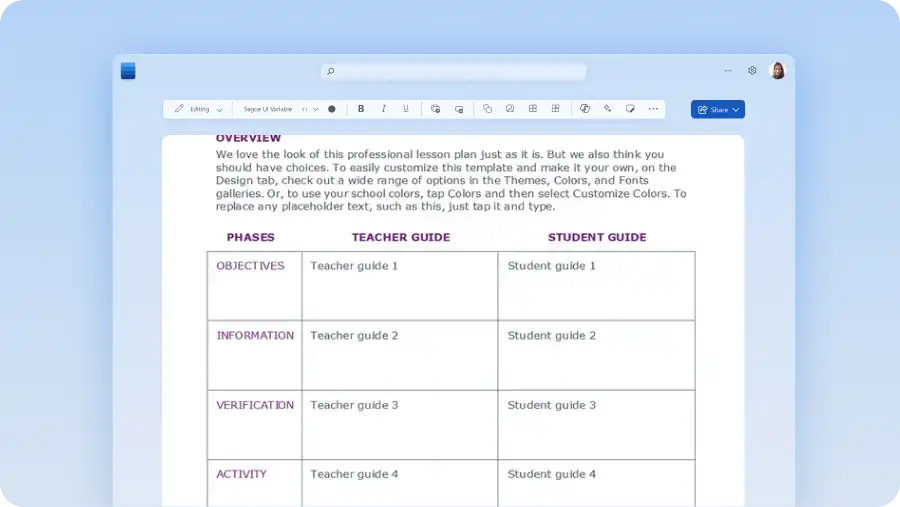
Lesson planning is easier with a structure already in place. Start with a lesson planning template in Word or use Copilot to draft and refine one.
Unit plan template
Map a full unit in one view, outlining each week's topic, activities, and assessment points. Use it at the start of a new unit, when the weeks need organizing into a connected sequence. Plan each weekly lesson directly from the unit plan, following a structure that already maps the term. Build it in Word with a table set to one row per week, heading styles for each part of the unit, and icons to flag assessments and milestones. To start from a draft instead, describe the unit to Copilot.
Curriculum map template
Easily plan lessons and evaluations for an entire academic year by outlining all topics and assessments in one single template. Space out topics across weeks or use as the template as a reference point before or during a semester. Set the page layout to landscape and lay the year out as a table, with a column for each term and rows for topics, skills, and assessments. Copilot can produce the first version of that grid.
Create reusable classroom routines and resources

With a dependable teacher template, set up a classroom workflow that guides every other document you create through the year. Put these routines in place early to keep the room running smoothly and make substitute handovers straightforward. Ask Copilot to draft any of them from a short description, then adjust the result before the year starts.
Classroom management plan
Define rules, routines, and consequences in one document, giving a class a clear framework from day one. For a teacher in their first year, it turns a blank page into a plan that is ready to follow. Use heading styles for each section, and SmartArt to map routines, or a consequence sequence as a diagram. Copilot can draft the sections from a short description of the class.
Seating charts
Arrange the room and assign each student a place, giving a clear top-down map of the whole class for any substitute teacher to follow. Draft it in the first week, then adjust it whenever behavior, group work, or a new arrival changes the layout. Moving students takes only a quick edit rather than a full redraw when the seating chart already exists.
Handle daily classroom administration with simple templates

Daily administration repeats constantly, but a template reduces the small recurring tasks teachers need to perform each day. The layout stays the same, and only the details change.
Attendance tracker
Record who is present each day, with a row for every student and a column for each date. Marking the daily roll stays simple once the layout is set. Patterns of lateness or absence become clear across the term, ready to flag early. Build the grid as a Word table with a checkbox for each day and cell shading to mark absences, so patterns show at a glance. Where totals matter more than the daily view, Microsoft Excel attendance sheets can handle the sums better. Try Copilot to help draft either version from the class list.
Substitute notes
Substitute notes give a relief teacher a one-page view of how the day runs, covering the timetable, the seating chart, and the students who need closer attention. These notes matter most on an unexpected absence, when the class still needs to run smoothly without the regular teacher present. Draft them as a one-page report in Word, using heading styles for the timetable, routines, seating, and student notes. Copilot can help turn a rough list of the day into that structure.
Track student progress over time
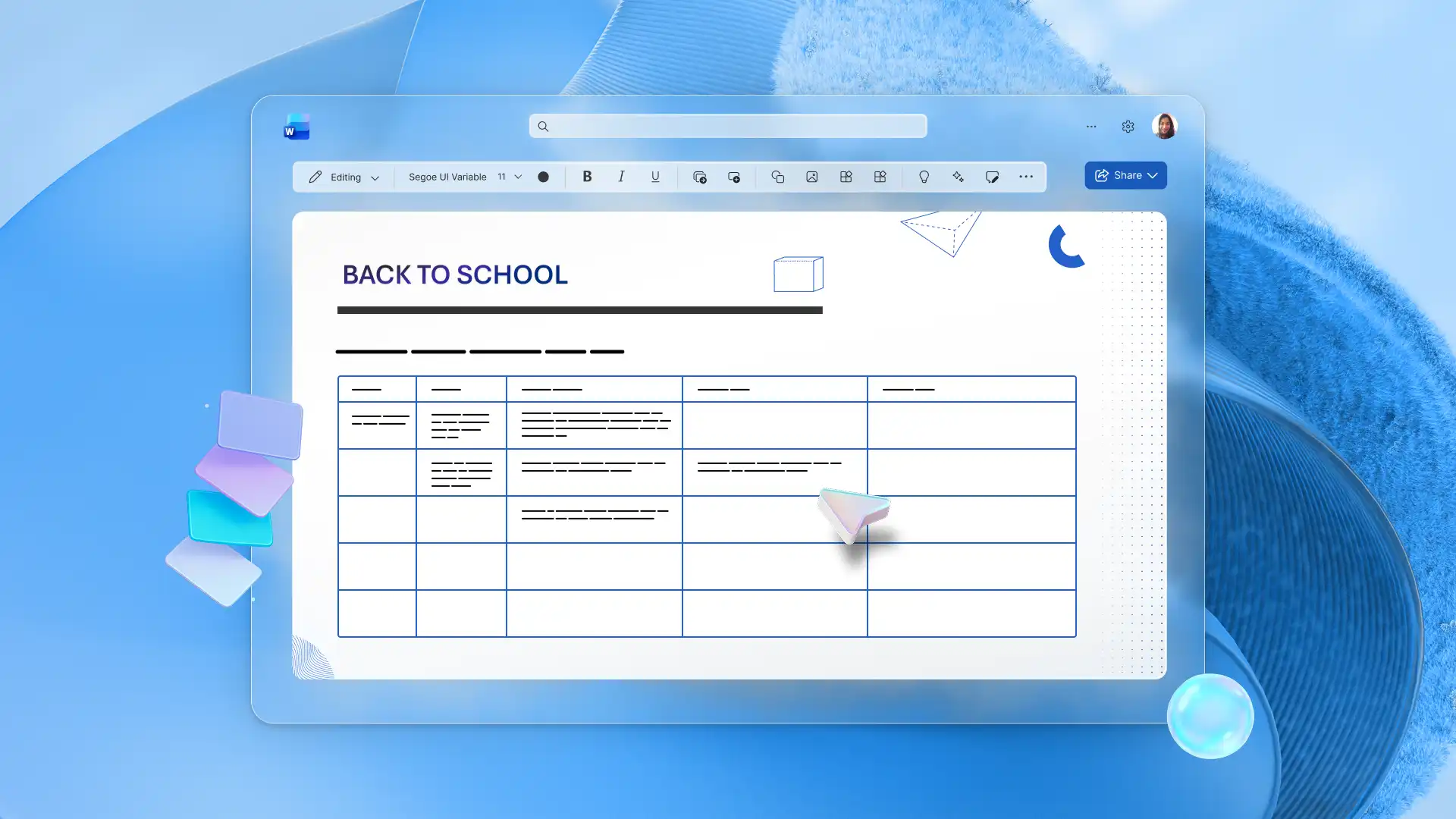
Record attendance and assessment in reusable formats, so results stay meaningful across a term or a year. Each template below does one job, keeping the picture of every student easy to read over time. Copilot can draft a tracker or rubric to start from, ready to review and refine for the class. Set each one up once in Word and reuse it at every assessment, so the format never has to be rebuilt.
Rubric template
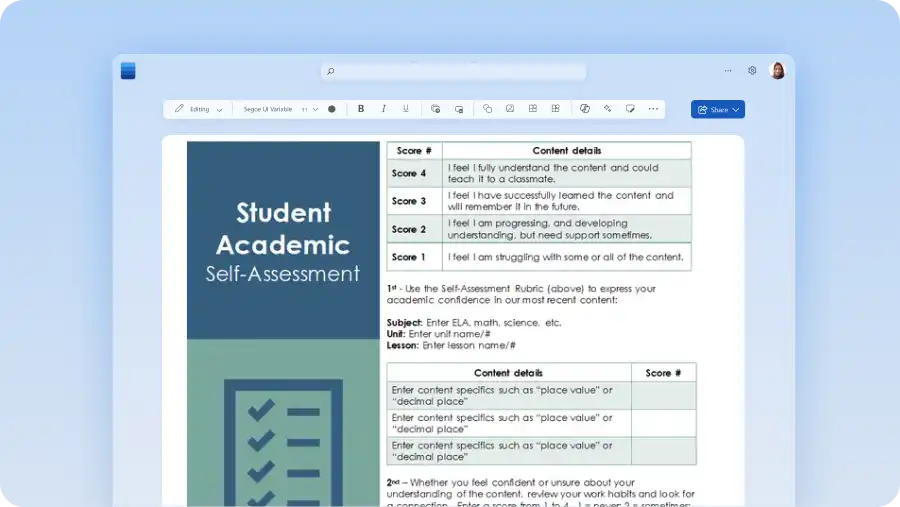
Define the marking criteria and describe each level of achievement, so students know exactly what strong work looks like before they start. This suits any graded task, especially open-ended work where a single mark explains little. Marking against set expectations keeps feedback fair and grades easier to justify. Set it up as a Word table with each criterion in a row and an achievement level in every column, then write the descriptor into each cell. Use Copilot to help draft those descriptors for a given task and year level.
Grade tracker template
Bring every grade for the class into one view, so results sit together instead of scattered across separate files. Add each mark after marking an assessment. Totals, averages, and missing results then stand out. A Word table with students in rows and assessments in columns holds the record, though Excel suits this better once totals and averages need calculating. Copilot can help set up either one from the assessment schedule.
Student progress tracker
Track individual students against their goals over time, noting starting points and next steps at each check-in. Regular entries show how far each student has progressed and support sharper conversations about it. Give each student a short table with dated rows for the check-in, the goal, and the next step, using heading styles to separate one student from the next. Copilot can help build that structure from existing class notes.
Keep communication with families organized

Contact with parents and carers runs throughout the year, and a steady format keeps each message clear and each record complete. Use teacher communication templates as a base, then tailor each message with Copilot. Adapt each one in Word for the family it is going to, then share it straight from the same document.
Parent communication log
Record every contact with parents or carers, including the date, discussion, and any agreed actions. A parent communication log is useful to track communication across multiple interactions. A complete record makes meetings and reviews easier to facilitate. Use a Word table with columns for date, student, contact type, summary, and follow-up. Copilot can convert existing notes into either format.
Conference notes
Capture what was discussed and agreed in a parent meeting, keeping decisions and next steps clear for everyone involved. It works for parent-teacher interviews and any scheduled meetings about a student. A shared template gives every conference note a consistent structure, making decisions, follow-ups, and next steps easier to review. Set the page up with heading styles for strengths, areas to work on, and agreed actions, then structured bullet points under each. Copilot can refine meeting notes into those sections.
Newsletter template
Share class news in a reusable format, with sections for events, reminders, and highlights. Send regular updates to the whole class from one layout. A set template keeps each edition quick to produce and easy to follow. Use a two-column page layout with heading styles for events, reminders, and highlights, so each edition follows the same shape. Copilot can draft those sections from a list of what happened that fortnight.
How to create a reusable classroom template
Saving documents as templates keeps a classroom consistent over time. When every unit plan, rubric, and parent log starts from the same base, records stay easy to compare, a shared template sets a standard the whole year level works to, and each new year starts from a proven structure instead of a blank page. Follow these steps to create a reusable template in Word.
Open a finished document in Word for the web.
Create a copy of the file to keep the original version intact.
Remove the details tied to one class or lesson, such as student names, dates, and specific topics, leaving the structure and formatting.
Replace the variable text with placeholders, for example [Insert topic].
Save the file with a title such as ‘Word Template’ in a shared OneDrive or SharePoint folder.
To reuse it, copy the file and fill in the new details for each class.
Working from reusable templates reduces the daily tasks needed to keep a classroom running across a term and keeps classroom information easier to manage. Start with the free teacher templates in Microsoft Word and shape each one to a class with Copilot. For more ways to prepare, explore back-to-school templates before term begins.
Frequently asked questions
- Should teachers create templates in Word or Excel?
Teachers can build most classroom documents as Word templates when the content is text and layout, like lesson plans, seating charts, and parent notes. Excel fits templates driven by numbers, such as grade totals or attendance sums. Many classrooms use both.
- How can teachers share classroom templates with other teachers?
Save a classroom template to a shared OneDrive or SharePoint folder, then share the link so the team works from one version. Each teacher copies the file and fills in their own details, leaving the master untouched.
- What is the difference between a teacher template and a document?
A teacher template or learning resource holds the structure, headings, and formatting with none of the one-off details. A document is a single finished version made from it, filled in for one class or date. To create a template in Word for the web, remove the content tied to one class, replace the variable text with placeholders such as [Insert topic], and save the file to OneDrive or SharePoint under a name that identifies it as the master. To reuse it, open the file, select File, then Save as, then Save as a copy, and complete the new details so the master version stays unchanged.
- Can Copilot customize a template for different year levels?
A template can be adapted for a different year level with Copilot in Word, which adjusts the language and detail to match the age group. Describe the change, and it drafts a version to review.