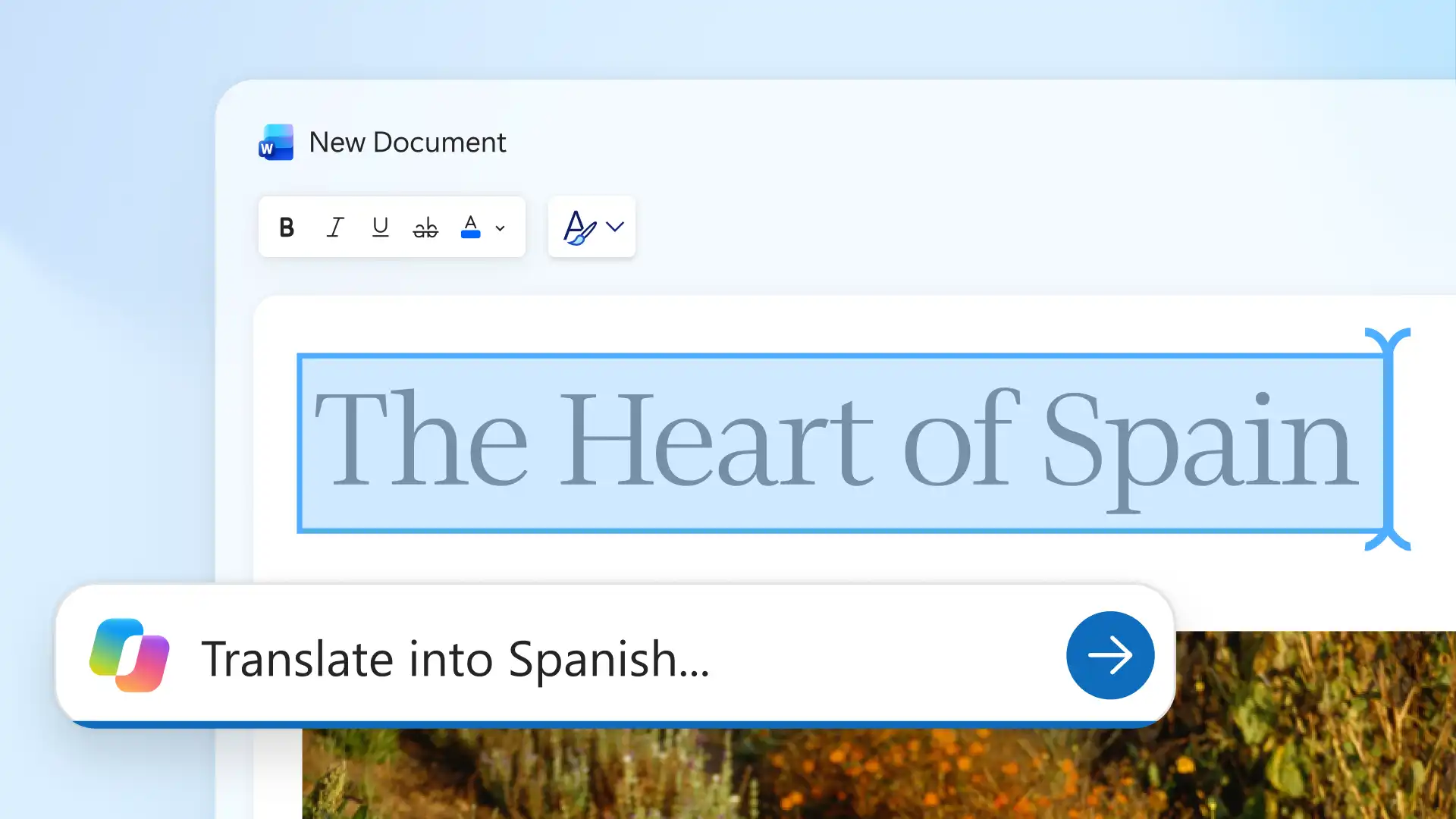
Create and share for global audiences using the built-in online document translator in Microsoft Word. Translator creates a separate translated copy while leaving the original unchanged, making it easier to adapt onboarding manuals for new hires in different countries or provide study materials in another language.
Microsoft Word supports the broader multilingual document workflow beyond translation. While Translator creates and preserves each language version, Copilot in Word can help improve clarity, and adapt wording for different regions and audiences with AI assistance.
Learn how to translate a document in Word, refine the wording with AI, and prepare the finished version to share.
Translate a Word document with Translator
Documents can be translated inside Word using Translator, which creates a copy of an existing document and translates it entirely into another language, keeping the formatting of the original file. Follow the steps below to translate a whole document.
Open the document in Word for the web, or upload an existing file to translate.
Select Translate from the Review tab, then choose Translate Document for a full copy or Translate Selection for highlighted text.
Choose the target language in the Translator pane, then select Translate.
Word generates a new document with the translation and leaves the original file unchanged. Edit, save, and share the new file as needed.
Rewrite translated content with AI
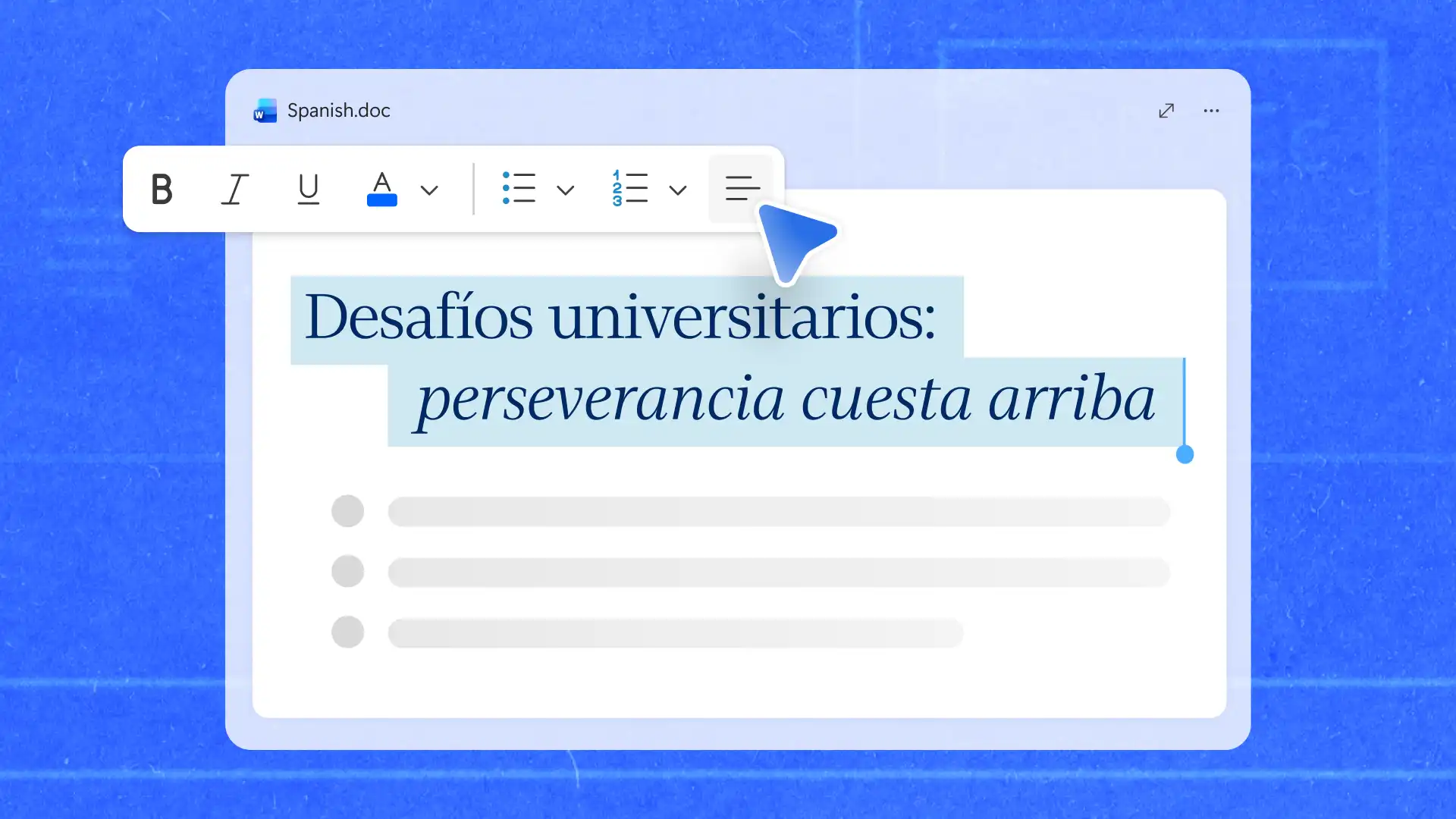
Translator converts the source document into the target language in full, so every region starts from the same content and the same structure. Copilot in Word can then adapt translations for a specific audience, suggesting phrasing that suits local readers while preserving the original meaning.
Start a chat with Copilot in the document to adjust a formal tone, replace region-specific terminology, or simplify phrases after translation. Providing details about the audience, region, and purpose gives Copilot the context needed to make more relevant suggestions.
Use the AI rewriter to help update a specific section without changing the rest of the document. This can be useful when adapting marketing campaigns or press releases for different regions, where a campaign tagline that works in one language can read as too formal or inappropriate in another. Describe the intended audience and translation needs to Copilot, as in this example.
Review the updated passage against the original with Copilot to confirm the meaning remains accurate while the language feels more natural for the intended audience.
Review and improve translated content
Before sharing, review the translated document for spelling, grammar, terminology, and numerical information to ensure everything is clear and accurate.
Spelling review: run the spell checker in the target language to identify spelling mistakes and language-specific issues.
Grammar review: use grammar suggestions to improve sentence structure and readability.
Terminology consistency: check that product names, job titles, and key terms are translated consistently throughout the document.
Formatting checks: review headings, tables, and page layouts, as translated text can change formatting and spacing.
Number checks: confirm that figures, dates, currencies, and other important details remain correct after translation.
For example, when reviewing a translated business proposal, verify that product names, pricing, delivery dates, and formatting remain accurate and consistent. A final review helps reduce translation errors and ensures the document is ready for its intended audience.
Share and collaborate on multilingual documents
When multiple people need to review translated writing, keeping everyone in the same document simplifies feedback and version management. Use OneDrive sharing to give reviewers access to the latest version and set each one to view, comment on, or edit the document.
Comments make it easy to discuss specific passages without lengthy email threads. With collaboration features in Word, reviewers can add feedback, respond to comments, and resolve issues directly in the document.
Version history tracks changes throughout the review process. Restore an earlier version of the document if if an edit introduces an error or changes the meaning of a translated passage.
For example, a monthly report translated for multiple regions can be shared with regional reviewers to proofread before release. Using the same document structure across language versions, with document editor keeping the formatting consistent, makes side-by-side review easier.
Once the translation is approved, save the document as a PDF to preserve the layout for distribution, even when translated text varies in length from the original.
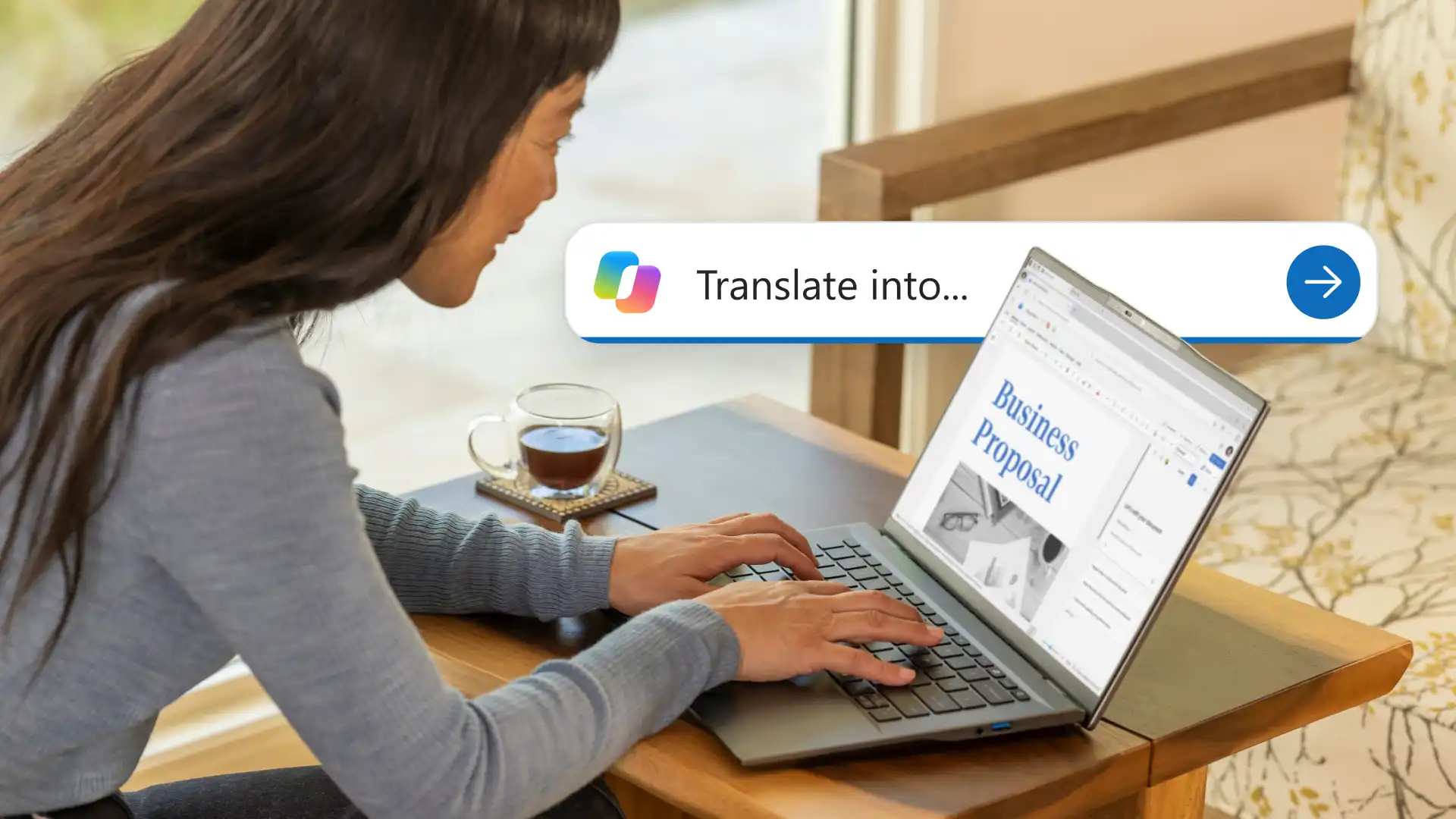
Translate training materials for global teams
Scenario
A training manager has an onboarding manual in English and needs to make it available to new hires in three additional regions. Rather than creating separate manuals from scratch, the training manager uses the existing document as the source version. This helps keep training consistent as processes, policies, and materials change over time.
Output
The result is a source training manual and a translated version for each region that follows the same structure, instructions, and formatting. When the source manual is updated, those changes can be reviewed and applied across the translated versions to keep training materials aligned.
Workflow in action
The steps below show how to create and maintain multilingual versions of the same onboarding manual.
Open the source manual: upload the onboarding document to Word and prepare it for translation.
Translate the document: create a translated copy using Translator for each region while keeping the original available for reference.
Review key terminology: check product names, internal processes, and training milestones against the source document.
Adapt for local audiences: use Copilot to update wording and instructions so they read naturally for readers in each region.
Share and collaborate: use OneDrive to share each version with regional reviewers, to keep feedback and updates in one place.
Managing multilingual work often involves more than document translation. Microsoft Word provides tools to translate, review, refine, and share across languages from a single workspace.
For more ways to work with multilingual documents, explore how to collaborate on documents in Word and how to write a business report.
Frequently asked questions
- Can Word translate a scanned document?
Word translates editable text. Convert the scanned text into editable text before translating it. Once recognized, Translator creates a translated copy like any other document.
- How is a document translated from Spanish to English in Word?
Open the Spanish document in Word, select Review > Translate > Translate Document, choose English as the target language, then select Translate. Word creates a separate English version ready for review and keeps the original document unchanged.
- How accurate is AI document translation?
Copilot in Word can produce a translated draft while keeping the meaning and context of the document. Review terminology, tone, context, and organization-specific language before sharing to make sure the translation communicates the intended meaning.
- Is AI translation secure?
Microsoft Word and Microsoft 365 (opens in a new tab) include security, privacy, and compliance protections that help safeguard documents when using AI features. Microsoft Copilot also reads existing permissions and organisational data protection controls.
- Can Copilot rewrite translated content?
Copilot can help improve readability, adjust tone, simplify language, and adapt translated content for different audiences, regions, or communication styles while helping maintain the original meaning. Review the updated passage against the source before sharing.