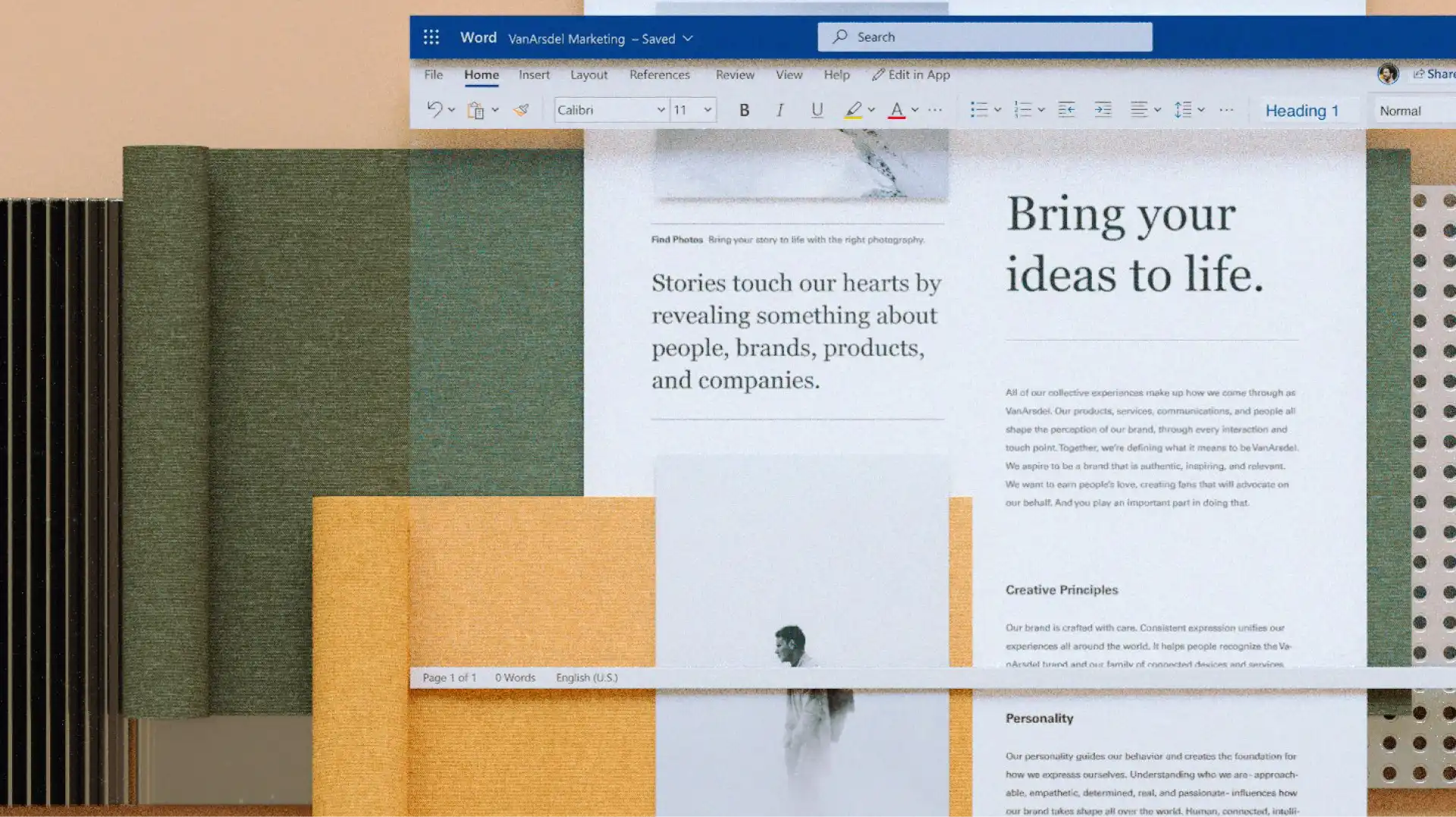
Translate documents online
Use built-in tools to translate documents into different languages online, or refine...

Create informative one pagers using writing tools and AI assistance in Microsoft Word.

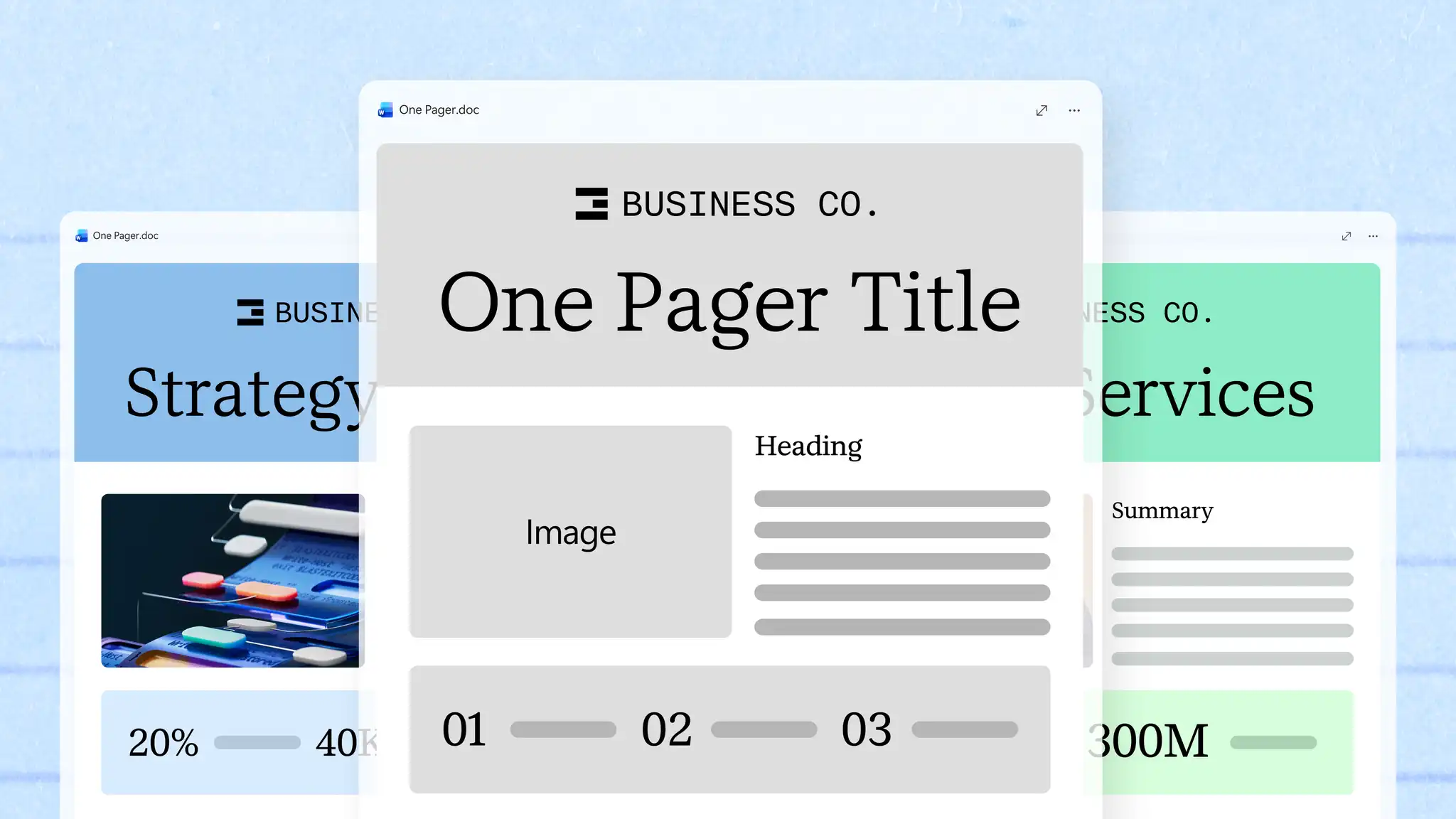
Turn notes and ideas into a polished one pager in Word. Write the key message and supporting details in a document or use Copilot in Word to create a first draft from existing material using AI.

Make key information easy to scan with headings, tables, and paragraph settings. Group related details in a structured layout so priorities, updates, and next steps are easy to find.

Make communications instantly recognizable by customizing the look of one pagers with brand colors, logos, themes, and organizational assets, to reflect the company brand.


Highlight the main message and supporting details from lengthy reports, notes, and documents. Copilot can help condense the information into a review-ready one pager, making key takeaways simple to scan and important details in a product one pager, project update, or executive summary easier to find.
Capture tasks, owners, and due dates in an action table for project updates or process overviews. Checklists can track milestones and completed work, giving readers a focused view of current progress, outstanding actions, and the next steps that need attention or follow-up.
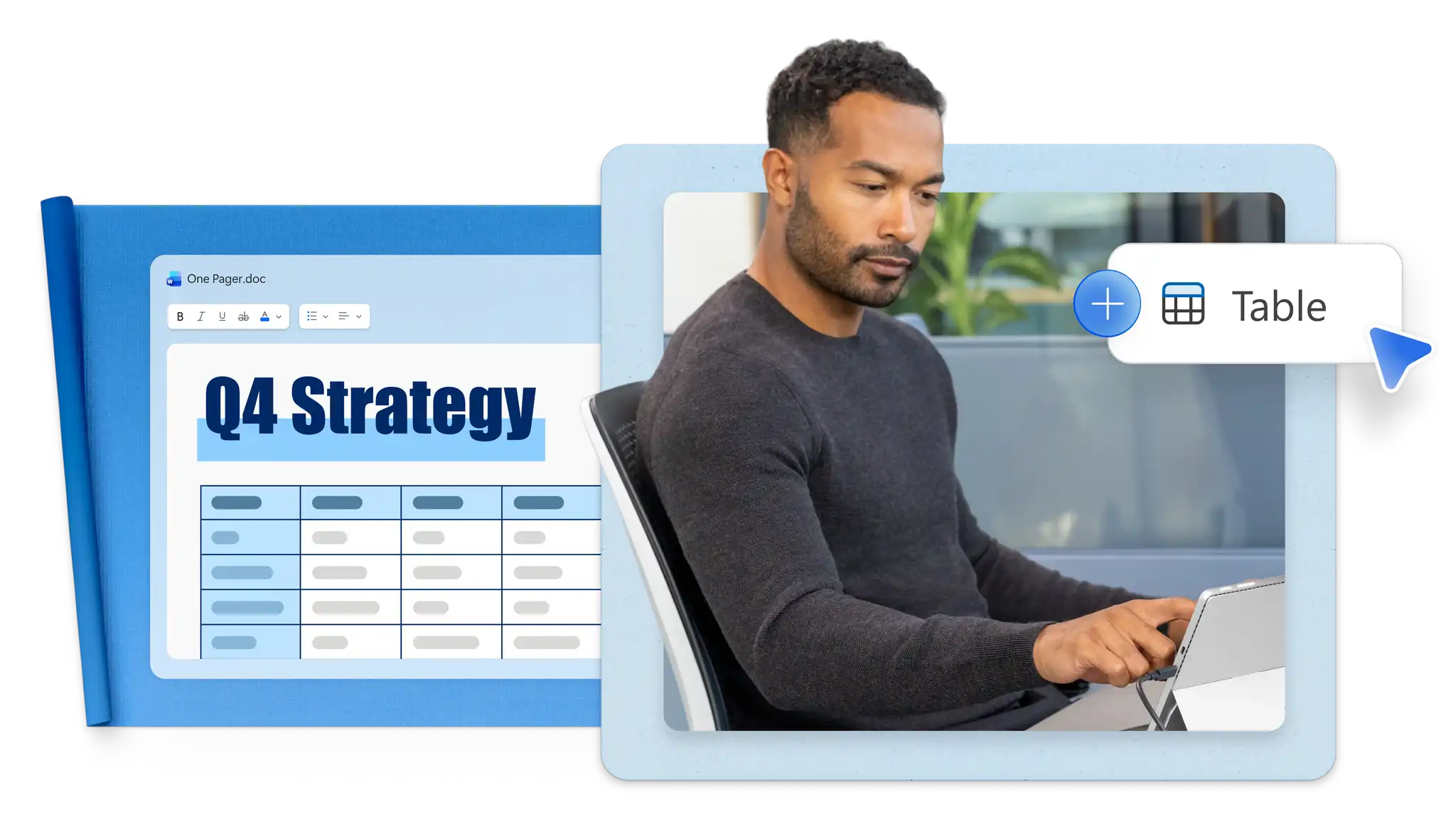
Invite contributors to review key messages, add missing details, and check information in a one pager. Comments and tracked changes (opens in a new tab) make it easier to collect feedback and review suggested edits, helping teams refine collaborative files such as an investor one pager or business process documents before they are finalized.
Turn an existing company one pager into a reusable starting point for future projects documents by saving it as an editable copy in Word online. Keep the established structure, styling, and branding in place, and update the details for each new document to maintain a consistent format.
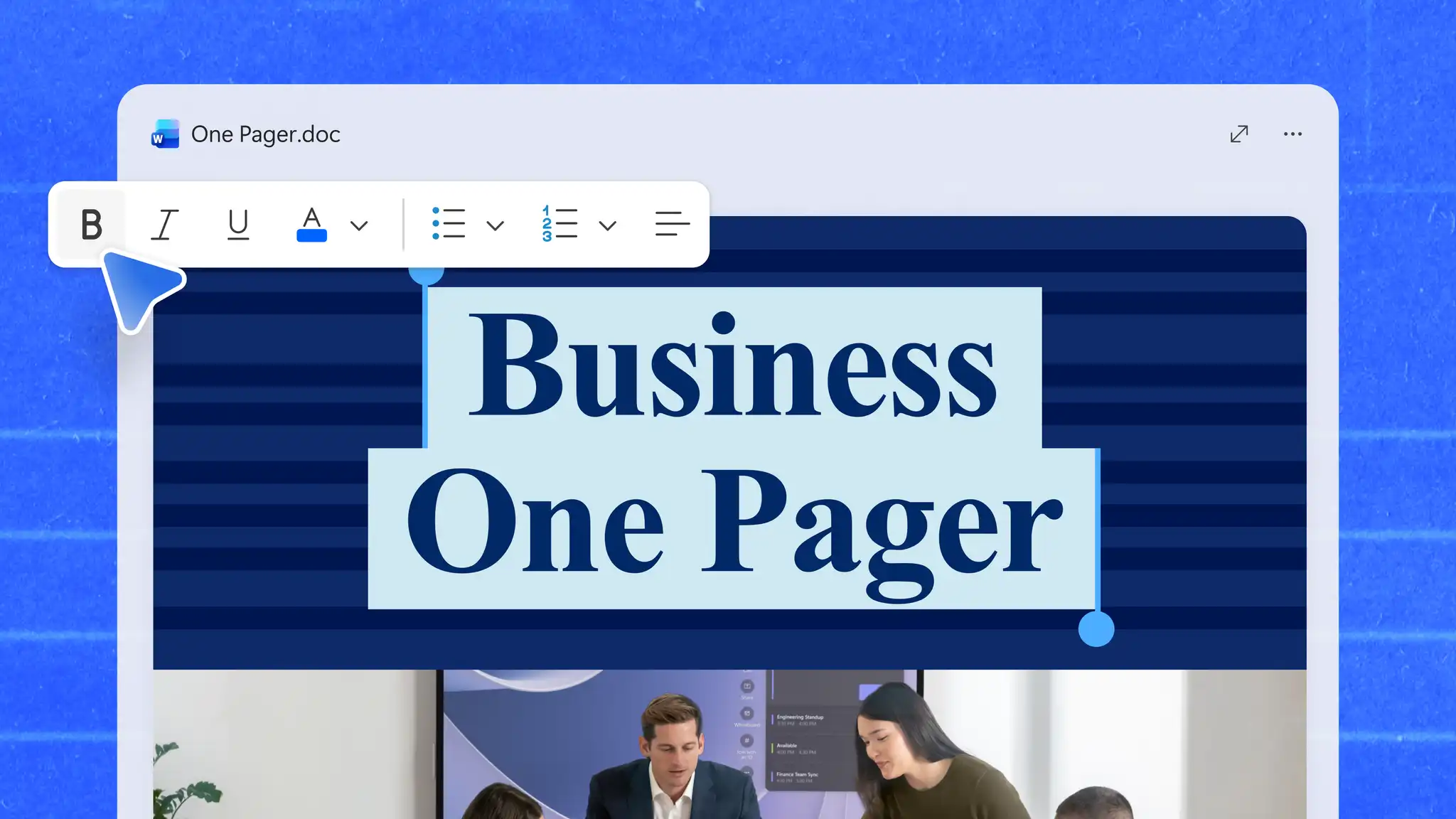
Open Word online and start with a blank document, or open existing notes.
Write the main message, key details, and next steps in that order, or attach notes to Copilot chat to build the first draft.
Organize the draft with clear headings, tables, and layout options to make information easy to scan.
Review important details and use comments and track changes to collect feedback.
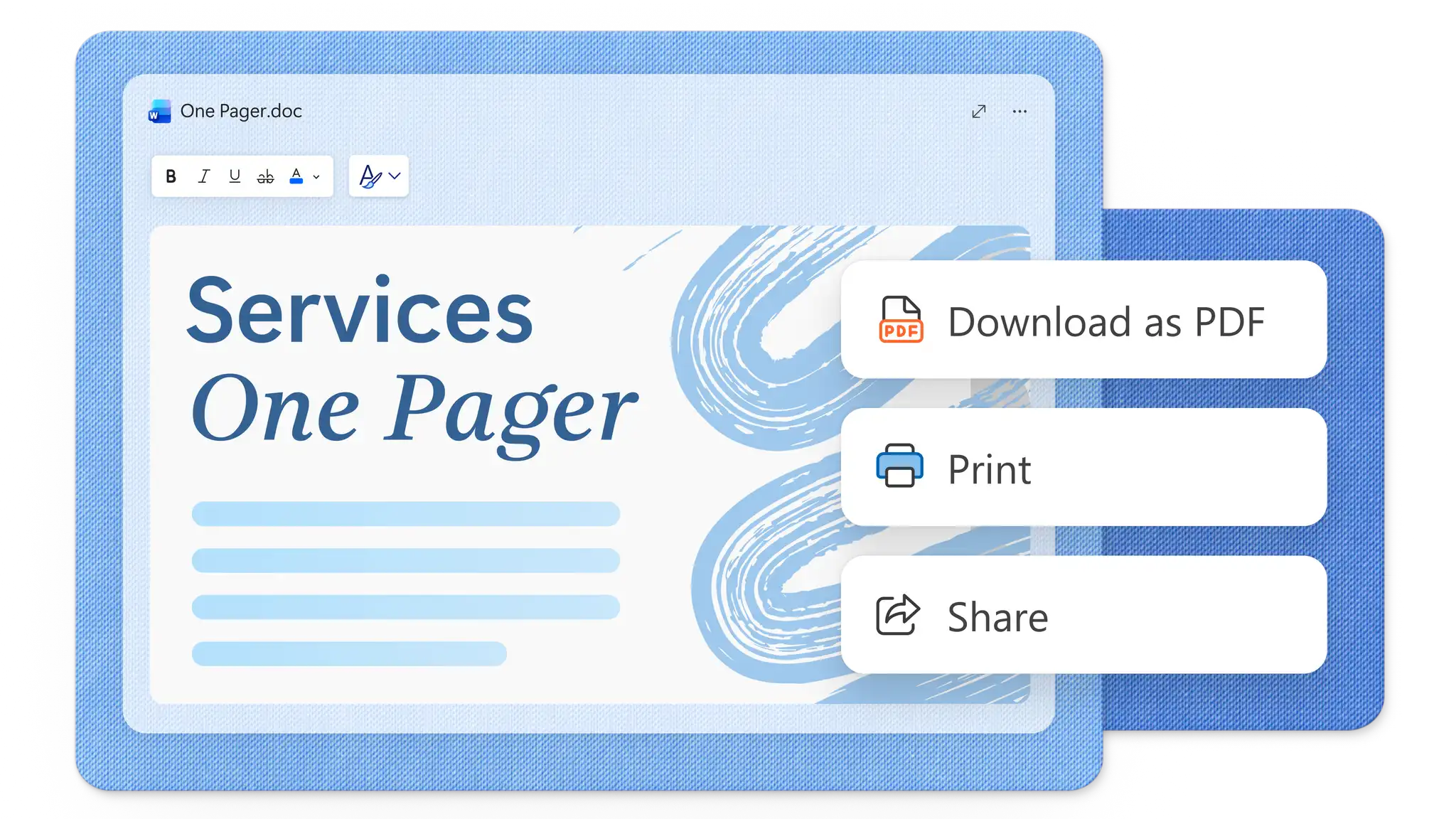
Share the finished one pager with a secure OneDrive link, export it as a PDF, or print copies for in-person distribution.
Every one pager needs a clear title, a main message, the most important supporting details, and a next step for readers. Share key figures, decisions, or owners, depending on the purpose. A logo and brand colors keep the page consistent with other company materials.
A one pager should fit on a single page while keeping the main message easy to scan. Prioritize the most relevant details, use concise sections, and move supporting information to a separate document when more context is needed.
Copilot can help summarize a report, meeting notes, or a longer plan into a one-page draft based on the main messages and supporting details. Review the draft for accuracy and completeness and refine the content before sharing.
In Word for Windows and Mac, a finished one pager can be saved as a custom Word template (opens in a new tab) and used again for future documents. Word for the web does not support custom templates, but an existing one pager can be copied and edited for a new project or update.