An action plan turns a goal into specific tasks, with clear responsibilities, deadlines, and required resources. It helps teams understand who is responsible for each task and when the work is due.
Create an action plan from a blank Microsoft Word document or use Copilot in Word to draft one from meeting notes, project briefs, or a report.
Learn how to create an action plan with step-by-step guidance, practical examples, and tips for updating plans with AI in Word online.
How to write an action plan step by step
To create an action plan, open a new document and follow these steps.
Write down the goal of the action plan and explain how success will be measured.
List the actions the team needs to complete to reach the goal.
Assign each action to one person and set a deadline for completing it.
List the people, tools, and budget needed for each task. Identify any tasks that must be completed before others can begin.
Set milestones to track progress at key stages and check that the action plan is moving towards its goal.
Add review dates to report on progress, address delays, and update tasks or deadlines as needed.
Create an action plan with Copilot
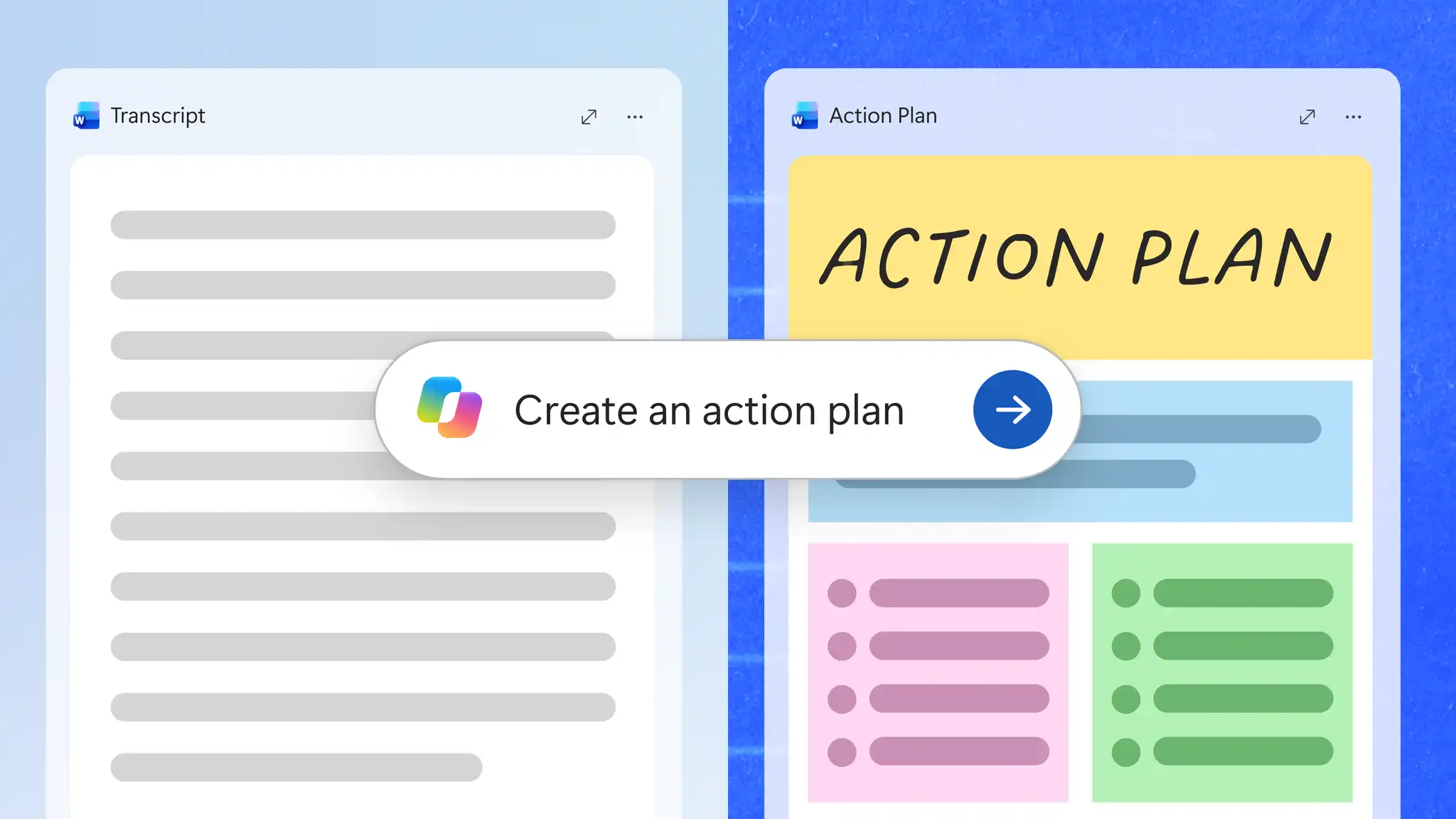
Copilot can help can help draft and update an action plan using information already captured in project documents, meeting notes, or reports. It can identify actions, owners, and deadlines from the source, to provide a starting point to review and complete.
Turn a meeting notes or reports into an action plan with AI
Open a new document in Word and start a chat with Copilot.
Upload the meeting notes, transcript, or report that contains the project decisions and next steps.
Ask Copilot to draft an action plan based on the information in the source, including actions, owners, and deadlines.
Fill in any missing owners, dates, or other details.
Review the action plan against the original source before sharing it.
Update an existing action plan with Copilot
Open the action plan document in Word and start a chat with Copilot.
Ask Copilot to review the plan using the latest project notes, meeting notes, or other relevant updates.
Identify actions that need to be added or updated, including changes to owners, deadlines, or progress.
Review the suggested changes against the source before updating the plan.
Action plan outline checklist
Use this outline to organize tasks and track progress. Add the details for each section based on the goal, actions, and timeline.
Goal and measure of success: state one measurable goal and the number or result the team will use to judge success.
Action table: give each action its own row, with columns for the action, owner, deadline, resources and status, such as not started, in progress, or done.
Milestones: list the checkpoints between the start date and the goal date, each with a date.
Risks and contingencies: name what could delay the plan and the backup step for each risk, along with who takes that step.
Review and reporting: set the review dates, name who reports progress, and say where the team records updates.
A one-page action plan can bring the goal, key tasks, owners, and deadlines together in a format that's easy to review.
Format an action plan in Word
A clearly formatted plan helps owners find their actions faster, and leaders follow progress without reading every line.
Table: insert a table with columns for action, owner, deadline, resources, and status.
Headings: apply heading styles to the goal, actions, risks, and review section. Use the Navigation pane to see each heading, then select one to go directly to that section.
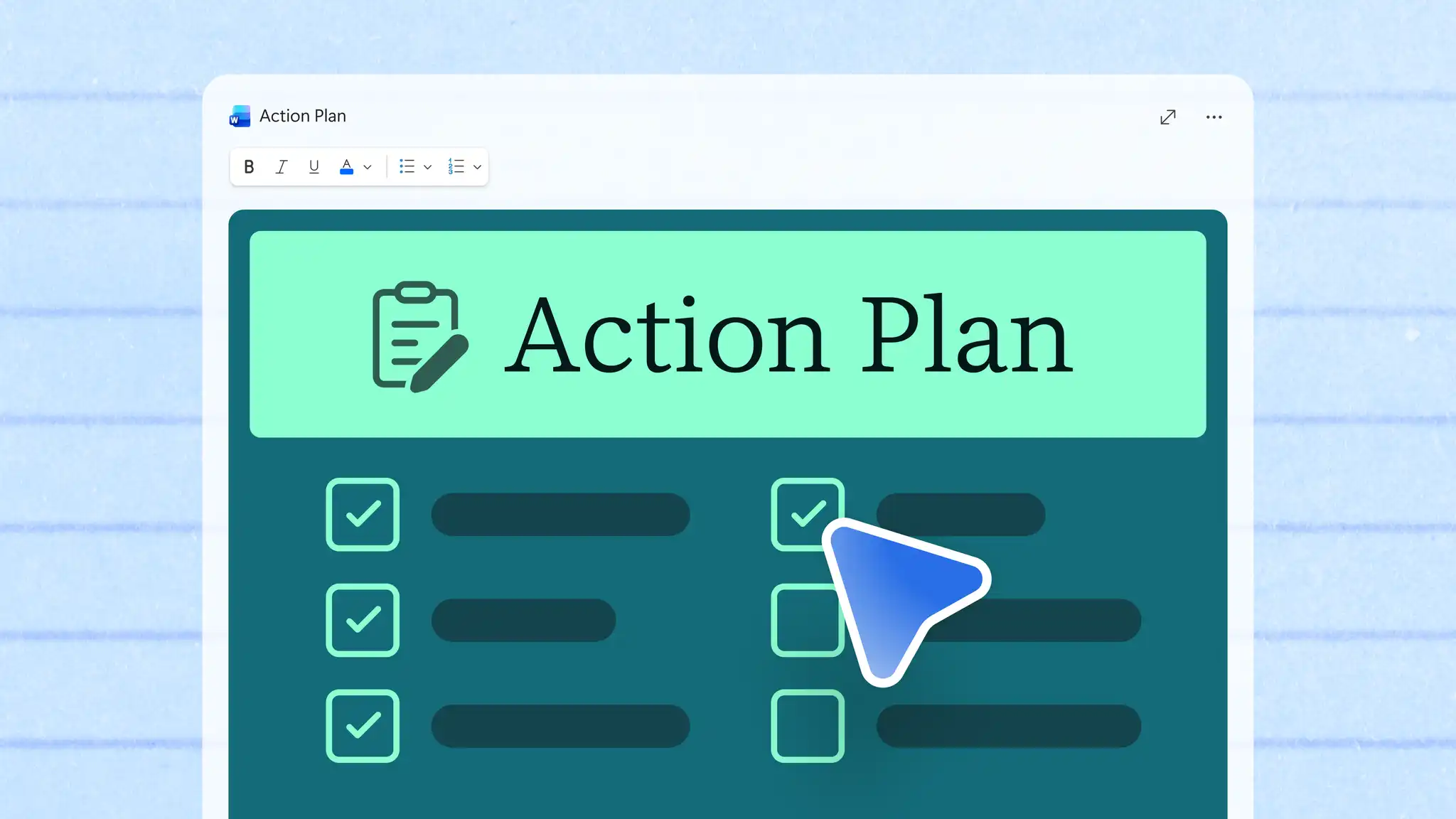
Checklist: add a checklist for quick task lists to mark actions done.
Document control: add a document control table at the top with the plan owner, version and review date.
First page: keep the goal and the next milestone on the first page. With the target up front, readers get the main point before the detail.
Collaborate on an action plan in Word
Keep the action plan in one shared document so team members can review tasks and work together from the same document. Use the following document collaboration features to update actions and track changes:
Co-authoring: collaborate on the plan at the same time, with each owner updating the status of their own actions.
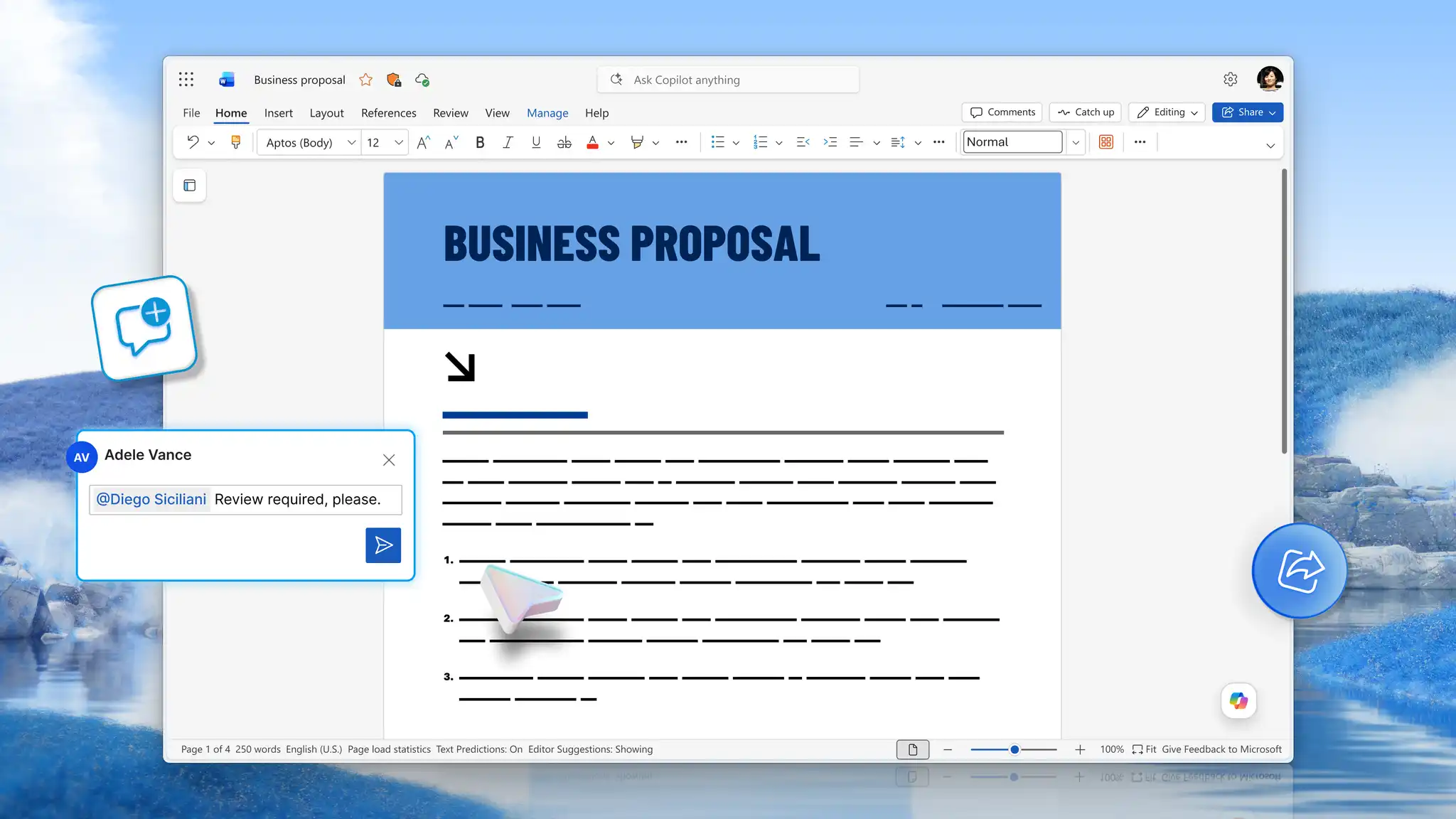
Mentions: @mention an owner in a comment to assign the action (opens in a new tab) and notify them about the task.
Version history: check who changed the plan or restore an earlier version (opens in a new tab) if an edit removes an action item the team still needs.

Action plan examples
Action plans can be adapted for different business needs, from sales to change communications. Use these examples to find relevant tasks, responsibilities, and timelines, then adapt them to fit the needs of each plan.
Business action plan example
An accounting firm aims to onboard every new client through an online portal within two quarters. It tracks success by the share of new clients who complete online onboarding.
Portal: the operations manager chooses and configures a client portal by the end of month two.
Forms: the client services lead creates online versions of engagement letters and identity checks by the end of month three.
Training: the practice manager trains every accountant on the portal by the end of month four.
Review: the managing partner reviews onboarding numbers at the end of each month and reports progress to the partners.
Sales action plan example
A software reseller aims to grow customer renewals by 15 percent next quarter over the same quarter last year.
Prospecting: account managers list every contract renewing in the quarter by the end of the first week.
Follow-up: each account manager contacts their customers 60 days before renewal and logs the call in the CRM system.
Renewal: the sales lead approves renewal offers for the largest accounts two weeks before each contract ends.
Reporting: the sales operations analyst shares renewal progress with the team every Friday.
To draft a plan like this, add the account list to a Copilot chat and ask Copilot to group the actions by sales stage.
Crisis communications action plan example
After a storm closes a distribution center for three days, the operations director aims to give every staff member, customer, and supplier a clear update on the first day and after each change in status.
Staff: the site manager sends a text message and an email to all staff on the first morning with shift and pay details, and sends a new update each evening.
Customers: the customer service lead emails each customer with an open order about new delivery dates on the first day and updates the notice on the company website.
Suppliers: the procurement manager calls each supplier with a delivery due during the closure to agree a new date.
Spokesperson: the operations director answers all media and partner questions. This ensures external message shares the same facts.
Change communications action plan
When a team moves to a new tool, process, or way of working, the change needs to be communicated. An action plan can schedule each of those steps with an owner and a date, from the first announcement to everyday use. Many teams follow ADKAR, a five-stage model for helping people through a change, and give each stage its own actions:
Awareness: a senior leader explains why the change is happening and what it means for the business.
Desire: managers talk with each team about how the change helps their work and answer any concerns.
Knowledge: a trainer shares guides and runs training sessions on the new process.
Ability: team leads run practice sessions and answer questions as people start using the new process.
Reinforcement: the project lead shares early results and thanks the people who use the new process well.
To draft this plan, add the details of the change, such as the announcement, the timeline, and the teams it affects, to a Copilot chat and ask for actions, owners, and channels for each stage.
Action plans and SOPs
An action plan schedules a change and ends once the team completes the actions, while a standard operating procedure records the new way of working and stays in use. After the change, explore standard operating procedure templates with AI to document the new process.
A clear action plan gives every action an owner and a date, while regular reviews give the team a set time to update the plan as the work changes. Start with one goal the team agrees on, follow the steps in this guide and adapt the example closest to the team's plan. Open Microsoft Word to write the plan and use Copilot to help draft it and keep it up to date.
Frequently asked questions
- What is the purpose of an action plan?
An action plan turns a goal into specific actions, each with an owner and a deadline. The plan shows the whole team who does what and keeps progress toward the result visible.
- Can Copilot in Word create an action plan?
Copilot in Word can help draft an action plan from a brief, a meeting transcript or an earlier plan, and help update it as the work changes, while the team sets the goal and confirms every owner and date.
- What is the difference between an action plan and an SOP?
A standard operating procedure (SOP) records a repeatable process the team follows every time, while an action plan schedules one-off work toward a goal and ends once the team completes it. A SOP is often produced after a change to record the new way of working.
- How long should an action plan be?
A simple action plan may fit into a one pager, while larger projects may need more space to cover tasks, responsibilities, and milestones.
- How can SMART goal setting help with an action plan?
SMART goal setting can help define a specific and measurable goal before drafting an action plan. Consider what needs to be achieved, how success will be measured, and when the goal should be reached. The action plan can then break that goal into tasks, responsibilities, and deadlines.