
Word counter
Check word count in real time to keep documents accurate and within length requirements in Microsoft Word.
Smart word counter tool for precise documents

Stay within document word count requirements
Track live word count to confidently stay within set document word limits. Quickly identify where to shorten or expand copy, and submit files that meet requirements the first time.

Edit copy to fit different formats and word limits
See word count at a glance to easily adjust copy for different platforms. Refine word length to reuse content across outputs and keep every version clear and well-structured.

Review copy length with detailed word count insights
View section, paragraph, and sentence word count to see where specific copy requires editing. Explore advanced word statistics like character count and readability scores to improve writing quality.

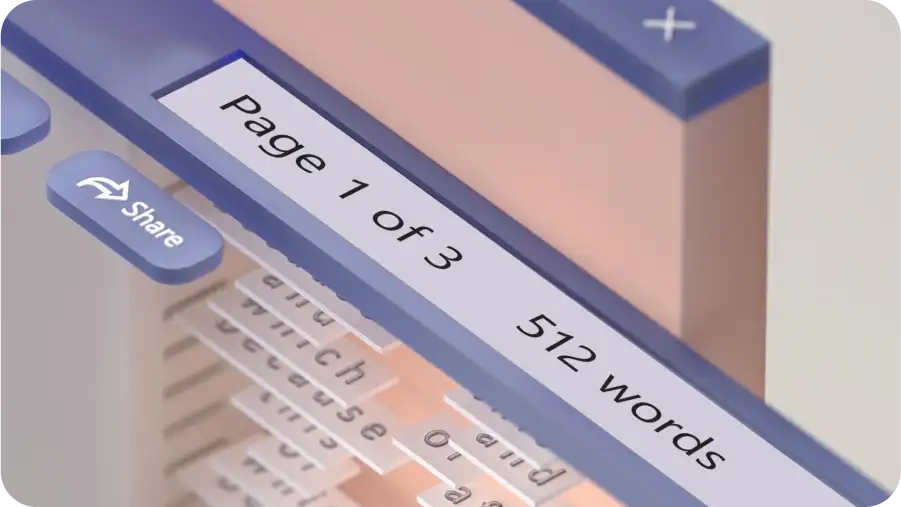
See live word count while writing
Maintain momentum when writing a draft with live word count reflecting in the bottom-left corner of the page. Document length remains visible throughout writing, reducing the need to pause and check progress constantly. With word count totals updating automatically, keep length across academic reports, articles, or business memos within requirements more easily.
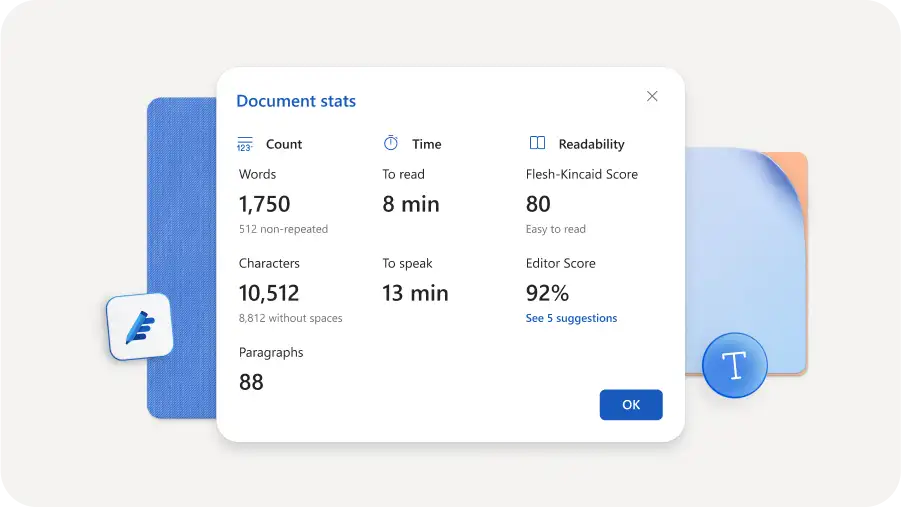
Analyze detailed word count insights
Select advanced word count options to find document statistics such as character count, readability scores, and repeated words to review copy more effectively. Identify complex sentences or paragraphs, then simplify writing to make documents like lesson plans or newsletters easier to understand.
Edit specific sections with precise word count
Highlight a specific sentence, phrase, or paragraph to see the exact word count. Easily action quick edits in segmented documents like business plans or technical documents that may require refinements to individual sections only.

Stay within submission requirements
Use word count to identify whether essays, assignments, or research reports meet required length guidelines. Track progress, refine sections for balance, and ensure work aligns with submission criteria.

Adapt text for social and platform limits
Seamlessly monitor word count and character limits for social media captions, ad headlines, and meta descriptions. Explore specific statistics like characters with and without spaces to comply with platform guidelines. Produce professional content faster and reduce review cycles.

Keep track of progress and plan reading time
Pace manuscripts, newsletters, and dissertations by breaking them into achievable word count milestones. Dividing longer tasks into smaller goals makes it easier to stay on top of progress and achieve deadlines in time. If writing a long blog, gauge reading time with word count to specify it alongside the blog title and keep readers informed.

How to check word count in Word
Open an existing document or create a blank document in Word for the web.
Enter text or copy and paste existing text to edit pre-written copy.
View total word count at the bottom left corner or select text to view specific word count for a section.
For detailed word count statistics, click the word count button in the bottom left corner to view reading time, paragraph count, and editor score.
Save and share as a PDF, Word document, or OneDrive link.




Frequently asked questions
Does word count in Microsoft Word include references or citations?
Word doesn’t include endnotes or footnotes when calculating word count, but it does include quotations and in-text citations. If the document exceeds a required word limit, use AI summarizer to condense writing to meet guidelines while preserving text quality.
How many words equals one page?
Around 250 words equals one double-spaced page, while 500 words equals one single-spaced page. Refer to additional statistics like reading time and paragraph count in Microsoft Word to reduce or increase copy on the page.
How to count word frequency in Microsoft Word?
Press the ‘control + F’ keys on a Windows machine or ‘command + F’ keys on a MacBook to open the find option in the Navigation tab. Type in the word to see the number of times and the place where it is mentioned in the document. Chat with Copilot in Word to suggest synonyms for repeated words to further polish writing.
How to get a character count in Word online?
In Word for the web, click the word count in the bottom status bar or the Review tab and then the word count icon to open the document statistics window. Within this window, find insights like character count with and without spaces, alongside reading time, editor score, repeated words, and more.
What are the character limits on social media platforms?
Character limits usually vary by platform. For example, 2,200 characters are required for Instagram captions and 3,000 characters for LinkedIn posts. Optimal character and word count on blog posts or newsletters can also vary depending on target audience. Use AI rewriter to easily rewrite lengthy documents into publish ready copy.