A resume captures skills, experience, and achievements to show employers why a candidate suits the role. Copilot works as an AI writing assistant in Microsoft Word and can support every step of the resume workflow, from a first set of notes to an outdated CV that needs updating.
Create a targeted resume with Copilot in Microsoft Word or start from a pre-formatted template in the AI resume builder.
Explore tutorials, examples, and practical ways AI can support resume writing and editing in Word online.
How to write a new resume with AI
Create a new resume using the AI resume builder in Word. Gather accurate career details in notes, covering job titles, employment dates, qualifications, and achievements, then follow these steps to build a structured resume in Copilot chat.
Open a new document in Word for the web, then select Copilot to open the chat.
Upload resume notes, an existing resume, or a CV from OneDrive or a device into Copilot chat, or paste LinkedIn profile content to provide AI with context.
Chat with Copilot to draft and refine each resume section from the career details supplied, using professional writing suited to the target job title.
Review the resume in the Copilot chat, then copy and paste it into the Word document.
Check every job title, date, qualification, and achievement against employment records.
Save an editable Word copy, then export a submission copy in a format like a PDF.
How to write a resume with templates and AI
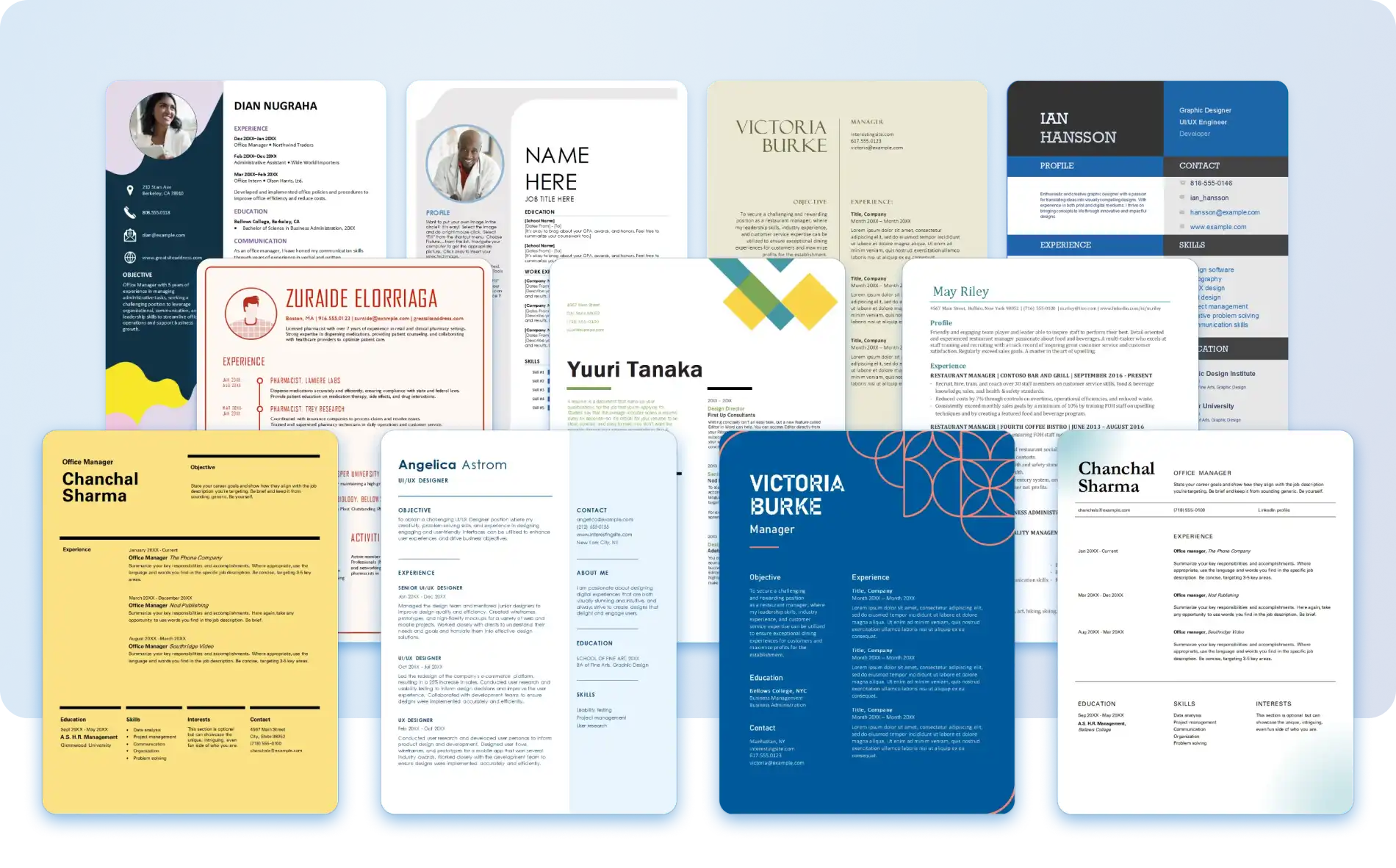
Start with a resume template in Word, then use Copilot to write each section from experience and skills. Browse templates by job title and career stage, then select one that includes sections relevant to the role, such as a professional summary, certifications, or a portfolio link.
Open Word for the web to explore resume templates.
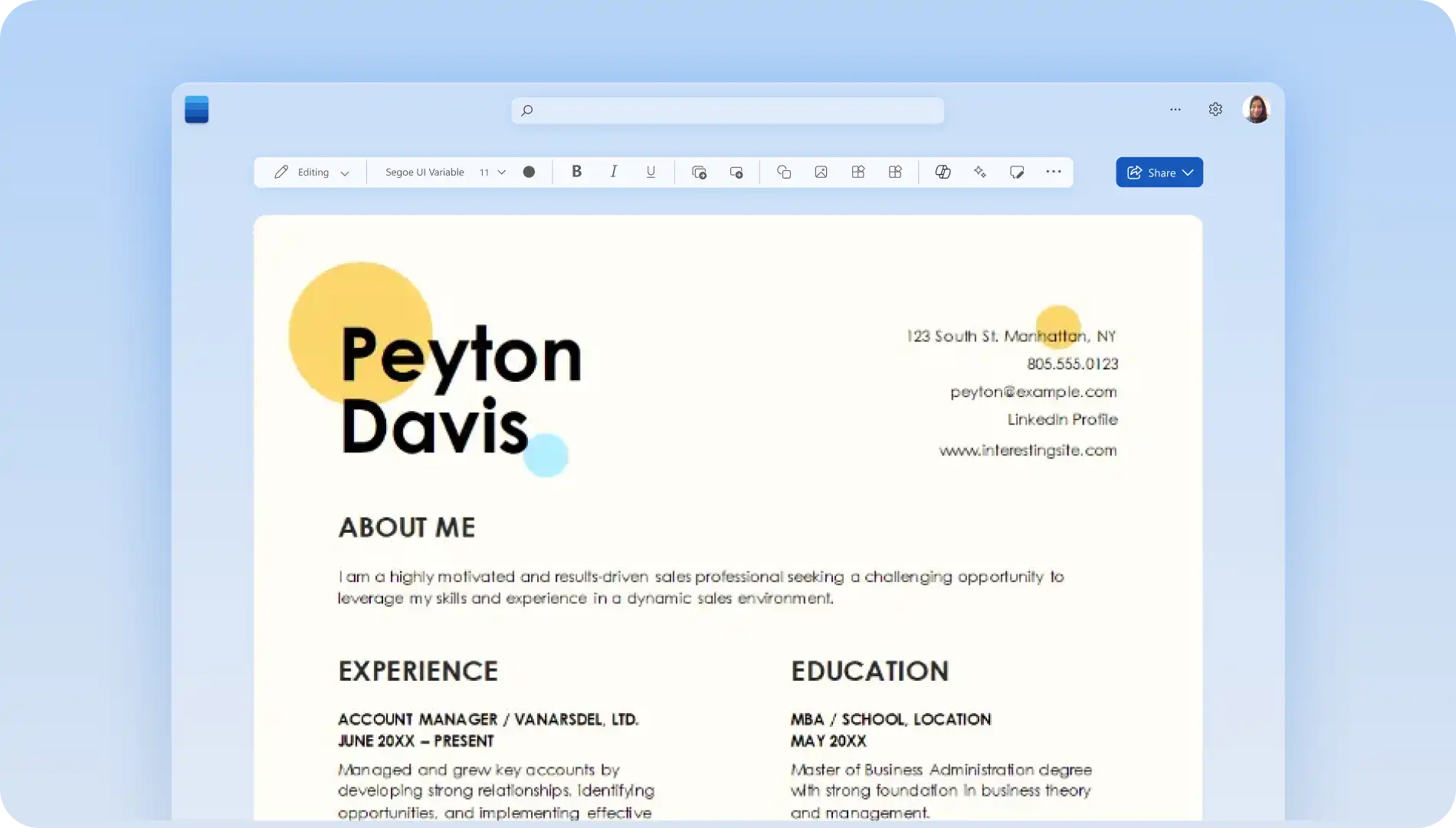
Select a template to create a new resume with pre-formatted sections like a summary, work experience, and skills.
Open the Copilot chat, then upload resume notes or an existing resume and ask Copilot to draft replacement text for each section of the template.
Replace the placeholders, starting with contact information, then the professional summary, work experience, skills, and education.
Remove any remaining sample text, then review the resume for consistency and check spacing, heading alignment, and page length. Confirm job titles, dates, and achievements against employment records.
Save and export the file in the requested format, such as a Word document, online link, or PDF.
How to edit an existing resume with Copilot in Word
Update an existing resume in Word to improve wording, correct outdated entries, and apply consistent formatting across every section.
Open Word for the web, then select an existing resume from OneDrive. Convert resumes saved as PDF files into editable Word documents to make updates.
Open the Copilot chat, and rewrite work highlights, adding outcomes only when supported by actual experience.
Ask Copilot to shorten long sentences with AI rewriter and apply professional writing across every section so the resume reads consistently.
Review formatting for heading styles, bullet punctuation, date formats, and spacing.
Proofread and review the resume. Save the final version and export in the requested submission format.
Seven ways AI can help write a resume
Writing a resume involves more than listing experiences. These examples below cover a different way Copilot can support different parts of the process, with a starting point for each.
1. Create an AI-generated resume outline
Generate a resume outline with Copilot based on the target job title and description. Copilot can help build a draft structure from the information supplied, returning suggested headings and section descriptions. Use the outline as a starting point, then add credentials, qualifications, and achievements under each heading.
2. Summarize career history and work experience from LinkedIn
Gather the key information to include in a resume, covering work experience, educational history, career qualifications, soft skills, and any volunteering interests relevant to the role. Paste LinkedIn profile content into the Copilot chat, or upload an existing resume or resume notes. Use Copilot to summarize that information in a professional career summary and to highlight any gaps in dates, job titles, or qualifications.
3. Personalize a CV or resume template with Copilot
Customize a professional-looking resume template using job history and experience with Copilot to create a resume or CV more efficiently. Browse resume templates across popular job titles and career paths, available in a range of styles, color palettes, fonts, and layouts. Templates are available for a range of career paths and experience levels.
Choose a resume template that matches a target role, then use Copilot to help tailor the content. Copilot can help draft and refine summaries, skills, and experience sections with AI summarizer, while preserving the template design. With a variety of layouts and resume structures available, it's easier to create a resume that reflects individual experience and career goals.
4. Identify relevant keywords from a job description
Some application systems use resume information and structure to organize applications. Use standard section headings and keywords that reflect the job description to make a resume easier to review.
Use terminology that matches actual experience and is supported by work history. Explore ATS-friendly resume templates in Word for layouts made with standard section headings.
Ask Copilot to review a job description and list the qualifications, tools, and responsibilities it names most often and use those terms naturally in the sections where the experience supports them.
5. Add impactful verbs and phrases
Write a clear, professional resume with career-related verbs and phrases suggested by Copilot. Precise verbs describe the work accurately, replacing vague phrasing such as "responsible for" with the action actually performed. Ask Copilot to suggest verbs and phrases for a specific job application, and it may return something like this.
Leadership and management: led, managed, supervised, coordinated, mentored
Innovation and problem solving: created, developed, devised, designed, resolved
Teamwork and collaboration: collaborated, partnered, aligned, liaised, supported
Growth and development: expanded, strengthened, improved, updated, maintained
Customer and client relations: assisted, advised, responded, built, resolved
Use AI to review the skills section and suggest clearer wording, and suggest consistent wording for education, training, certifications, and qualifications.
6. Rewrite professional summaries or career objectives
Use the professional summary to summarize relevant experience, strengths, and career goals in two or three concise sentences, tailored to the target job or career path. Copilot can help draft a focused professional summary that highlights key strengths, accomplishments, and career aspirations, creating a clear introduction to the resume. Build the summary on the strengths and accomplishments already listed in the resume, then check that Copilot has not introduced unsupported details.
When writing a professional summary, avoid generalizations or buzzwords and use profession-specific phrases instead. Use relevant terminology from the job description where it accurately reflects the candidate's experience. For applicants with no experience or those making a career change, a career objective works well, using transferable skills to demonstrate suitability for the role.
7. Convert a resume into a cover letter
Once the resume is complete and checked, move on to the cover letter. Copilot in Word can draft a cover letter from the finished resume and the supplied job requirements, using those details and accomplishments as the foundation. The AI cover letter generator can draft a letter that presents skills and experience consistently with the resume.
Four resume examples generated with AI
Copilot can help turn task-based descriptions into clearer entries that name the work performed and the result it produced. Use Copilot to rewrite each line using only the responsibilities and outcomes supplied, then add related figures where employment records confirm them. Here are four examples of how Copilot can improve resume writing.
Before: "Responsible for managing social media campaigns"
After: "Planned and managed social media campaigns"
Before: "Worked with the sales team to generate leads"
After: "Collaborated with the sales team on lead-generation activities"
Before: "Helped with customer service queries"
After: "Responded to customer service queries"
Before: "Assisted with project management tasks"
After: "Supported project planning and coordination tasks"
Each example replaces unclear phrasing with a precise description of the work, without adding duties the original line did not contain.
Tailor a resume to a job description with AI
Adapt an existing resume for one specific role by matching the language in the advertisement to the experience already listed with Copilot.
Scenario
A candidate holds a current resume and an advertisement for one specific role, with overlapping experience described in different terms.
Output
A separate, tailored copy of the resume that uses the language of the job description and keeps every date, job title, and achievement as supplied.
Workflow
Copilot can review the job description pasted into the chat and identify the qualifications, responsibilities, and terminology used. AI will revise the professional summary using the terminology of the advertisement, without changing any original dates, job titles, and achievements. Review the final resume against verified career history before saving the tailored version.
Helpful tips when using Copilot to write resumes
Ask Copilot to adjust, edit, or add information: Copilot can generate additional draft options and can refine content, add details, or adjust sections at any stage. Ask Copilot to generate another response at any point to keep improving the resume.
Add specific examples: to generate accurate and relevant Copilot suggestions, enter examples of career path or job title related achievements and responsibilities. This gives Copilot context about experience and skills to generate accurate suggestions.
Review formatting and layout before submission: check headings, spacing, page length, fonts, and alignment. Review the draft for consistency and readability before exporting the final version.
Avoid common AI resume mistakes: check every section of AI-generated content carefully and edit anything that does not accurately reflect skills, experience, or career goals.
Check accuracy and proofread before sending: always review resumes for factual accuracy, consistent formatting, and any errors before submitting. Use document editor in Word for a final check.
A resume based on verified achievements and clear, professional language presents experience accurately. Build a targeted resume using the AI resume builder and Copilot in Word.
For more job application tips, explore best resume fonts and sizes and how to write a cover letter.
Frequently asked questions
- How to write a resume with AI in Word?
Start with a resume template, or open a blank document. Use Copilot chat to produce a resume outline, write section content, and rewrite bullet points based on a job description. Review and personalize the draft in Word, then save it in the format the employer requires. Explore AI resume builder in Word to begin.
- What resume format should I use?
The right resume format depends on career history and the role being applied for. A reverse chronological format suits candidates with consistent work history in the same field. A functional format works well for career changers or those with employment gaps. A combination format balances skills and work history for candidates with varied experience.
- How to customize a resume template in Word?
Open Word for the web and browse the resume template library to select a resume template. Highlight sections to replace, then use Copilot to produce tailored content based on a job title, industry, and experience level. Edit the Copilot copy directly in the template to correct details, add verified figures, and update formatting.
- Is it better to use Word or PDF for resumes?
Save resumes in Word (.docx) format first to keep full editing access. Follow the file format named in the job advertisement, since employers and application systems set their own requirements. If a PDF is requested, save the document as a PDF, then open the exported file and check the layout, fonts, and spacing before submitting it.