AI writing with Copilot in Word
Create polished documents with Copilot, an online AI word generator that assists drafting, editing, and refining copy in Microsoft Word.

Useful AI text generator tools in Word

Brainstorm content ideas fast

Explore endless topic ideas for work or school with AI in Word. Copilot can create clear, digestible lists of themes for articles or school papers, and even generate creative suggestions for structuring reports. Easily expand on early ideas to help overcome writer’s block online.

Draft documents efficiently with AI
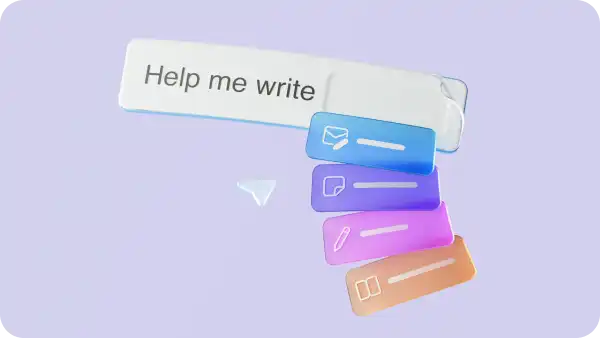
Generate polished drafts for blog posts, social media updates, and newsletters by chatting with Copilot in Word. Using AI word generator, automatically creating a first draft from a chat request, making it easy to share and collaborate quickly.

Customize writing tone and style
Use Copilot to review draft copy to ensure tone and style match a target audience. Make sales copy more persuasive or clarify business proposals by editing existing Word documents with AI. Maintain a consistent writing style by letting Copilot check against brand guidelines.
watch and learn
Learn how to write effective prompts for Copilot
Discover how strong prompts can help Copilot in Word generate clear and accurate content faster.
Create tailored applications in minutes
Build or rewrite a resume and cover letter to make them tailored to any job opportunity. Attach the job description and LinkedIn profile in the Copilot chat, and AI will quickly surface relevant skills and experiences. Use AI text generator in Word to stay productive and send multiple customized applications.

Draft work messages and files faster with AI word generator
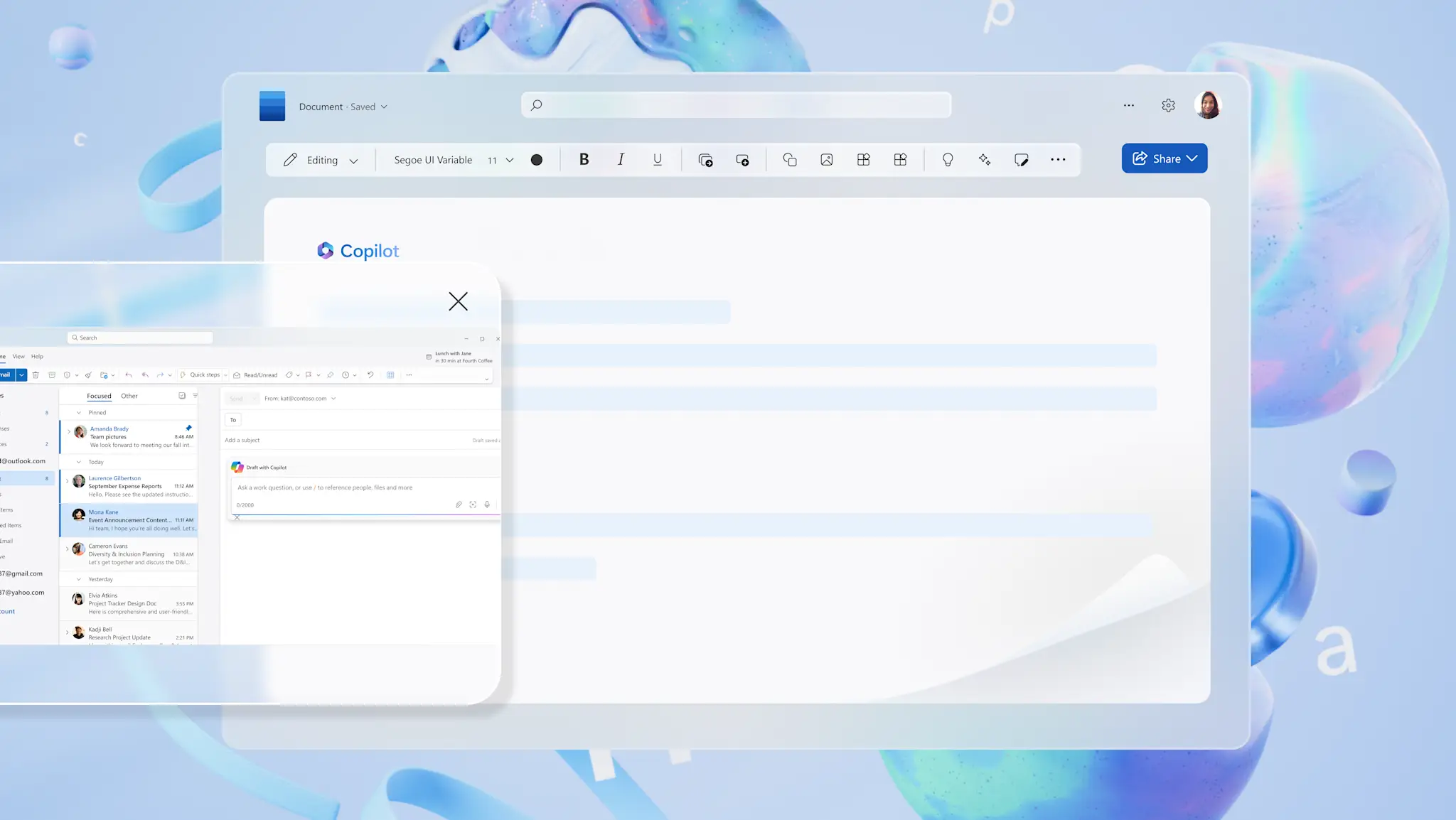
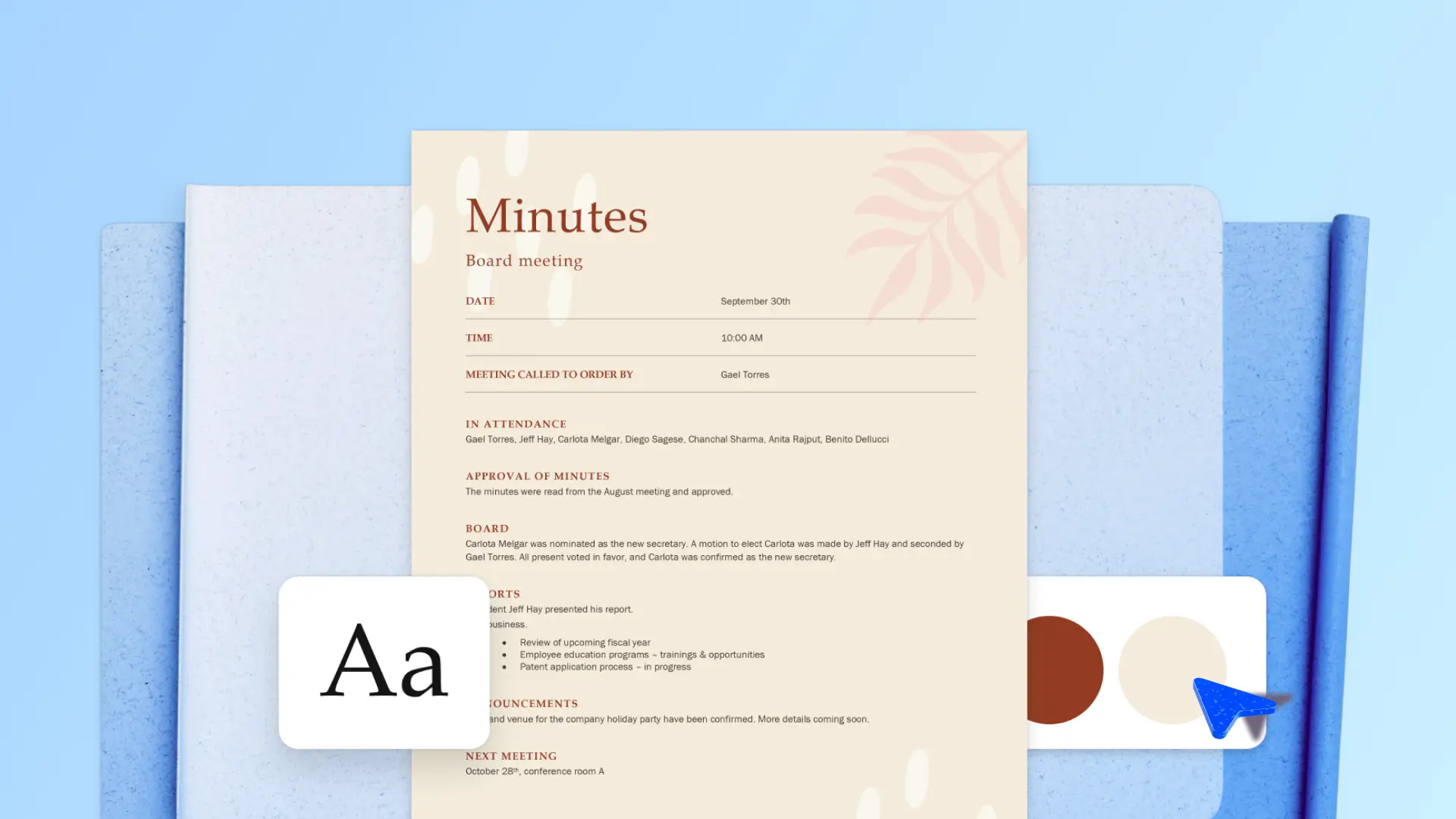
Speed up communication at work using Copilot for text generation. Draft blogs and emails with AI, then adjust length, tone, and structure if required. Generate meeting minutes from Microsoft Teams transcripts and share them in a concise progress report. Easily follow up with clear actions and ask Copilot to extract tasks and open questions.

Streamline lesson plans and assignments
From lesson planning to school newsletters, go from a blank page to a polished draft with AI word generator in Word. Use Copilot to pull from existing learning objectives and draft assignment ideas in minutes. Summarize findings such as post-marking insights to further improve future learning plans.
Personalize travel itineraries
Share travel dates and budgets to Copilot, as well as any personal preferences for a custom-made vacation plan. Draft a comprehensive itinerary to share and collaborate with friends and family in Word. End the travel plan with direct links to details in Microsoft Outlook and a final checklist to make planning easier.

Deliver insight-driven campaigns
Summarize customer research and client briefs with Copilot to produce deliverables faster. Plan campaigns that are data-backed with Copilot analyzing competitors and mapping content calendars efficiently. Explore ways Copilot can draft creative copy like ads for social or video scripts with AI text generator online.
Explore all AI writing, editing, and text generation in Word
Jumpstart business or school projects by generating original content with AI writing tools, including an online AI word generator. Discover how to summarize large documents up to 80,000 words or draft new copy with Copilot.

How to use Copilot as an AI writing assistant

Open a new Word document online and tell Copilot what to create.
Attach files and documents from OneDrive or links from the web for reference.
Review and refine the tone, formatting, and style or give more information to Copilot.
Insert the finalized copy in the Word document or copy it to use elsewhere.
Read more

Frequently asked questions
What content types work best for AI text generation?
Copilot generated text works well for newsletters, blog post articles, business proposals, and social updates. Copilot can also mind map text themes and ideas, expand outlines, and create early drafts before applying any brand tone of voice within its messaging. Use AI text generator in Word to help draft more complex copy like technical documents, SOPs, or reports.
How to start writing a first draft with Copilot?
Open a new document and ask Copilot to write something such as “Draft a one-page announcement about a product launch.” AI word generator will produce an initial draft to review, edit, and refine. For best results, keep asks specific and include the purpose or audience.
How can text tone and style be aligned with brand voice?
Add tone instructions when telling Copilot to generate text in a professional, friendly, or persuasive tone. After Copilot creates the draft, iterate by asking for refinements like “make this more conversational” or “simplify language for clarity" to aligned to the required brand voice.
What languages does Copilot draft content in?
Copilot can draft content in over 40 languages, including Chinese, Spanish, Arabic, French, and Portuguese. Note that the Microsoft 365 user interface supports more languages than Copilot can currently draft in.
Is AI generated content trustworthy and secure?
All large language models can produce inaccurate results, so it’s important to read the output from Copilot and fact check the information. Think of Copilot as an online AI writing assistant and AI text generator, not the senior editor. Keep in mind the reliability can vary depending on the length of a prompt and the version of Copilot you’re using.