
Collaborate in Word
Work together online with real-time edits, comments, and document collaboration tools securely in Microsoft Word.
Secure remote collaboration tools and file sharing

Write and edit with flexibility
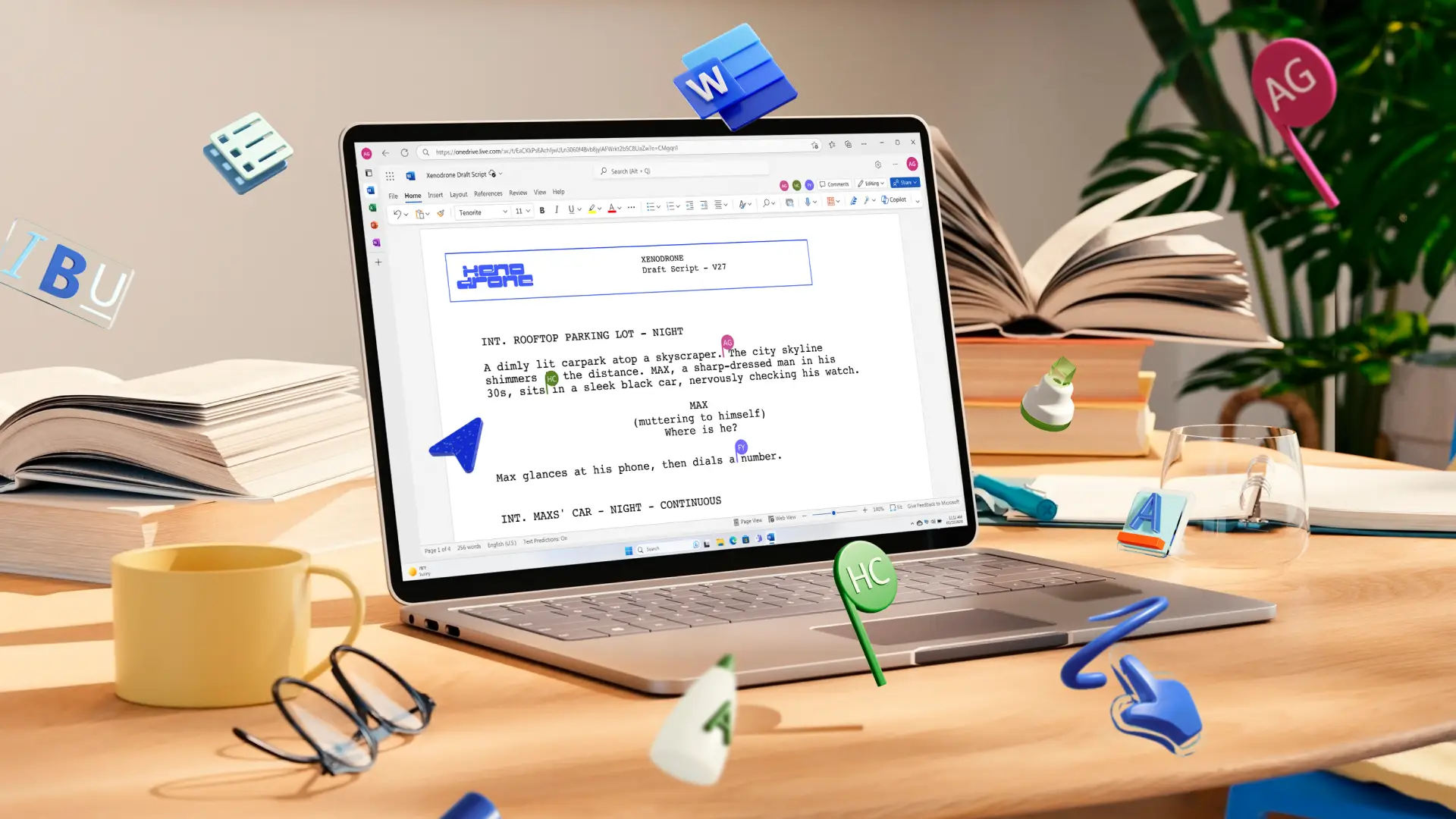
Keep work moving in real-time or asynchronously by inviting collaborators to draft content, review and share comments, or make direct changes. Use remote collaboration tools to stay aligned with teams and work together on projects from any location.

Stay on top of changes easily
Collaborate effectively on projects by monitoring edits and any improvements made through track changes. Easily protect content integrity on co-authored documents like training materials, and stay across progress while recording versions for easy rollback.

Share documents safely
Share files with full control using secure document links from OneDrive or SharePoint. Invite contributors in different access modes like editing, reviewing, or simply viewing only, guaranteeing safety. Send to external editors in guest mode to enable cross-platform access for teams anywhere.

Simplify document collaboration for teams
Work together on newsletters, agendas, or business proposals with secure file sharing options in Word. Request text editing updates through comments and mentions, while maintaining great editorial control. Online collaboration tools are perfect for eliminating those drafts being shared through back and forth emails.

Add clear comments for effective team collaboration
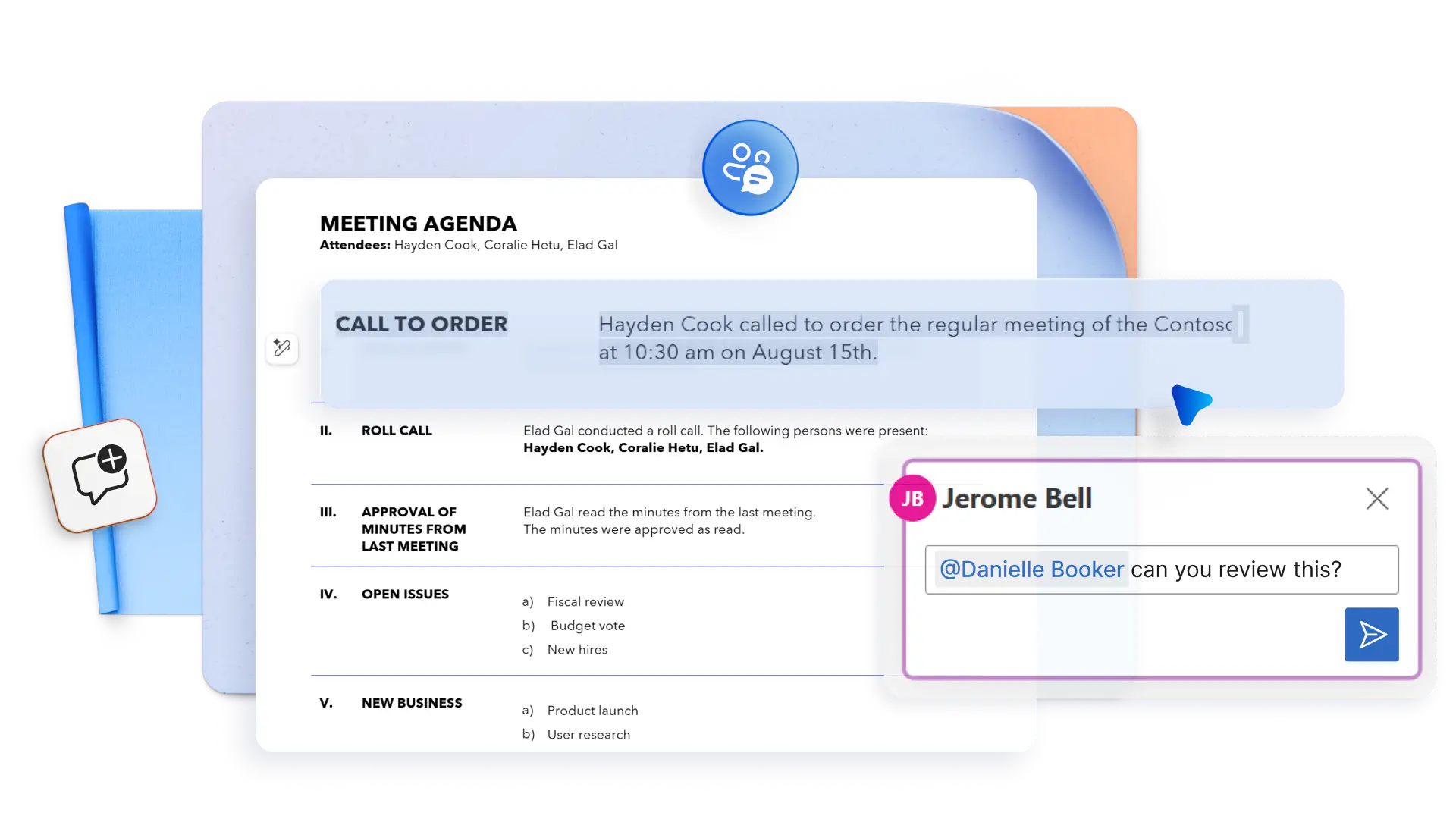
Keep online projects aligned through clear, actionable feedback. Use @mentions to tag editors so no updates are missed, and filter through comments to view active tasks or resolved items directly assigned to you.
Share documents with permission controls
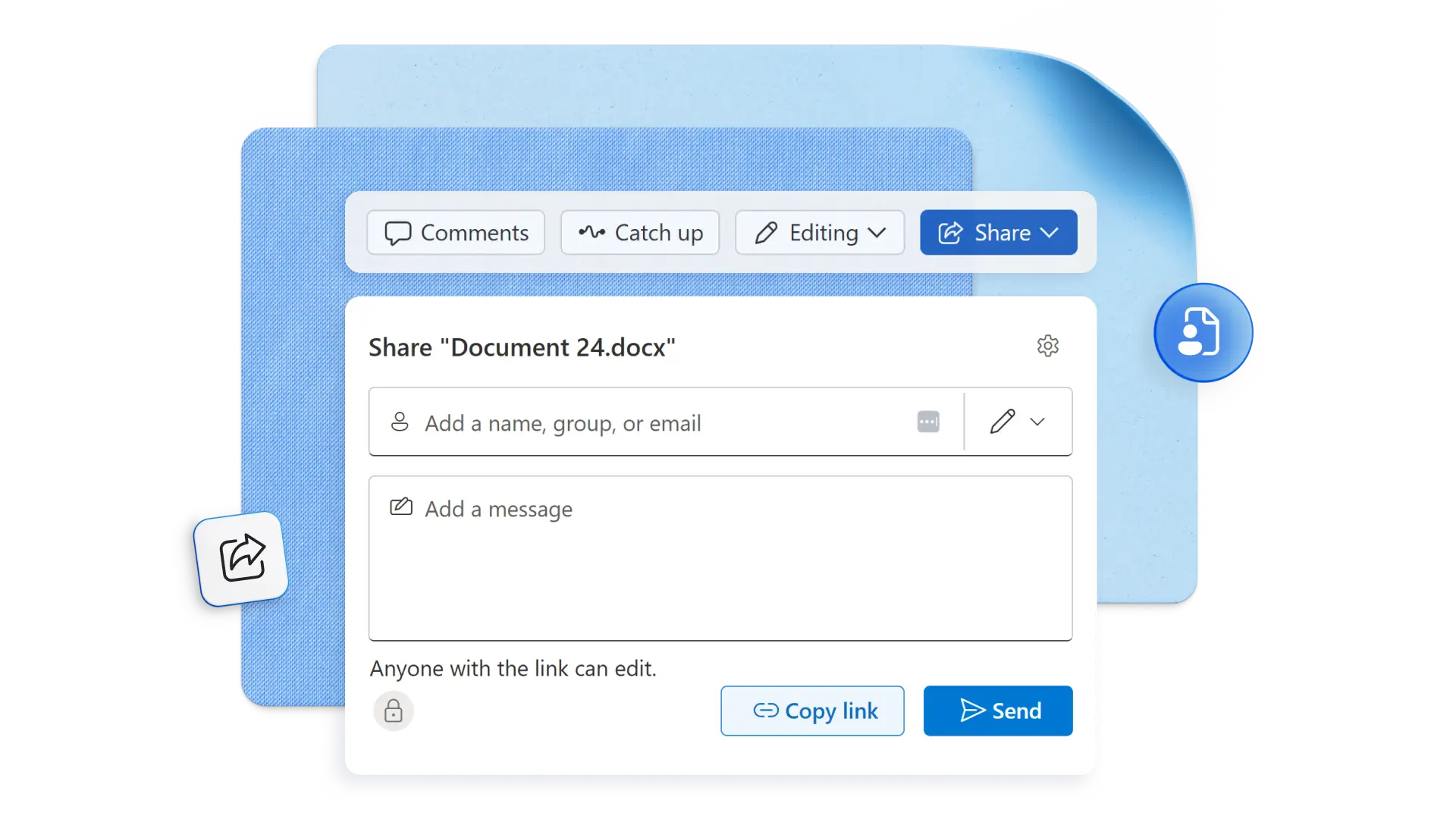
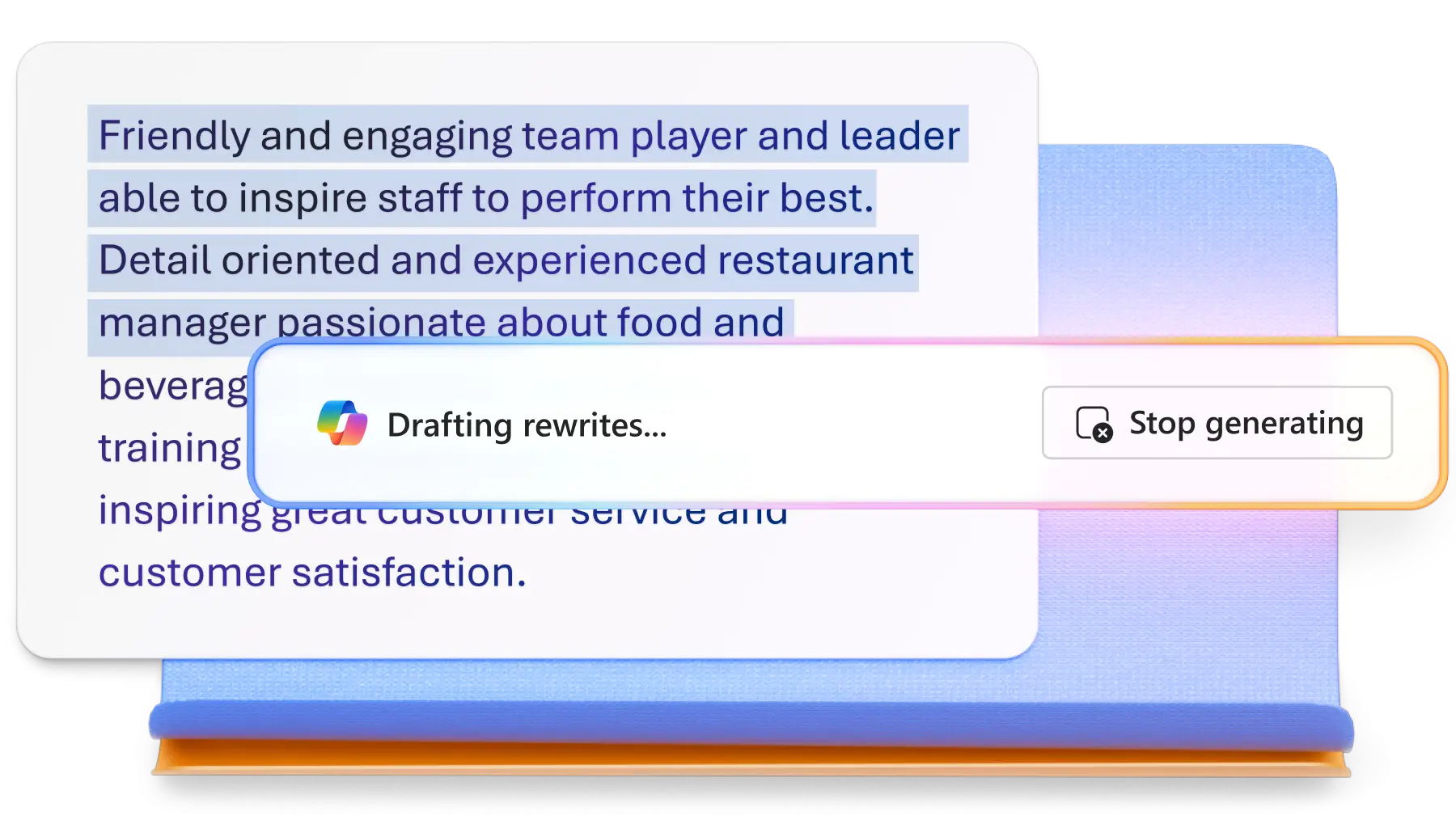
Send files to external collaborators like agencies and vendors with organization-safe links from Word online, desktop, or the mobile app. Simply add names and email addresses with access control, and add context with your own message or a Copilot drafted summary. Ensure links are set to expire at the end of your project for extra security.

Assign tasks directly to contributors
Use online project collaboration tools to speed up draft creation, from SOP documents to detailed training materials. Gain final approvals faster by using quick task assignments and @mentions. Tags can request reviews, avoid delays, or ask for expert input, for efficient remote work. Simply tag someone in comments and share what needs action, and Word will send an automatic email that links straight to the task.
Edit files with accountability
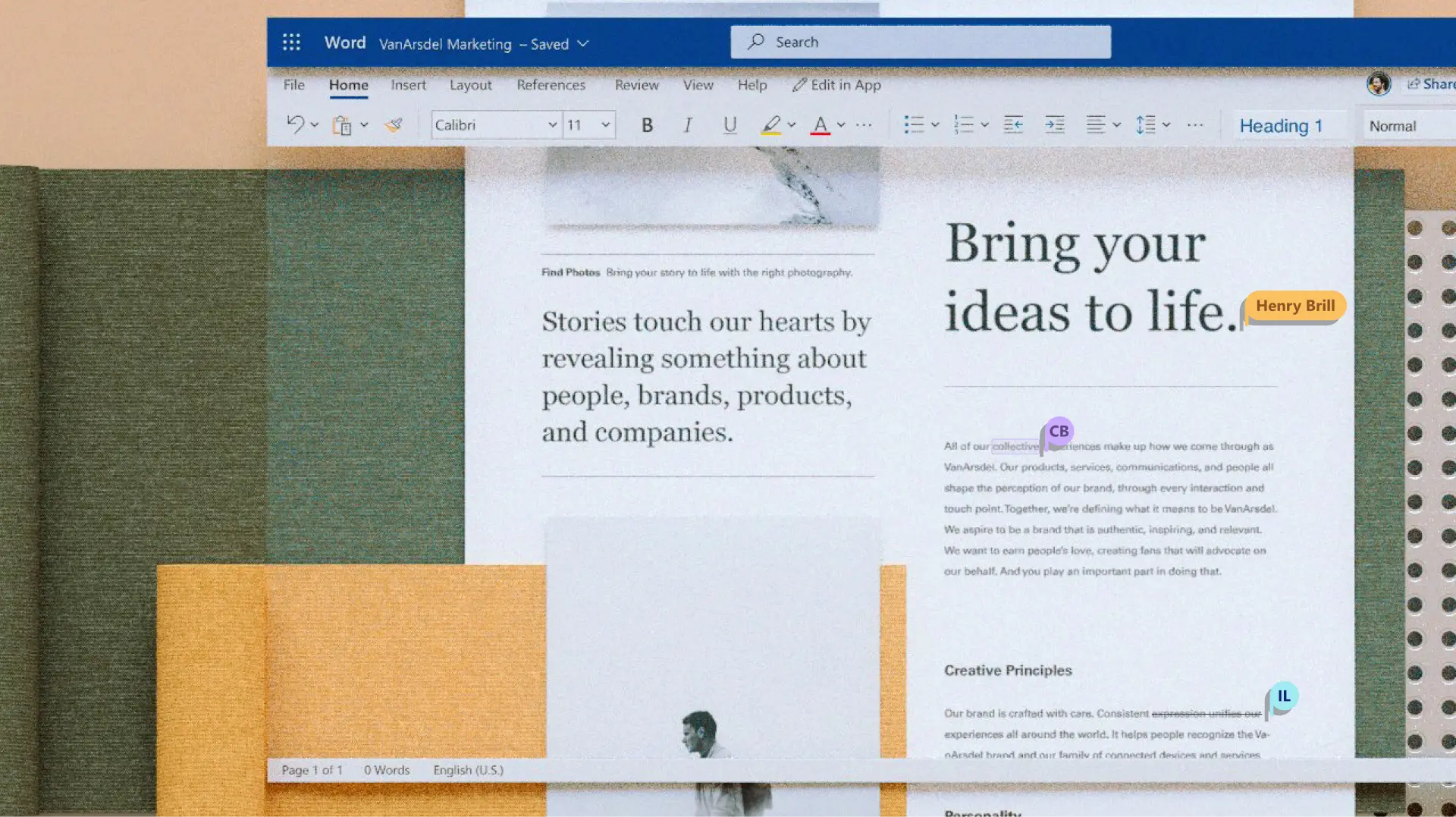
Document owners can turn on track changes to follow every draft edit, from new text and deleted text to comments and formatting updates. Colored text and strikethroughs within a paragraph show contributions clearly, perfect for contracts, manuscripts, or daily editing. Multiple users can suggest rewrites without affecting the original content, and authors can accept or reject changes individually or all at once.
Track automatic page version history
Review how a report or legal document evolves with clear edit records and automatic version backups. Version history saves past file versions in OneDrive or SharePoint, so it’s easy to restore earlier work to undo mistakes or revert changes. Keep content collaborations transparent as anyone can see who made what changes and when.

How to use document collaboration tools in Microsoft Word
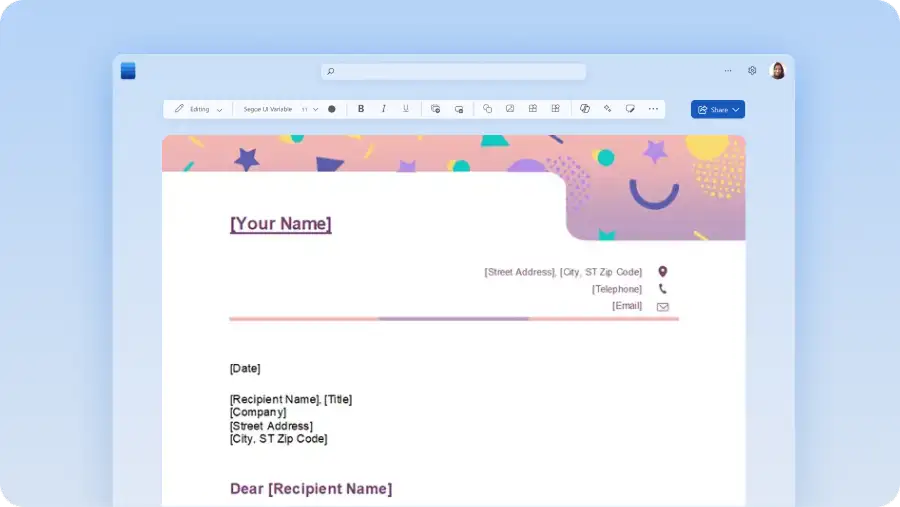
In Word for the web, start with a blank Word document.
Save the document to OneDrive or SharePoint.
Click on the Share button and invite others to edit via email or shareable link.
Set secure permissions and co-editing access.
Read more

Frequently asked questions
How to create a shared Word document?
Online document collaboration is easy with Microsoft Word. Just start by opening a new or existing Word document, then save it to OneDrive or SharePoint. Select the Share button to invite others to view, edit, or review with secure permissions. Additionally, invite collaborators to edit a draft using an email with link to the shared Word document.
How to use Word document collaboration tools?
Users can open a shared Word document and start using document collaboration tools, comments, and mentions, to collaborate in real-time or asynchronously. These file sharing and collaboration tools work great across departments, companies, and even countries. Try team collaboration tools when drafting professional documents like SOPs, blogs, or training materials.
Is a Microsoft 365 account needed for Word collaboration tools?
Anyone can use online document collaboration tools for free with a shared Word link. Recipients don’t need a Microsoft account or Microsoft 365 subscription to co‑author, comment, or work in shared documents. Access secure document collaboration software online.
How to allow multiple users to edit a Word document at the same time?
Allow multiple authors to access file sharing and collaboration tools in Word using the Share button. Select the Can edit permission button so everyone can work in the file at the same time. This remote collaboration tool can be used to create academic group assignments, training materials, company social media plans, and much more. They’re perfect for collaboration tools for business.
How to mention anyone in a shared Word document?
Subscribers of Microsoft 365 can use the @mention feature to tag and assign tasks across collaborative Word documents for smoother workflows inside an organization. Simply sign in to Microsoft 365 with a work or school account and open a Word file that's saved in a SharePoint library or OneDrive for work or school to start adding mentions. Note that mentions excludes users invited in guest mode, and users from other tenants in a multi-tenant work setting.