Planning an event involves coordinating many tasks, often across several people. Budgets, guest details, dietary requirements, contact information, schedules, and responsibilities can all change between the first idea and event day.
Plan a birthday party, a school concert, or a year-end corporate event in Microsoft Word, starting from checklist and agenda templates and drafting the rest with help from Copilot in Word.
Learn which event planning documents suit different events, what to include in each one, and how to create them from a template or with Copilot.
Choose planning documents by event type
Different events require different levels of planning. A personal celebration may only need a few simple lists, while bigger events may include documents for costs, timings, and feedback. Find the event type below to see which documents to create:
Personal celebrations: event plan, checklist, and guest list.
Community and school events: event plan, checklist, and guest list.
Fundraisers: event plan, checklist, guest list, budget, and post-event survey.
Corporate events and conferences: event plan, checklist, guest list, budget, schedule, and run of show.
Create an event plan
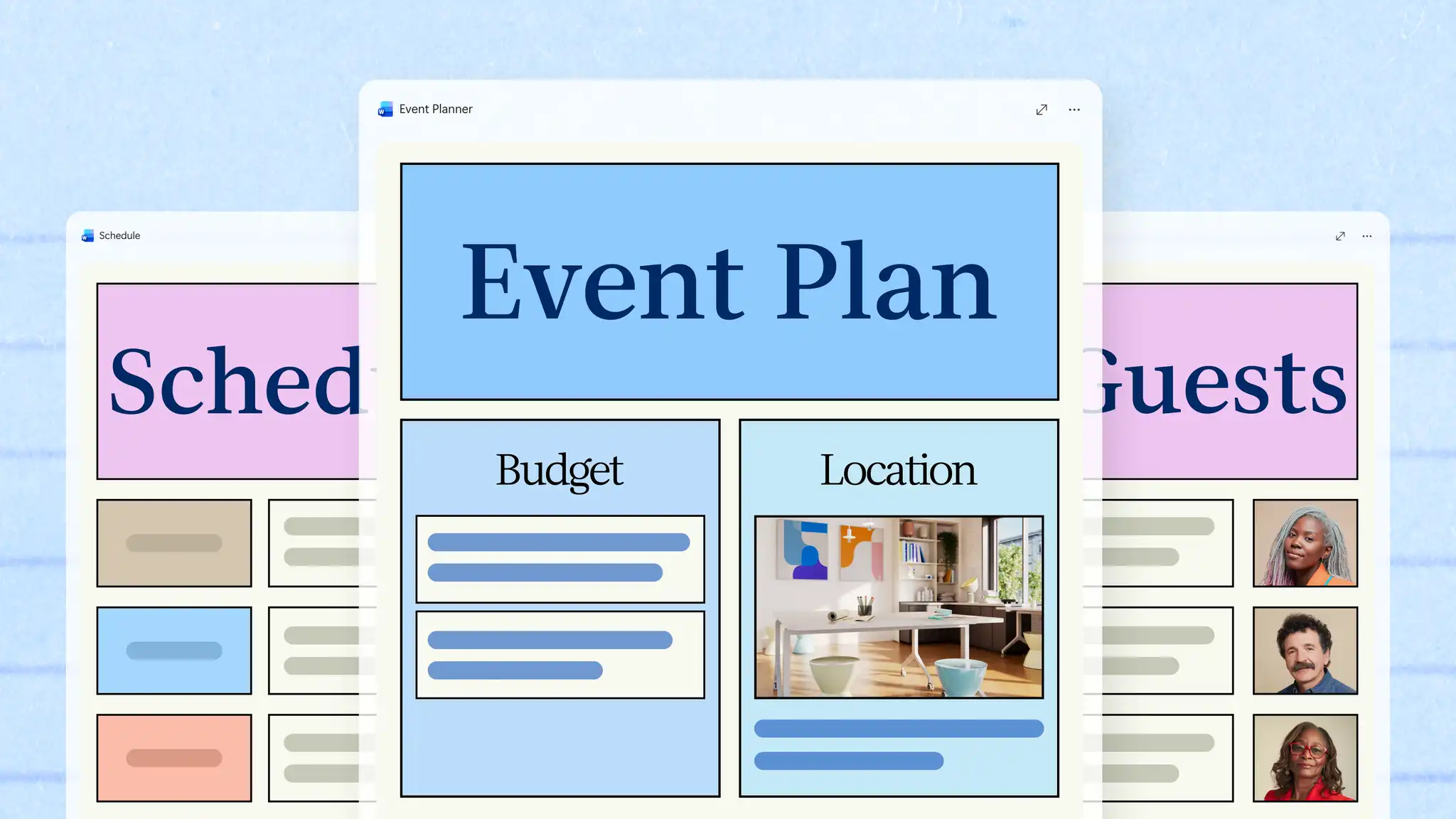
Set out the purpose and structure of the event in a plan before splitting the details across other documents.
Structure an event plan
Give the plan a heading for each of these details:
Purpose: the reason for the event and what a successful outcome looks like.
Date and venue: the date, location, and booking details for the event.
Guests: the number of guests to invite and the audience.
Budget: the total amount available for the event.
Team: the people involved and the duty each person looks after.
Backup options: alternatives for the biggest risks, such as an indoor space for an outdoor event or a second caterer.
Draft an event plan with Copilot
In a new Word document, open a chat with Copilot and describe the event, attaching any notes, an email thread, or a venue quote. AI can help draft an event plan with sections such as purpose, budget, and guests, using the real details from the files rather than general suggestions.
Review and share the plan
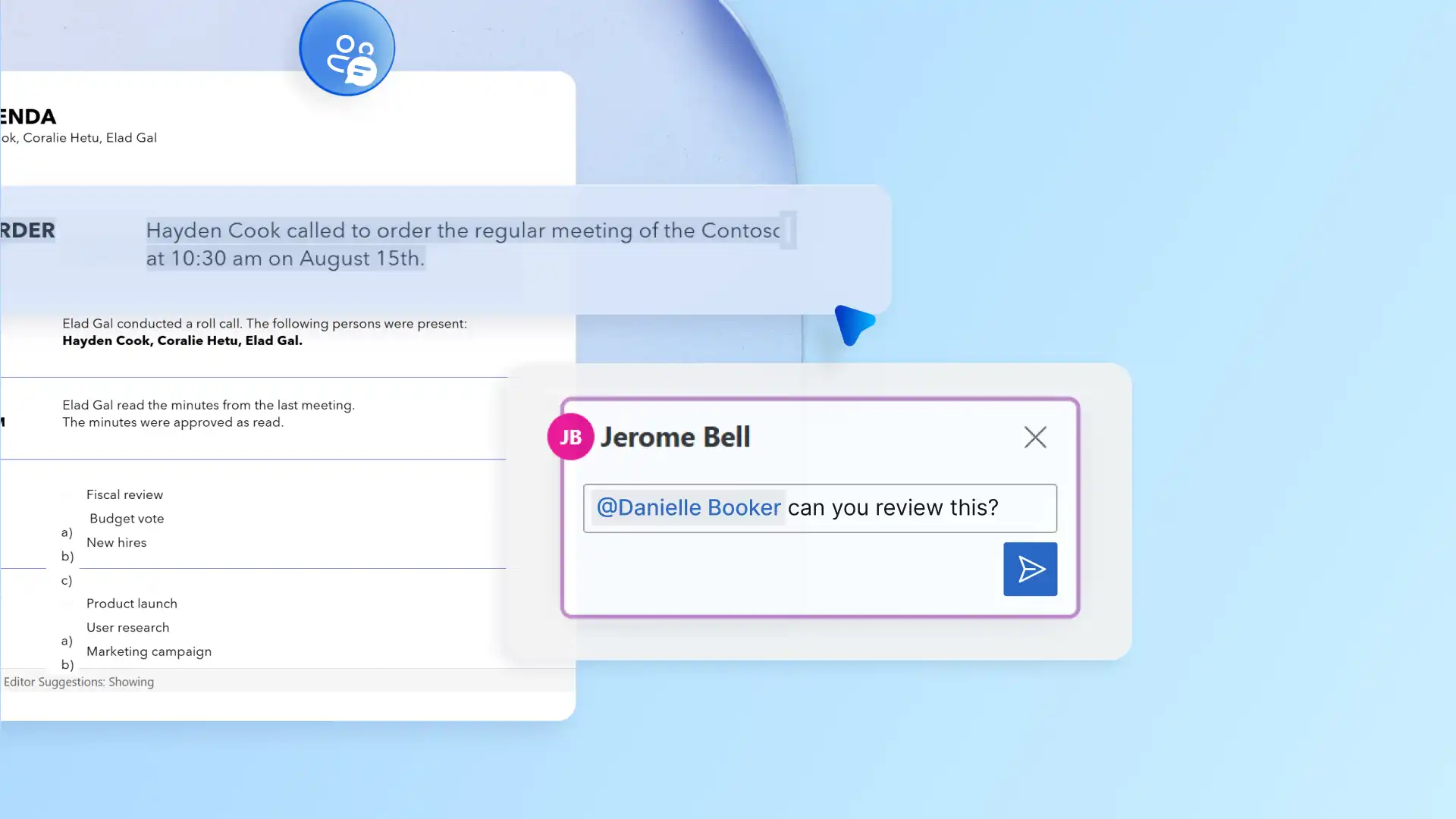
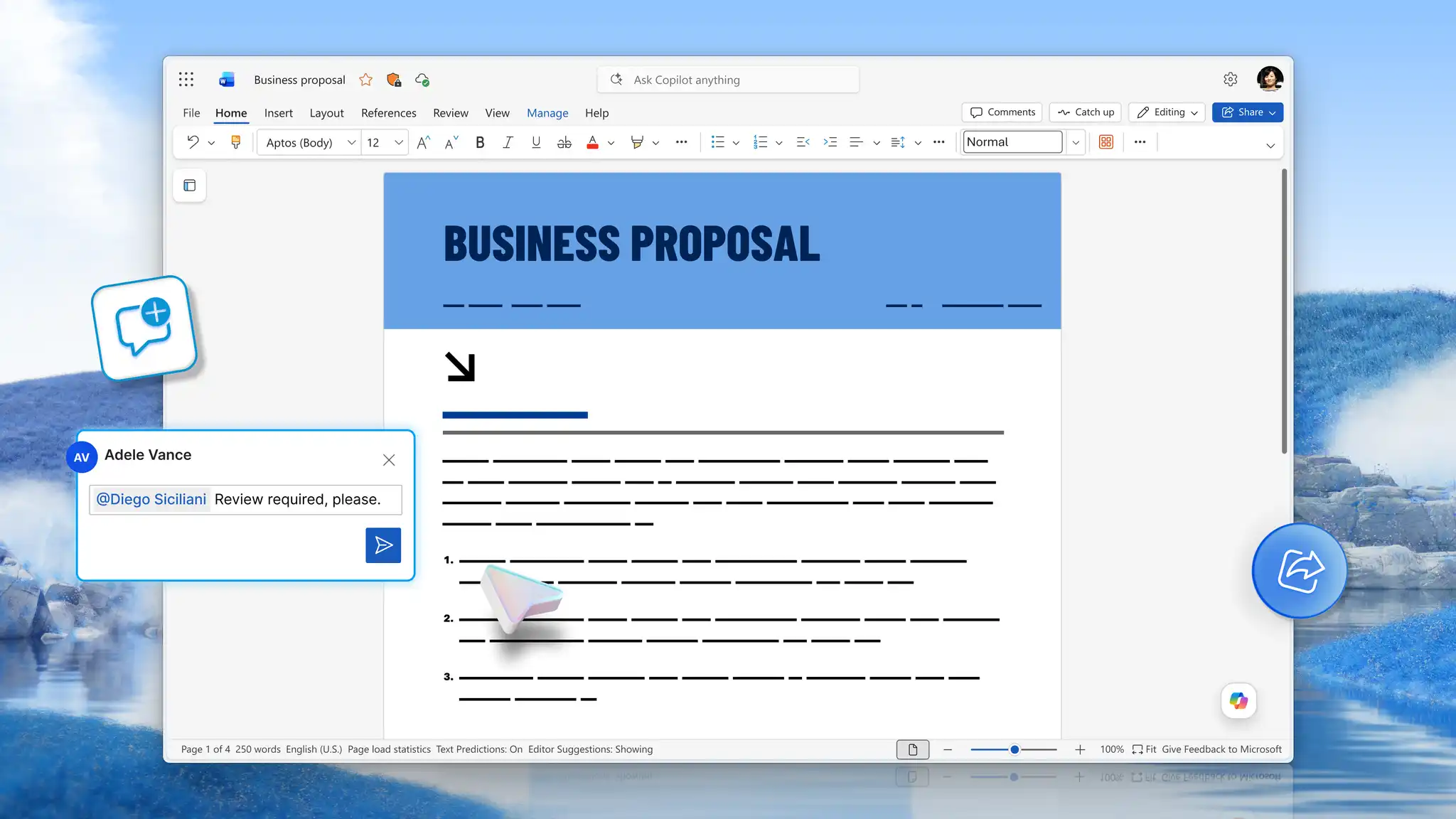
Check the draft and correct any dates, costs, or names before sharing it. Use comments and @mentions in the document editor to ask questions and approve choices inside the plan, so everyone involved can see each decision and who approved it.

Build an event planning checklist
Turn the event plan into an event planning checklist of tasks the team can act on.
Organize tasks by planning stage
Group tasks by how far ahead they fall, and adjust each timeframe to the size of the event:
Months ahead: set the date, budget, and venue, and book key suppliers.
A few weeks ahead: send invitations, confirm catering and AV, and plan the program.
The final week: confirm guest numbers, share the run of show, and print programs.
The day before: check deliveries, set up the venue, and brief the team.
Within each stage, group tasks by area, such as venue, catering, and invitations. Add sponsor and donation tasks to a fundraiser checklist, and add a shopping list for food and supplies to a checklist for a personal celebration.
Assign tasks and deadlines
Give each task a clear deadline. For a larger event, give each task an owner, and team members can collaborate on the checklist, updating their own tasks as the event gets closer.
Start with a checklist template
Open an event checklist template for a ready layout, and replace the placeholder tasks with event tasks and dates.
Create a checklist with Copilot
Attach the event plan in a Copilot chat for task suggestions based on the date, guest numbers, and areas the team agreed on, and ask for the tasks in timeframe order. Review each task and deadline before sharing the checklist with the team.
Create an event budget
A separate budget shows what the event will cost, what the team has spent, and how figures change over time.
Estimate event costs
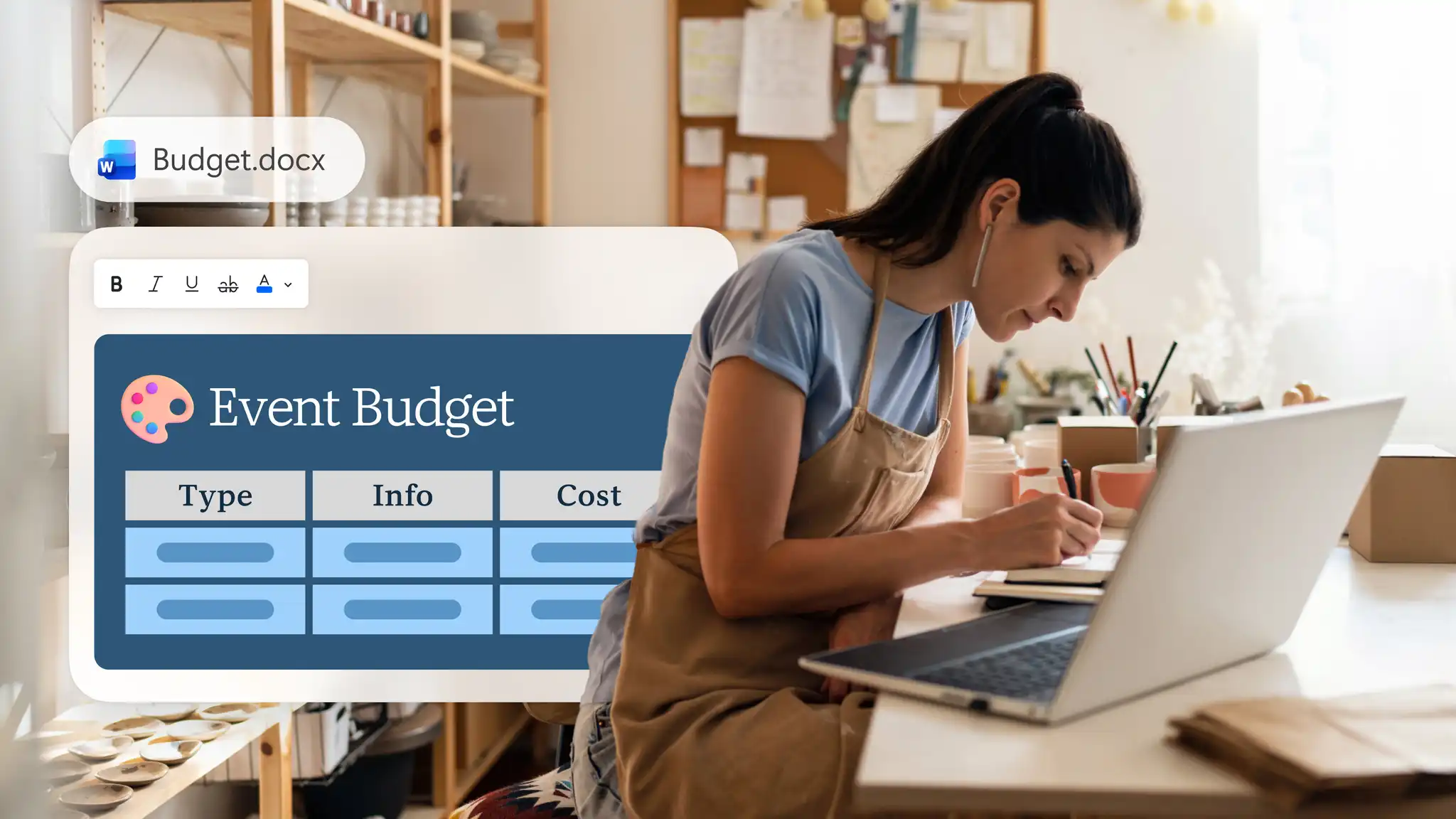
In a new Word document, insert a table and add a row for each cost. Common cost areas include the venue, catering, and AV, along with a separate line for unexpected costs. In nonprofit event planning, add rows for fundraising targets and sponsorships so the team can see how close the event is to its budget.
Track approved and actual costs
Add these columns to compare the plan with the final spend. For a corporate event, a budget column can show the amount the finance team approves.
Estimated cost: the expected cost of each item or service, from supplier quotes.
Actual cost: the final amount the team pays.
Difference: the gap between the planned and actual cost.
Review budget changes
Turn on track changes (opens in a new tab) to show who edited each amount and use version history to restore an earlier copy of the budget. Save the budget to OneDrive and set sharing permissions to control who can view or edit the figures.
Organize the guest list and invitations
Keep guest details, responses, and requirements in one list, and use that list for every guest-facing document.
Structure a guest list
In a blank Word document, insert a table with a row for each guest and columns for names and contact details. Save a copy of the finished table as a guest list template for the next event.
Track RSVPs and guest requirements
Add a column for each of these details as responses arrive:
RSVP status: who plans to attend.
Dietary and access requirements: what to share with the caterer and venue.
Table or session: where each guest sits or which session each guest attends.
Use the RSVP totals and dietary requirements to update the budget and catering order.
Create invitations and place cards
Choose a design from the invitation templates in Word and replace the placeholder text with the event details and guest names, so each invitation and place card carries the right details.
Draft an invitation with Copilot
Attach the event plan to a Copilot chat in a new Word document. Describe the tone for the invitation, such as a relaxed birthday message or a formal gala invitation. Ask Copilot to help draft the invite with the date, venue, and RSVP details. Check names, dates, and venue details before sending any invitations.
Create the event schedule
Build the schedule that shows guests the order of the day.
Choose an agenda, program, or schedule
Match the format to the event:
Simple timeline: list the key moments of a personal celebration in order.
Agenda: start with one of the agenda templates for a meeting or conference and replace the placeholder text with the final speakers and timings.
Printed program: give guests at ceremonies, school events, and fundraisers the order of the day on arrival.
Schedule of events: use a schedule of events template for events across several days or rooms, showing each session by time and location.
Event calendar: keep the dates for several events across the season in one view with an event calendar template.
Add activities, speakers, and timings
Use the speakers, activities, and timings the team confirmed in the checklist, and list each item in the order guests experience it, with a start time and location.
Share the schedule with guests
Send the schedule with an online link for guests who prefer it on their phones, save it as a PDF for email, or print copies for the welcome table. The finished schedule or agenda also becomes the starting point for the run of show.
Prepare for event day
On event day, the team works from a run of show while guests follow the schedule.
Create a run of show
A run of show, which event teams also call a run sheet, tells the team who does what, where, and at what time. Add a row for each part of the day, with columns for the time, length, activity, and location.
Assign event tasks
Add an owner to each row, so each person on the team knows which activities, cues, and changeovers to handle.
Add setup, vendor, and backup details
Include setup before guests arrive and cleanup after the event ends. Add vendor contacts and arrival times so caterers, AV crews, and venue staff work from the same schedule, and note AV tips and a backup plan for each row.
Draft the run of show with Copilot
Attach the program or agenda and the checklist in a Copilot chat for help drafting a run of show from the timings the team agreed on. Ask AI to help add the owners, locations, and AV notes the team needs and the agenda leaves out. The team reviews every time, owner, and AV note before event day. Save a copy of the finished table as a run of show template for the next event.
Review the event and record results
Gather feedback after the event and record what to carry into the next one.
Create a post-event survey
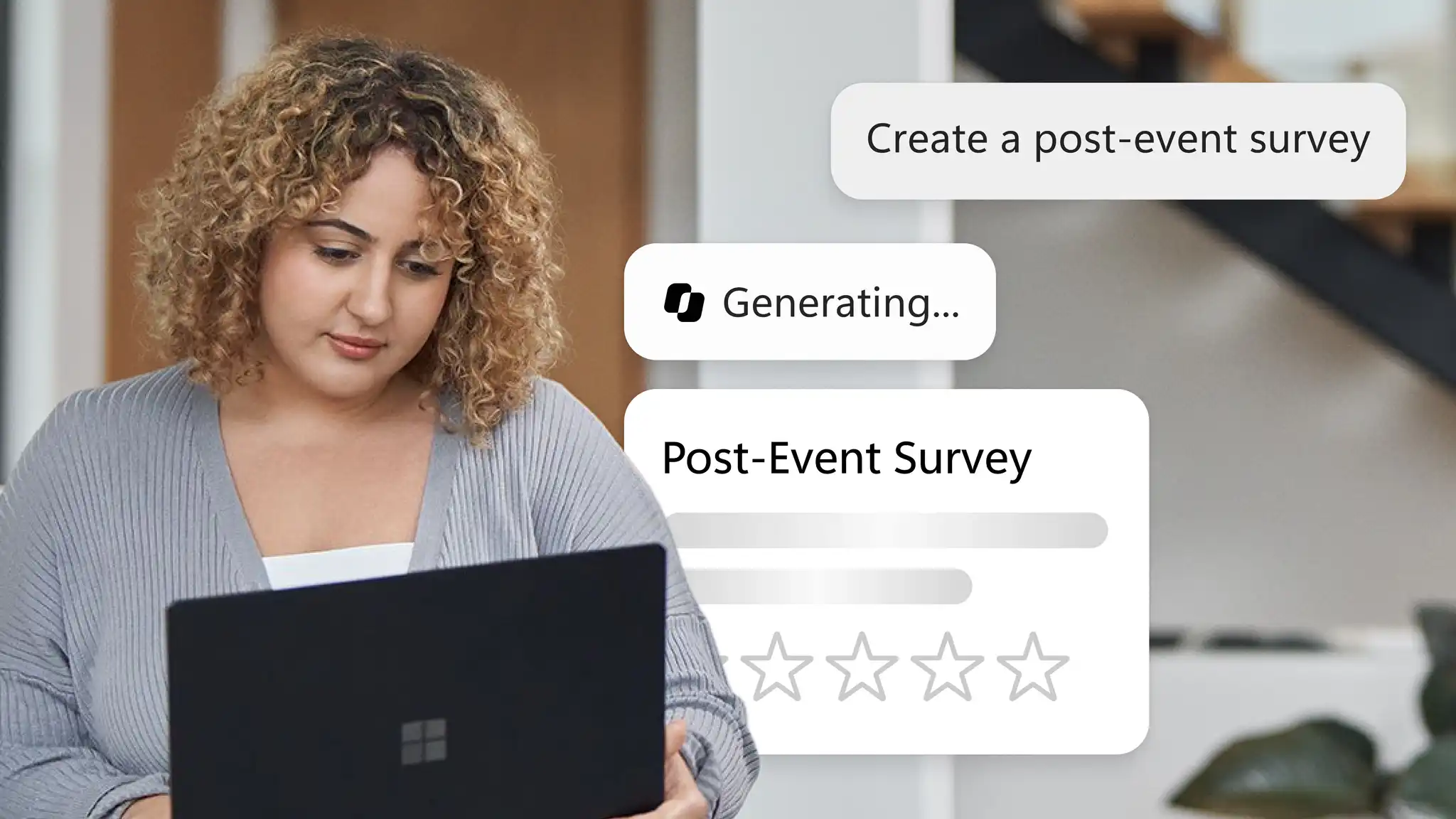
A post-event survey helps measure what a bigger event achieved against the goals in the event plan and what to improve for the next event. Asking guests and the team separately gives two useful views of the same event. An attendee survey captures how guests rated the venue, program, and catering, while a team survey highlights what worked for organizers and volunteers and what to change. Add the event plan to a Copilot chat for question suggestions that match the event goals.
Summarize feedback with Copilot
After the event, add the responses to the same chat for help summarizing the feedback into a wrap-up report, and check each point against the original answers before sharing it.
Record outcomes and lessons learned
In the wrap-up, record what the event achieved, the final cost, and lessons to use in the next event plan.
Start planning the next event in Microsoft Word and turn rough notes into an event plan ready to share, with help from Copilot.
For more ways to plan and write at work, explore the business documents guide or learn how to write a press release to announce the event.
Frequently asked questions
- How can Copilot in Word help plan an event?
For event planning, Copilot in Word can help draft an event plan, a checklist, a run of show, invitation wording, and survey questions from notes, agendas, and other files attached in the chat. It can also help summarize survey feedback into a wrap-up report. Review names, dates, costs, and timings in each draft before sharing.
- How far ahead should corporate event planning start?
As a general guide, corporate event planning starts four to six weeks ahead for team events and client dinners, three to six months ahead for year-end parties and offsite meetings, and six to twelve months ahead for conferences. Venue availability, speaker schedules, and approval steps can extend these timelines.
- How to promote an event to increase attendance?
Clear event details and timely reminders help guests plan to attend. Choose a design from the flyer templates in Word and replace the placeholder text with the event name, date, venue, and RSVP details. Use AI rewriter to turn the event description into promotional text for an email, a newsletter, or a social media post, and check every date and detail before sharing.