On this page
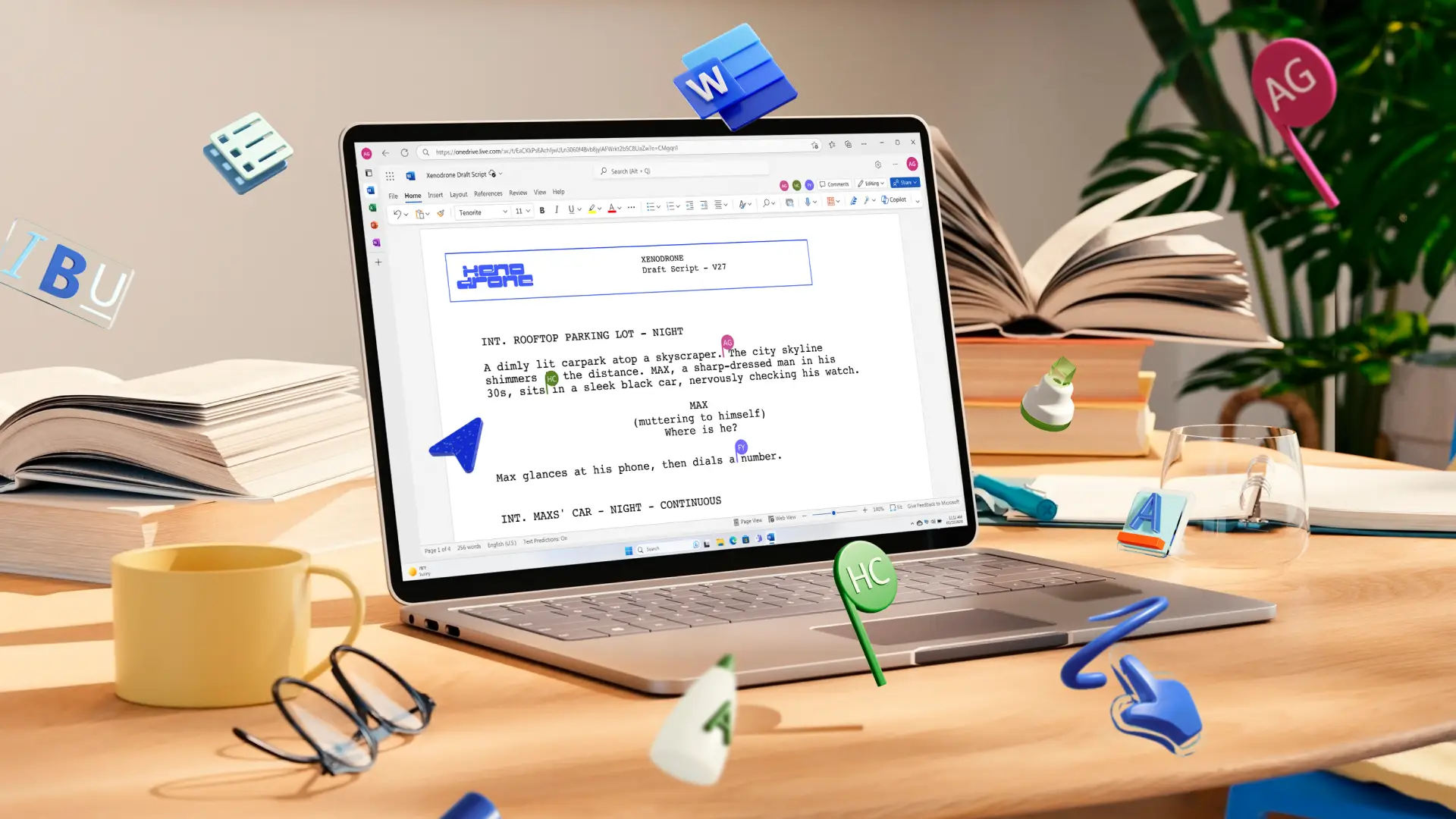
Every great blog post begins with a solid structure, and with the right tools, building that structure can take minutes instead of hours. No matter if you’re a content marketer, blog editor, or in communications, a strong blog post template unlocks faster writing, consistent formatting across authors, and a smoother production workflow at scale.
Read on to explore how to streamline processes, maintain cohesive structure, and publish with confidence by creating a reusable blog template with Copilot in Word. Find the best blog post format, practical blog writing tips, and advanced editing tools in Microsoft Word.
Follow the best blog post format
There is no single format that works for every blog post, but posts that perform well tend to follow a proven, reader-first structure. The best blog format balances clarity, readability, and depth, so readers can quickly find the information they need and stay engaged from start to finish. Below are the key components that make up a strong blog post layout template.
1. Blog title
A blog title will determine if the reader engages with the content or scrolls past it. The strongest titles speak directly to a problem the reader is trying to solve, clearly communicate the main benefit or takeaway, and spark enough curiosity to encourage reading. Use specific language, relevant keywords, and a clear promise of value, so readers instantly understand why the post is worth their time.
Popular title formats include how-to guides, numbered lists, and direct questions, and front-loading the primary keyword helps readers and search engines identify the topic quickly.
2. Introduction with an opening hook
The introduction sets the tone for the entire post. A strong opening leads with a clear benefit or the problem the post solves, then previews what the reader will take away. Rather than starting with a question, open with a direct statement that gives readers a reason to keep going. Copilot in Word can help generate and refine opening paragraphs quickly.
3. Body structure and subheadings
The body is where the main content sits, so break it into clearly labelled sections using descriptive subheadings that let readers scan and jump to what matters most. Each section can focus on a single idea, supported by short paragraphs, blog post outline points, or step-by-step instructions. Using active voice, specific examples, and actionable advice helps keep the content moving forward.
4. Visual elements (optional)
Images, screenshots, infographics, and embedded media can help break up long stretches of text and reinforce key points visually. Place visuals close to the paragraphs they support and always include descriptive alt text to improve accessibility. A comparison table can make a post easier to scan and understand. Tools like Microsoft Designer can help create custom graphics that match the tone of the post.
5. Conclusion and key takeaways
End a blog with a short summary to reinforce the main points without repeating the entire post. The AI summarizer in Word can help condense a longer draft into key takeaways in two to three sentences. Frame them around the outcome the reader achieves by following the guide and keep the closing action-oriented and forward-looking.
6. Call-to-action
A call-to-action (CTA) gives the reader a clear next step, like signing up, downloading a template, or reading a related blog post. Place the primary CTA at the end of the post and consider adding secondary CTAs within relevant sections for readers who are ready to act before reaching the conclusion.
7. Frequently asked questions (optional)
A frequently asked questions (FAQ) section at the bottom of a blog post addresses common follow-up queries, captures additional search traffic, and helps readers find quick answers. Keep answers between two to four sentences, making them practical and direct. FAQs are also a good opportunity to link to related content where helpful.
8. SEO description and metadata
Adding an SEO description and metadata to a blog post is essential to help search engines understand what the content is about and makes it easier for the right audience to find it. Well-written meta titles and descriptions improve visibility in search results and encourage users to click through by clearly communicating the value of the post. Beyond rankings, metadata also improves how content appears when shared on search engines and social platforms, driving more qualified traffic and increasing the overall impact and reach of your content with relatively little extra effort.
Try this Copilot prompt example
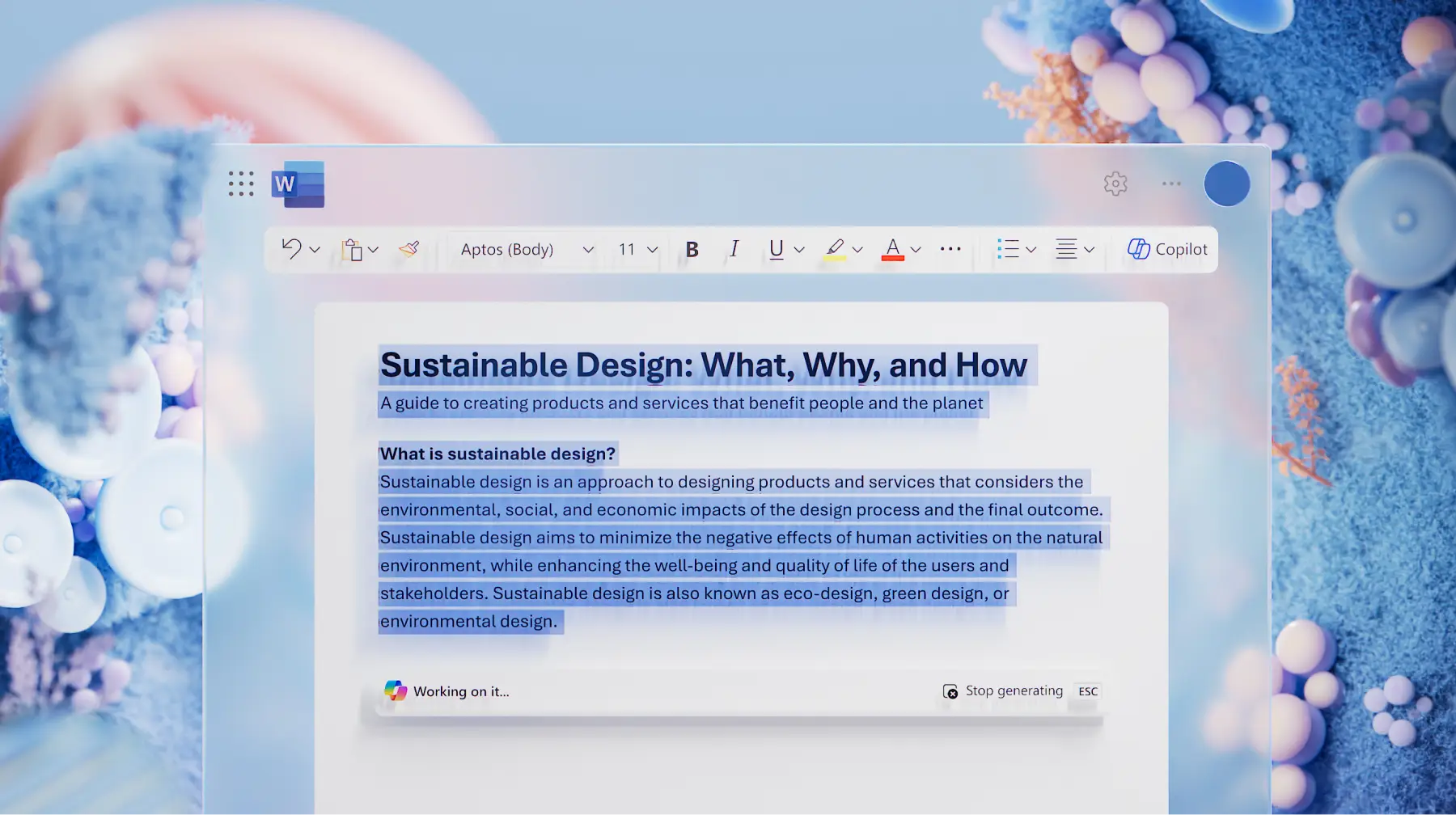
How to create a blog post template with AI
Creating a reusable blog post template from scratch takes time. Use Copilot in Word to generate a structured template in seconds that can be saved and reused for every future post. Here is how to get started.
Open a new document in Word to start creating a blog post template. Choose from the available Word templates or begin with a blank page.
Click the Copilot icon in Word, then chat with Copilot to describe the blog template needed. Be specific about sections, tone, and audience to get the most relevant output.
Type a description of the blog in the Copilot chat. Explain the topic, audience, and purpose in plain language, then specify the structure needed, such as an intro with a hook, body sections with H2 subheadings, a conclusion, a CTA, and an FAQ section. Attach reference documents or examples to give Copilot more context. Copilot can generate content for individual sections based on these inputs.
If required, attach any reference documents you would like Copilot to view and use, like tone of voice requirements or brand guidelines.
When you’re ready to start generating, click on the send button (arrow).
Review the AI-generated blog post template in Word by checking each section aligns with the intended structure and audience.
If changed are required, prompt Copilot to refine the section. AI can easily rework placeholder text to better match a brand voice or content style with.
Collaborate and share for feedback. Use real-time co-authoring to edit the blog template with others.
Save the blog post as a reusable template. Create a reusable template by saving a standard Word document (.docx) to a dedicated folder in OneDrive or SharePoint and treating it as a master file. If you’re using the Word desktop app, click on the file button, then, click save as template.
Try this Copilot prompt example
How to write a blog post best practices
A solid template sets the structure, but strong writing is what keeps readers on the page. Website, blog, and SEO efforts ranked as the top marketing channel for ROI among B2B brands in 2025, and the difference between a post that performs and one that falls flat often comes down to how well it follows a few core principles.
Start with a clear blog outline before drafting: map out the main sections, key points, and supporting details before writing full paragraphs. An outline keeps the post focused on a single topic and prevents it from getting too broad. Use a saved blog post outline template to speed up this step.
Write scannable blogs with descriptive subheadings: break the post into short sections, each with a subheading that tells the reader exactly what that section covers. Most readers scan before they read, so headings should work as a standalone summary of the post.
Use Copilot to overcome writer’s block: when stuck on a section, ask Copilot in Word to draft an initial version, then edit and refine. Always review AI-generated content for accuracy and tone before publishing. This approach is especially useful for introductions, conclusions, and FAQ answers where the structure is predictable. Explore more AI writing prompts for inspiration.
Optimize for SEO without overcomplicating: include the target keyword naturally in the title, introduction, at least one subheading, and the conclusion. Use related keywords throughout the body to strengthen the topic. Avoid repeating keywords too often, as search engines reward clarity over repetition.
Edit blogs for clarity and readability: use the built-in spelling and grammar tools in Word to catch errors, and review every sentence for unnecessary filler. Reading the post aloud is one of the fastest ways to find awkward phrasing. Short sentences and active voice keep content accessible to a wide audience.
End every post with a clear next step: a call-to-action should tell the reader exactly what to do next. Link to a related resource, suggest trying a tool, or prompt a specific action that connects to the purpose of the post.
Put these ideas into action and create a reusable blog post template with Copilot in Word. Start from a blank document and customize the structure to fit any content workflow.
Continue learning with guides on how to create a training manual with AI and how to create standard operating procedure templates.
Frequently asked questions
How to save a blog post template in Microsoft Word
In the Word desktop app, select File > Save As, then choose Word Template (.dotx) from the file type list. A .dotx template opens as a new document each time and can be stored locally, in OneDrive, or in SharePoint.
To save in Word for the web, save the blog post layout as a standard .docx file in OneDrive and create a copy whenever you need a new post. You can also browse built‑in Word templates from File > New for additional starting points.
How to write a blog post for social media
A social media blog post is typically shorter and more conversational than a standard blog. It focuses on a single idea or tip, uses attention-grabbing opening lines, and ends with a clear CTA such as a link, question, or prompt. Content can be repurposed from longer blog posts by pulling out key points and condensing them into a format suited for platforms like LinkedIn, Facebook, or X. The AI summarizer can help adapt longer content into shorter social-ready formats.
How long should a blog post be
Blog post length depends on the topic and intent. Most informational posts perform well between 1,000 and 2,000 words, while in-depth guides and tutorials can run longer. The goal is to cover the topic thoroughly without adding filler. Every section should earn its place by adding value for the reader. Use the word counter in Word to track length as a post develops.
How many keywords per blog post
A blog post should target one primary keyword and two to four related or supporting keywords. The primary keyword appears in the title, introduction, at least one subheading, and the conclusion. Supporting keywords are woven naturally into body sections to broaden topic coverage and help search engines understand the content. Use document editor to review and adjust keyword placement before publishing.
How to write an SEO friendly blog post
An SEO friendly blog post uses a clear structure with descriptive headings, includes the target keyword in key positions (title, intro, subheading, conclusion), and links to relevant internal and external resources. Readable formatting such as short paragraphs, lists, and visual elements also supports SEO by keeping readers on the page longer. Tools like Copilot in Word can help draft structured content that includes relevant keywords efficiently.