
Technical documents
Create, edit, and collaborate on technical documents in Microsoft Word for clear communication and reliable outcomes.
Streamlined technical writing

Write technical documentation at scale
Standardize technical documents with consistent styles, headings, and tables in Word. Ensure specifications align across projects and reuse finalized documents to maintain the same polished structure over time.

Draft technical specs with AI
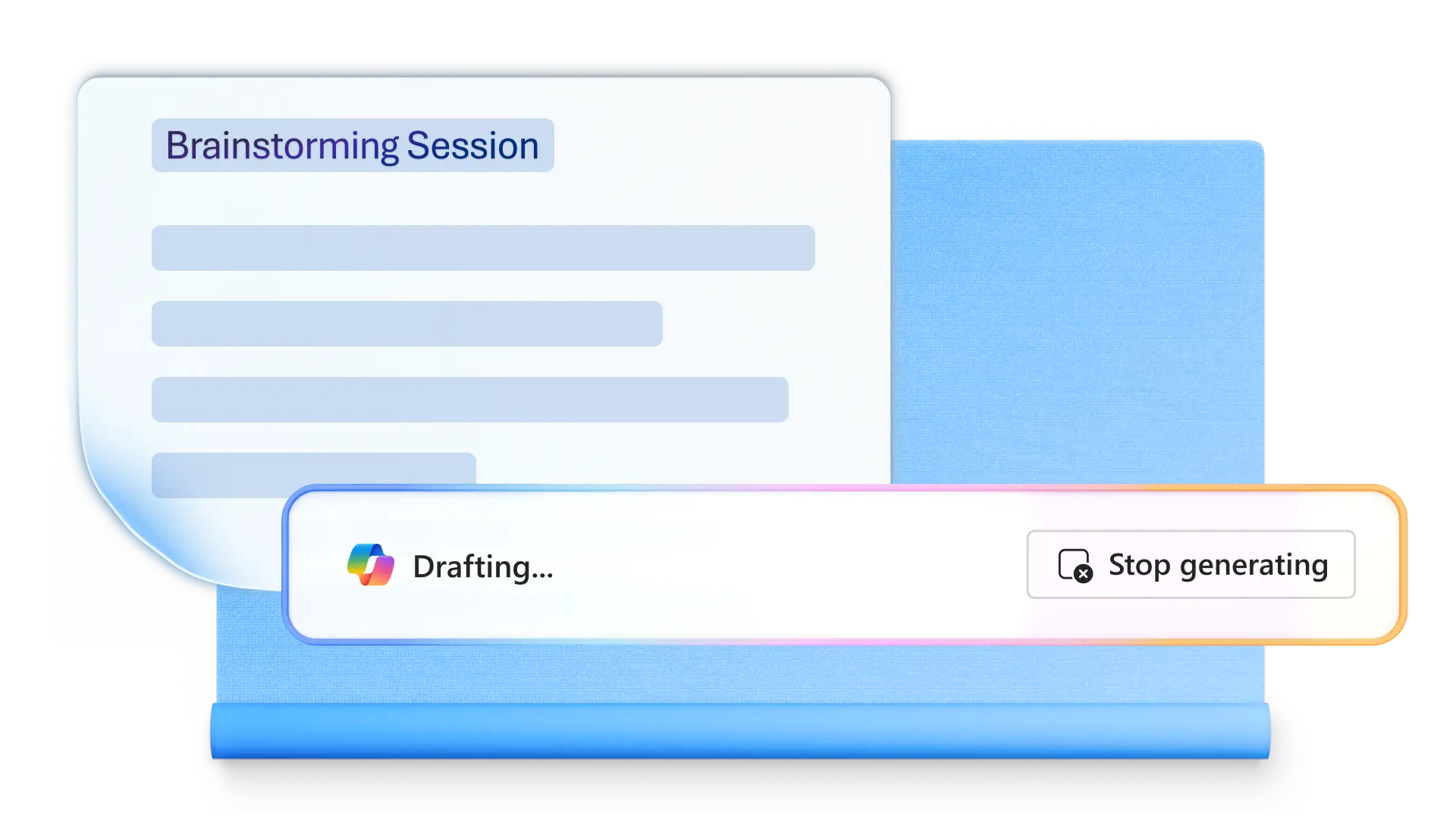
Create organized first drafts of complex specifications with Copilot in Word. Refresh existing documentation with the AI rewriter, or condense lengthy reports into concise SOPs ready to share and maintain.

Share and review technical files
Gather feedback using real-time co-authoring, track changes, and inline comments with online collaboration tools. Keep technical reviews moving by sharing documents online for easy access, clear feedback, and version control.

Consolidate company processes
Unify scattered company processes into one centralized file with Copilot in Word. Fragmented instructions become a cohesive draft with a single prompt, ready to review immediately. Save time by keeping all processes in a single, organized document instead of switching between multiple files.
Structure complex documents easily
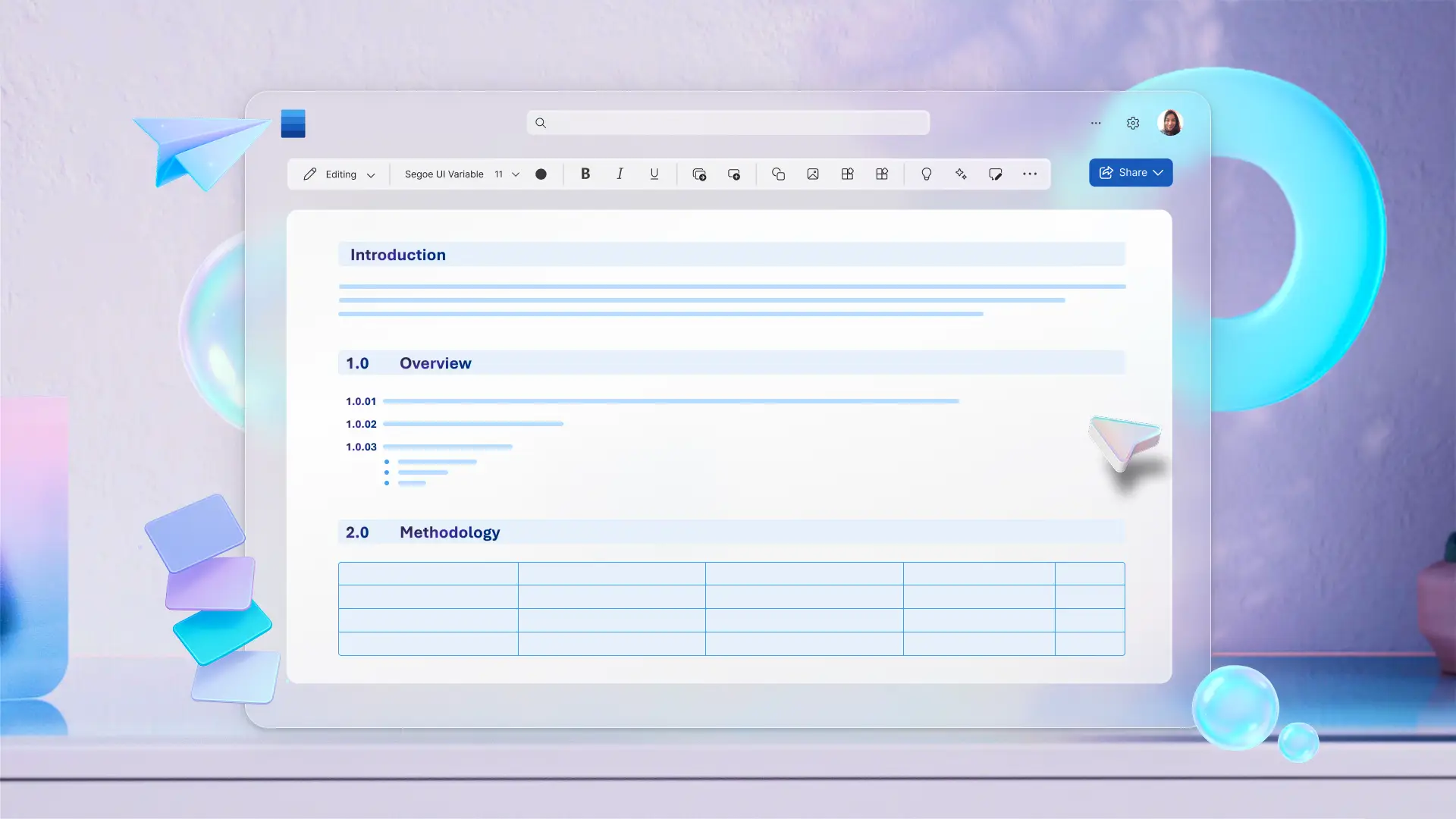
Organize lengthy technical files into clear, easy-to-read segments using headings, font sizes, and section breaks. A dynamic table of contents updates automatically as copy changes, so teams can quickly find designs, decisions, and procedures in one organized view.
Polish and refine technical drafts
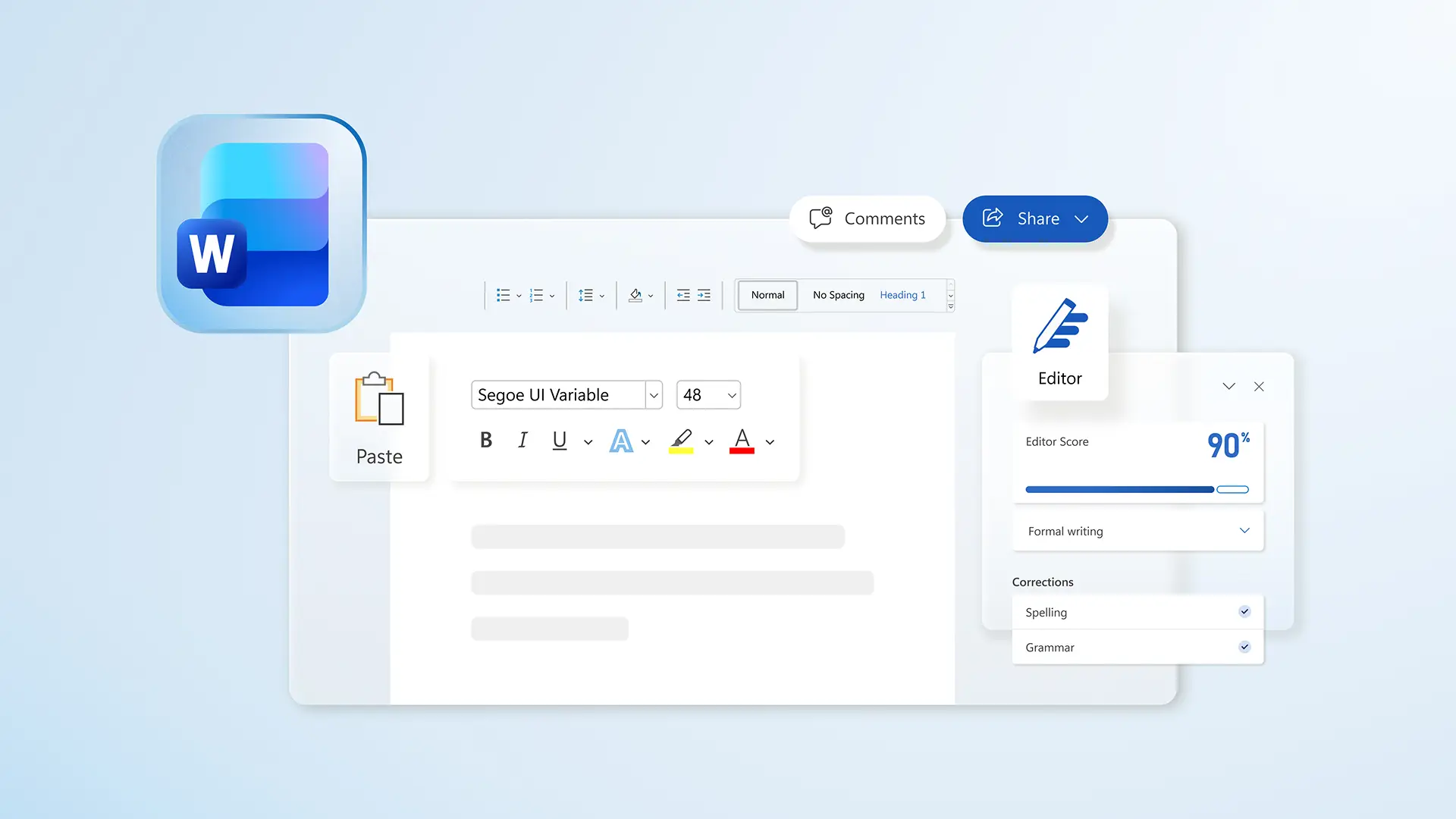
Keep technical documents precise, professional, and clear using helpful spell and grammar checks. Track word count in real-time, or explore tone and language suggestions to refine specifications and enhance readability. Easily review every draft from start to finish before sharing securely online.
Build credible, well-referenced documents
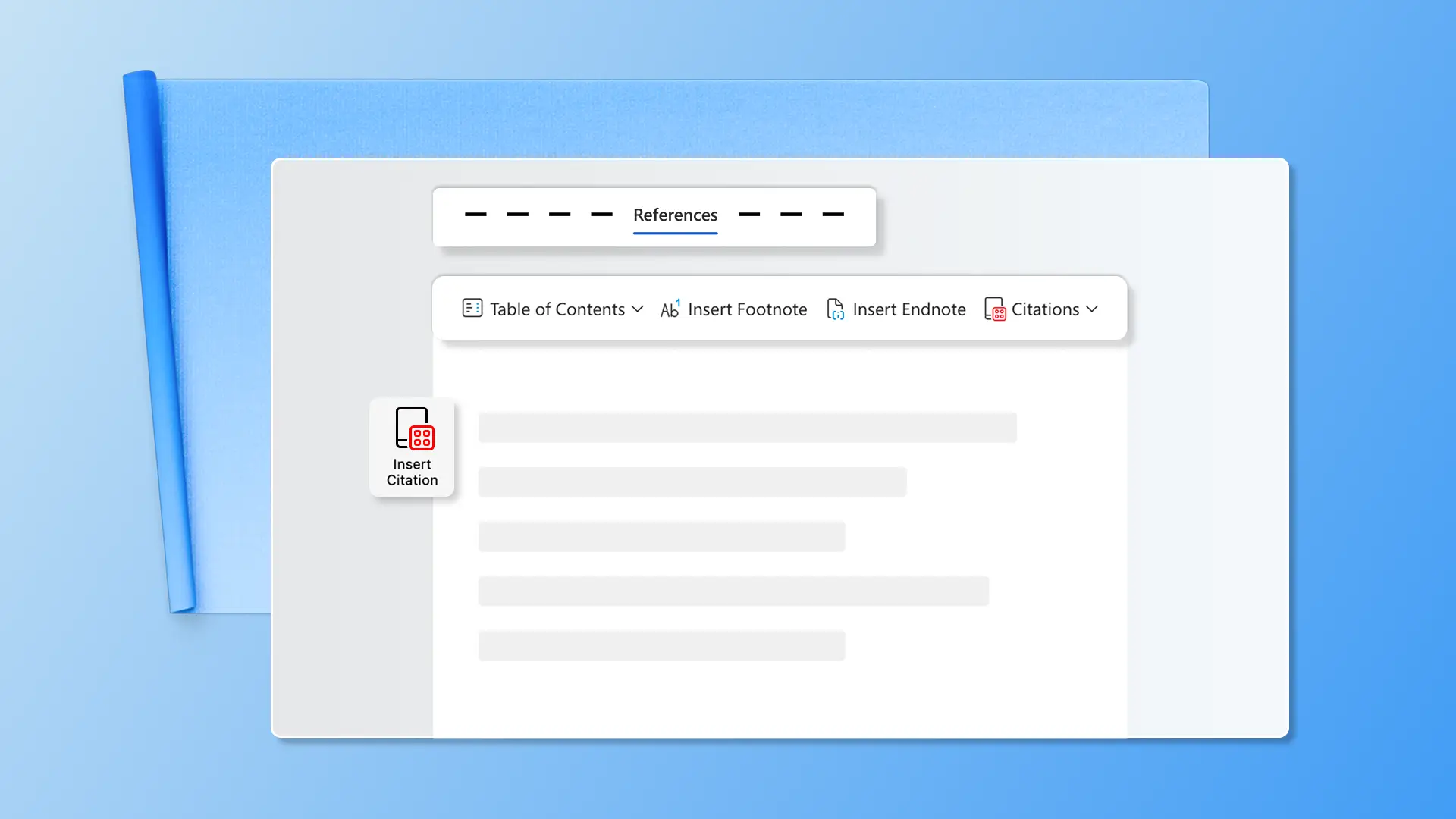
Maintain accurate, up‑to‑date references, citations, and formulas with full control as a document evolves. An auto-updating bibliography keeps research summaries, standards, and specifications aligned without any manual rework. Store all supporting materials in one centralized place to reduce duplication, improve consistency, and make documents easier to maintain.
Review, approve, and track changes
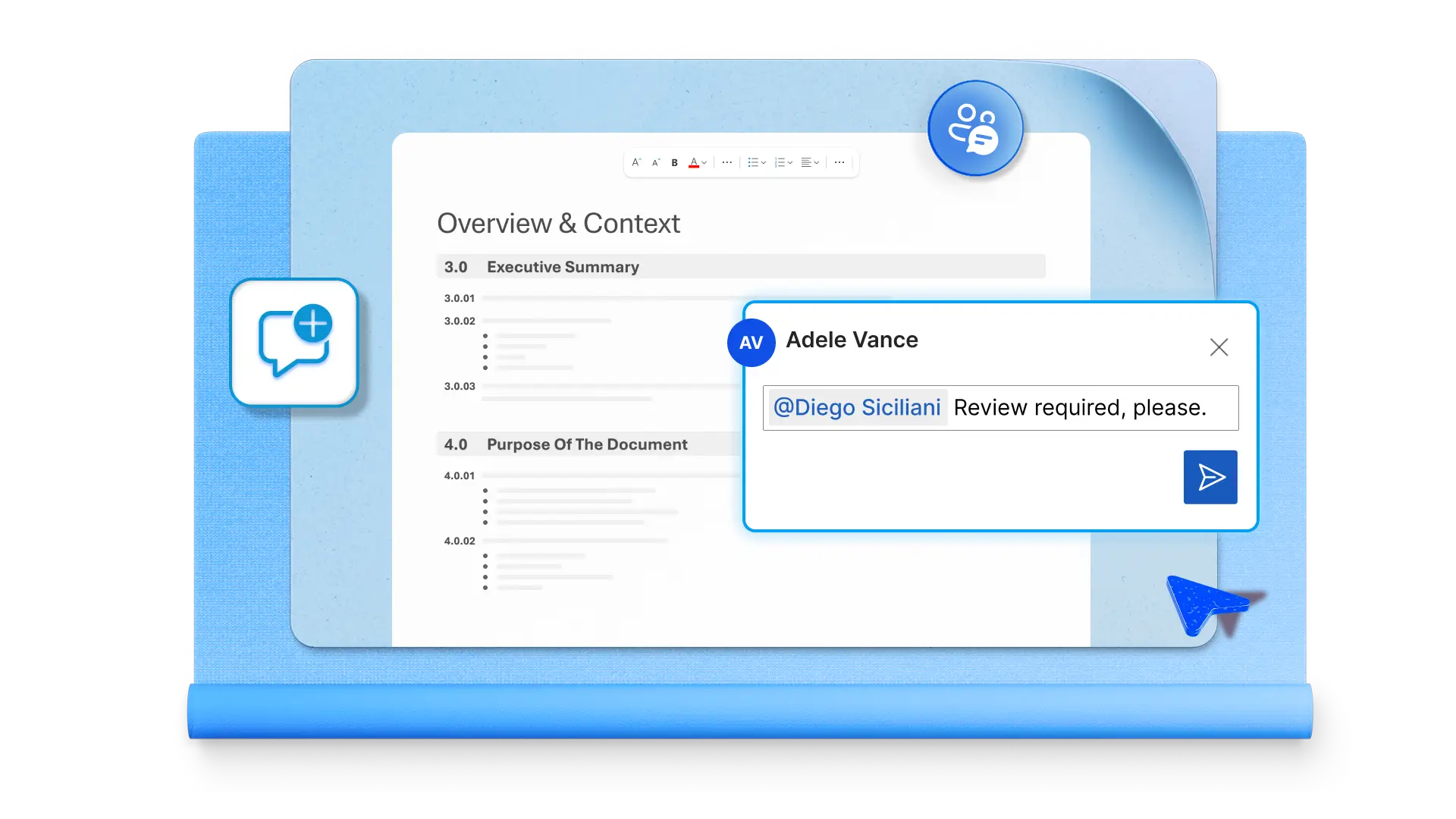
Co‑author technical work asynchronously while keeping feedback in context aligned through design reviews and compliance checks. Organize feedback using comments and track changes, then review and resolve edits efficiently to maintain a single, accurate version of every document.
Save documents as reusable templates
Save time and improve consistency by converting technical documents into reusable templates. Teams can standardize formats across spec sheets, test reports, and change logs, while built‑in accessibility checks help ensure documentation is usable for everyone, everywhere.

How to create technical documents in Microsoft Word
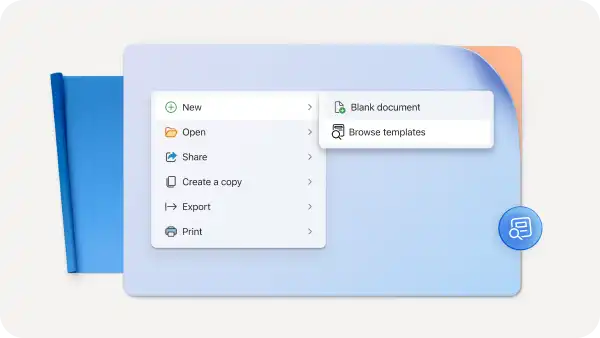
Open Word for the web, then create a new document.
Use Copilot in Word to draft an outline or write an initial draft.
Add headings, styles, and section breaks to pages.
Collaborate with others online using real-time edits and comments.
Run spelling, grammar, and clarity checks using the document editor.
Save documents securely to SharePoint with permissions and version control.
Read more


Frequently asked questions
What is technical documentation?
Technical documentation refers to structured documents created to explain, enable, or standardize the use of a product, system, or process. Common examples include specifications, standard operating procedures, compliance materials, and process guides. Microsoft Word provides the tools to create, structure, and collaborate on technical writing across teams.
How is technical reports created in Microsoft Word?
Start with a blank document or a pre-formatted template in Microsoft Word. Use headings, styles, and section breaks to organize content into logical sections, and add a table of contents for easy navigation. Copilot can assist with drafting, rewriting, and summarizing content throughout the process.
Can Copilot in Word help write technical documentation?
Copilot can generate structured first drafts from bullet points or notes, rewrite complex technical language for different audiences, and summarize lengthy documents into concise briefs or SOPs. A Microsoft 365 subscription with Copilot is required to access these features.
What types of technical specifications can be created in Word?
Microsoft Word supports a wide range of technical documentation, including product specifications, and standard operating procedures. Documents can be saved to standardize structure and formatting across document types. Word also supports related professional documents like reports and training materials.
How to complete an accessibility check in Word for the web?
Microsoft Word includes a built‑in accessibility checker that helps identify and fix common accessibility issues, like missing alt text, poor contrast, or heading structure problems before sharing a document. In Word for the web, click on the review tab in the ribbon, then select check accessibility. The web version highlights key issues and guidance, although desktop Word provides more detailed checks and fix options.
Does Word have templates for technical documents?
Microsoft Word allows teams to save any document as a reusable structure for spec formats, report layouts, and policy documents. Documents can be customized and saved for reuse, making it easy to maintain consistent structure across teams and projects.