On this page
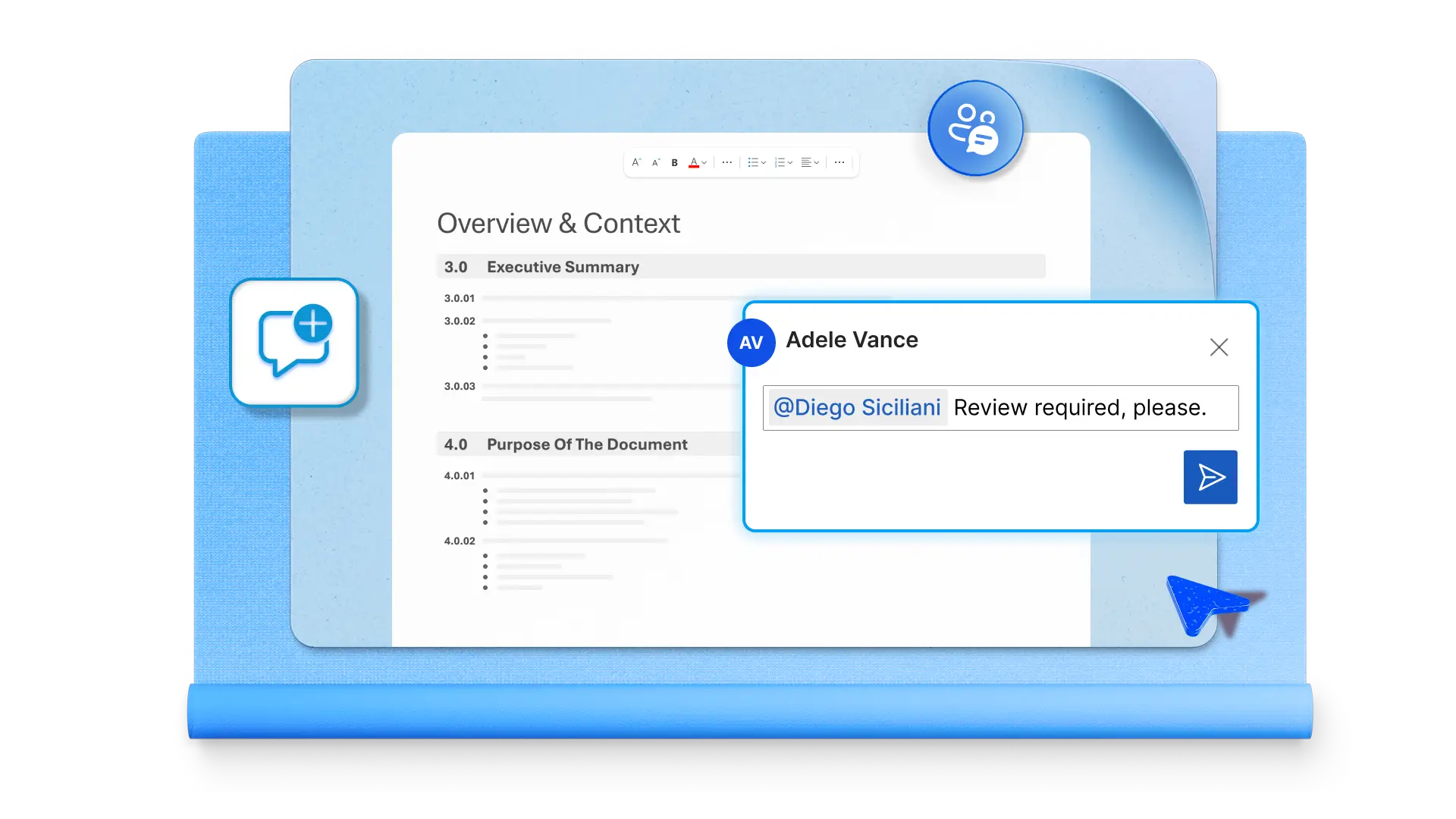
Technical documentation captures how systems operate, how processes run, and how decisions are made. Clear structure and consistent formatting turn documentation into a shared foundation teams can trust and reuse. With Copilot in Word, standardize foundations by generating well-written outlines and guided instructions. Save a master template that supports consistent documentation across projects and contributors using Microsoft Word.
Explore eight types of technical documentation with examples, followed by a step-by-step walkthrough for building a reusable template online. Find the key components and best practices that help teams create reliable, well-structured documentation at scale.
Eight types of technical documents to create
Technical documentation covers a wide range of document types, each serving a different audience and purpose. Structuring them into templates ensures every version is consistent, complete, and ready to use. Below are eight types of technical documents that benefit most from templating.
1. Specifications and requirement documents
Specifications and requirement documents define how a system, product, or feature should function before development begins. These documents align product, engineering, and stakeholder teams around a shared understanding of scope, constraints, and expected outcomes. A consistent template helps teams capture critical details, reduce ambiguity, and ensures alignment before work starts. Documents in this category include:
Product requirements document (PRD) for a new mobile feature
Technical specification for an API integration
Business requirements document (BRD) outlining the goals of a software migration
2. Process and operations documentation
Process and operations documentation captures how repeatable tasks get done, so teams follow the same steps every time. It covers the full range of operational workflows, from customer-facing procedures to internal approval chains and IT maintenance. Standardizing the format gives every procedure the same structure and depth, so the outcome does not vary by who wrote it or who is following it. This covers documents such as:
Customer onboarding standard operating procedure (SOP)
Server maintenance runbook
Process document for an invoice approval workflow
3. Policy and compliance documentation
Policy and compliance documentation sets out the rules, standards, and requirements a team or organization needs to follow. These documents support audit readiness, meet legal and regulatory obligations, and keep security and privacy practices consistent across the organization. Templating them makes it easier to update content when regulations change without rebuilding the structure from scratch. Policy and compliance documents can include:
General Data Protection Regulation (GDPR) data handling policy
Health Insurance Portability and Accountability Act (HIPAA) compliant privacy notice
International Organization for Standardization (ISO) 27001 information security standard
4. System and architecture documentation
System and architecture documentation explains how software systems and infrastructure are built, connected, and maintained. Engineering and IT teams rely on it when something breaks, when the system needs to scale, or when someone new needs to understand the environment quickly. Keeping that documentation in a consistent format ensures the right level of detail is always there when teams need it. Document types in this category range from:
Cloud infrastructure diagram for a multi-region deployment
Microservices dependency map showing how services interact
System overview for a newly integrated third-party platform
5. Developer documentation
Developer documentation helps internal and external developers work with the systems, interfaces, and platforms they build on. It covers everything from authentication and endpoints to onboarding guides and internal references, giving developers what they need to integrate and build without relying on direct support. Consistent structure across contributors and versions means the documentation stays reliable as the product evolves. Examples from this category include:
Representational State Transfer (REST) API reference with authentication details
Developer onboarding guide for a new SDK
Technical reference for an internal data platform
6. Knowledge base and support documentation
Knowledge base and support documentation gives users a place to find answers independently and captures institutional knowledge before it is lost. Each article addresses a specific question or problem, reducing reliance on direct support and keeping expertise accessible across the team. A consistent structure means writers always know what to include, and readers can find what they need without having to search twice. Examples in this area are:
Troubleshooting guide for a software as a service (SaaS) product
Frequently asked questions (FAQ) page covering common billing questions
Knowledge base article on how to reset user permissions
7. Training and enablement materials
Training and enablement documentation helps people learn how to use systems, follow processes, and do their jobs well. It covers everything from onboarding new hires to rolling out tools and launching product features, ensuring every team member starts from the same foundation regardless of when or where they join. That consistency means documentation quality does not depend on who created it. Training and enablement documents can take many forms:
New employee handbook
How-to guide for an internal customer relationship management (CRM) system
Tutorial script for a product feature launch
8. Change and release documentation
Change and release documentation keeps track of what changed, when, and why. It gives teams, auditors, and stakeholders a consistent record to reference, whether they need to communicate an update, understand the history of a system, or roll back safely if something goes wrong. Standardizing that record means everyone reads and interprets it the same way. Documents in this category include:
Release note covering new features and bug fixes in a software update
Change log tracking database schema updates across versions
Version history document for a compliance-reviewed policy
Key takeaway: structure varies significantly across technical document types. Templates tailored to each category, ensure the right sections are always included from the start.
How to create a technical document template with Copilot
The steps below walk through creating a reusable technical documentation template with Copilot in Word.
Open a new blank document in Word for the web.
Select Copilot from the ribbon to start a new chat.
Ask Copilot to generate a structured outline for a technical documentation template. Specify the document type and the sections it should include, such as overview, scope, requirements, technical details, or compliance.
Review the AI-generated outline, then prompt Copilot to adjust, expand, or simplify sections as needed.
Ask Copilot to add short instructional prompts or draft content under each section heading, so the outline functions as a reusable template.
Add final details, then save the document so it can be reused. To save as a reusable template online, save the Word Template (.dotx) to a dedicated folder in OneDrive or SharePoint and treat it as a master file. Set folder permissions to control access. Alternatively, in the Word desktop app, select File, then Save As, then Word Template (.dotx).
Key components of a technical documentation outline
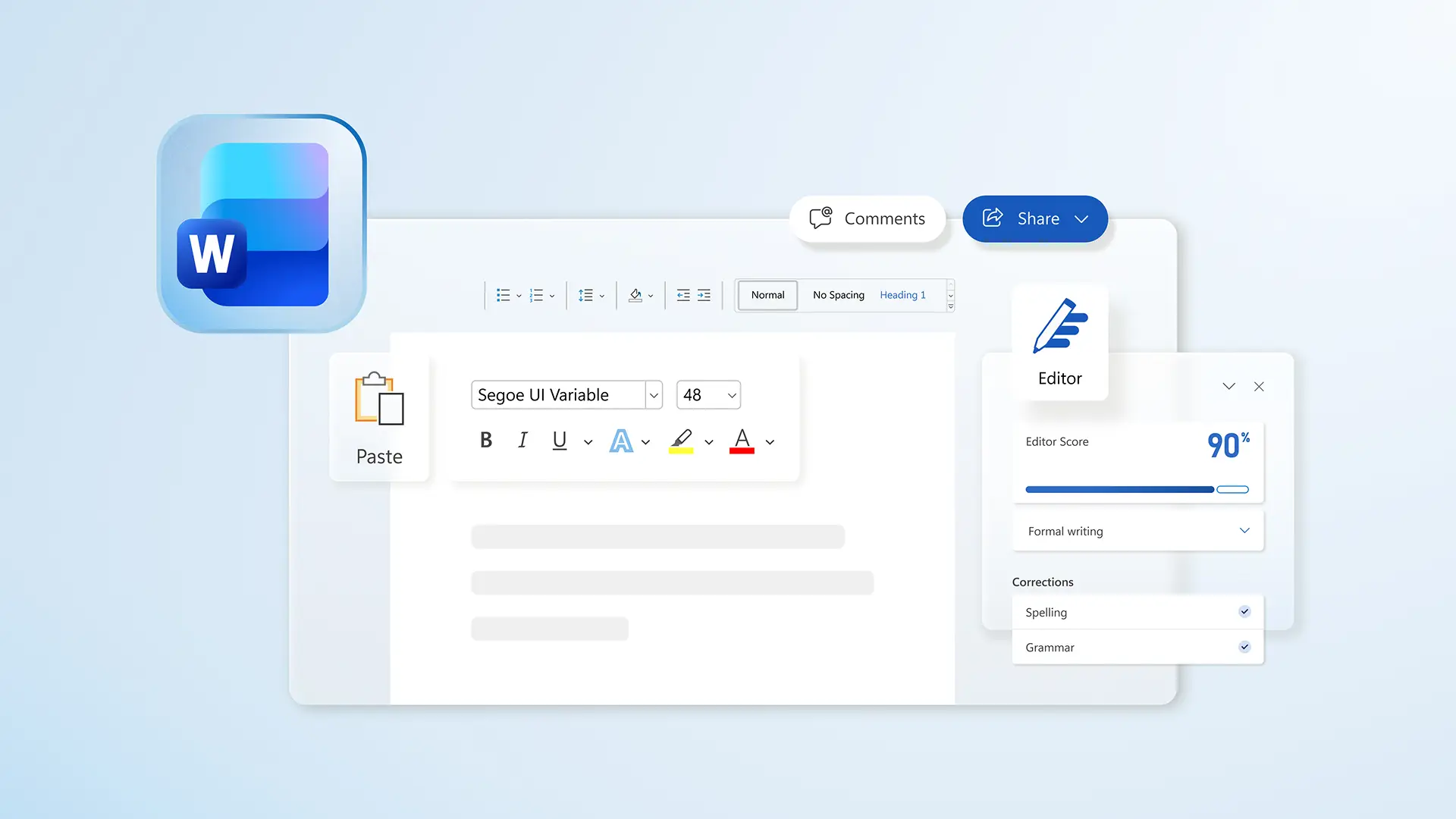
A strong technical documentation template includes consistent components across all document types. Each section below can be drafted and structured with Copilot in Word.
Document overview
The document overview anchors readers to the purpose and scope of the document before any technical content appears. It includes a high-level summary of what the document covers, who it is intended for, and the version control information needed for ongoing maintenance.
Try this Copilot prompt
Background and context
The background and context section explain the business problem or operational need the document addresses. It covers the current state, the objective, and any constraints or assumptions relevant to the scope of work. This section ensures all contributors and reviewers start from the same baseline understanding.
Try this Copilot prompt
Requirements and specifications
The requirements section is the core of most technical work. It separates functional requirements covering what the system or process must do from non-functional requirements covering performance, security, and compliance standards. and defines the acceptance criteria that confirm delivery. Structured templates ensure every critical requirement is captured and accounted for.
Try this Copilot prompt
Technical details
Technical details capture the architecture, data models, integration points, and dependencies that underpin the system or process. This section provides the reference material needed for implementation, troubleshooting, and future development. Structure varies by document type. For example, an API documentation template will focus on endpoints and authentication, while a system architecture document will include infrastructure diagrams and service dependencies.
Try this Copilot prompt
Compliance and standards
The compliance section documents the regulatory requirements, industry standards, and security considerations that apply to the document scope. For organizations operating under GDPR, HIPAA, ISO 27001, or the Sarbanes-Oxley Act (SOX), this section provides a structured reference for auditors and compliance reviewers. Copilot can help draft placeholders aligned to regulatory framework sections when prompted.
Try this Copilot prompt
Implementation guidance
Implementation guidance defines who does what and when. It includes roles and responsibilities, a timeline with milestones, and the success metrics used to evaluate completion. This section is particularly valuable for SOPs and project-based technical documents where multiple stakeholders share accountability.
Try this Copilot prompt
Appendices and references
Appendices and references support the main document without cluttering the body. A glossary of terms ensures consistent language across contributors. Related document links connect the reader to dependencies or complementary references. A change log records every revision with date, author, and a brief description of what changed.
Try this Copilot prompt
Main benefits of technical documentation templates
Once a template is in place, the benefits carry across every team, project, and document type that uses it.
Reuse across teams and projects: apply the same structure across teams, projects, or product lines and build on an established foundation each time. Consistent formatting, terminology, and section order make documents easier to review, approve, and hand off. When multiple contributors are involved, a shared structure keeps everyone focused on the content rather than the layout.
Generate new documents faster: duplicate an existing template and update the context, requirements, and scope for each new document. Contributors spend more time on accuracy and completeness, with structure already in place from the start.
Maintain consistency and version control: every document carries the same version number, owner, and review date fields because they are built into the template from the start. That consistency makes it easier to track changes, manage ownership, and maintain a reliable revision history over time.
Adapt templates for new purposes: rework an existing template for a new use case rather than starting over. Convert a technical specification into a requirements document, expand a template for an audit, or condense one for an executive summary. When prompted, Copilot can help adjust sections and headings to match the new purpose.
Scale documentation without losing quality: produce more documentation without sacrificing clarity or completeness. Templates ensure every critical section is included, give growing teams a consistent starting point, and make it easier to stay aligned with compliance and quality requirements.
Technical documentation best practices
Getting the most from AI-generated documentation templates requires a few deliberate habits alongside the automation.
Keep content clear and accessible: technical writing is only useful if the people reading it can understand it. Clear, plain-language descriptions in every section mean that compliance documents, specifications, and process guides are accessible to the full range of people who need them, from engineers to auditors to new team members. The AI summarizer can help condense lengthy sections for readability.
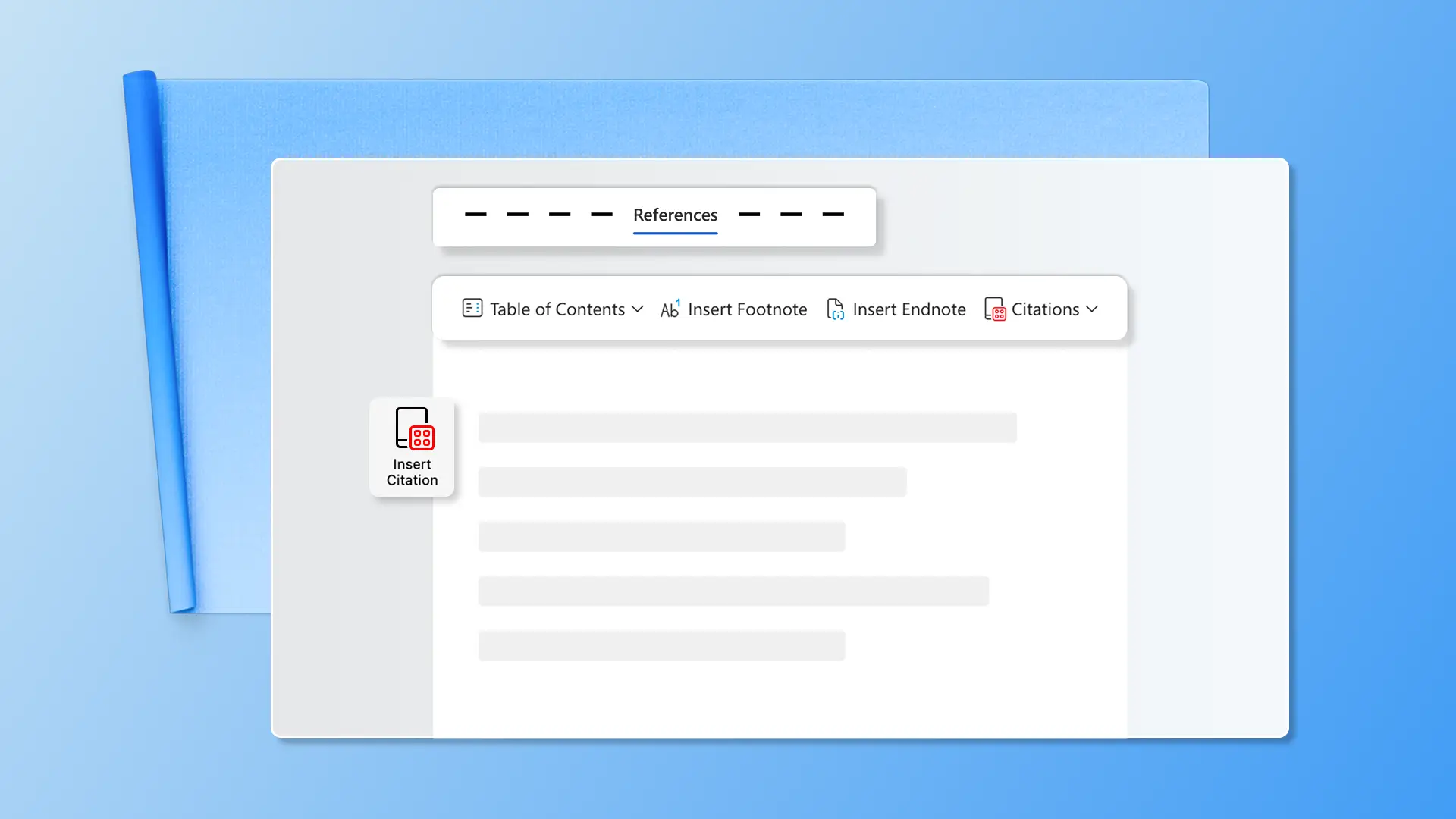
Review AI-generated content for accuracy: Copilot generates a strong structural starting point, but every draft should be reviewed for technical accuracy. Subject-matter experts should validate requirements, specifications, and compliance references before the document is shared or published. The built-in spell checker and grammar checker are useful starting points for surface-level errors before expert review begins.
Maintain version control and ownership: give every document a named owner and record version history consistently in the change log. Clear ownership and revision tracking keep documents reliable and audit-ready, especially in regulated environments. For teams collaborating in Word, clear ownership is even more important. It keeps everyone working from the right version.
Balance automation with expertise: Copilot is best used for structure, speed, and consistency. The technical knowledge that makes a document accurate and trustworthy still comes from the people closest to the work. Lean on the AI writer for the framework, and subject-matter expertise for everything that requires real-world accuracy and context.
Use Copilot in Word to create a reusable technical documentation template with a consistent structure for specifications, SOPs, and compliance documents. Explore related documentation resources in Word, including the SOP template guide and the training manual template guide.
Frequently asked questions
What is a technical documentation template?
A technical documentation template is a structured Word document built with standardized headings, sections, and placeholder text for a specific type of technical document. It is created once using Copilot in Word to generate the outline and structure, then saved and reused, so every new document starts from the same consistent foundation.
What is the difference between a technical documentation template and a standard operating procedure?
A standard operating procedure (SOP) is a specific type of technical document that outlines step-by-step instructions for a repeatable process. A technical documentation template is a broader term that covers any pre-built structure used for technical writing, including SOPs, specifications, compliance documents, and more.
Can Copilot help build a technical documentation template?
Copilot in Word is available with a Microsoft 365 Copilot (work) or Copilot Pro (home) license. For users who want a more enhanced version of Copilot, sign up for Copilot Pro. Learn more about Microsoft 365 Copilot licensing, Microsoft Security Copilot licensing, and GitHub Copilot licensing.
What should a technical documentation template include?
Most technical documentation templates include a document overview, background and context, requirements or specifications, technical details, and compliance and standard references. Implementation guidance and an appendix with a glossary and change log are also standard. The exact sections vary by document type.
Can one template be adapted for different document types?
A base technical documentation template can be adapted for multiple document types. Use Copilot to adjust the section structure, add or remove compliance fields, and update placeholder text to match the specific requirements of a new document type without rebuilding the template from scratch.